58 GPSMAP 76CSx Owner’s Manual
MAIN PAGES > ALTIMETER PAGE
View Points
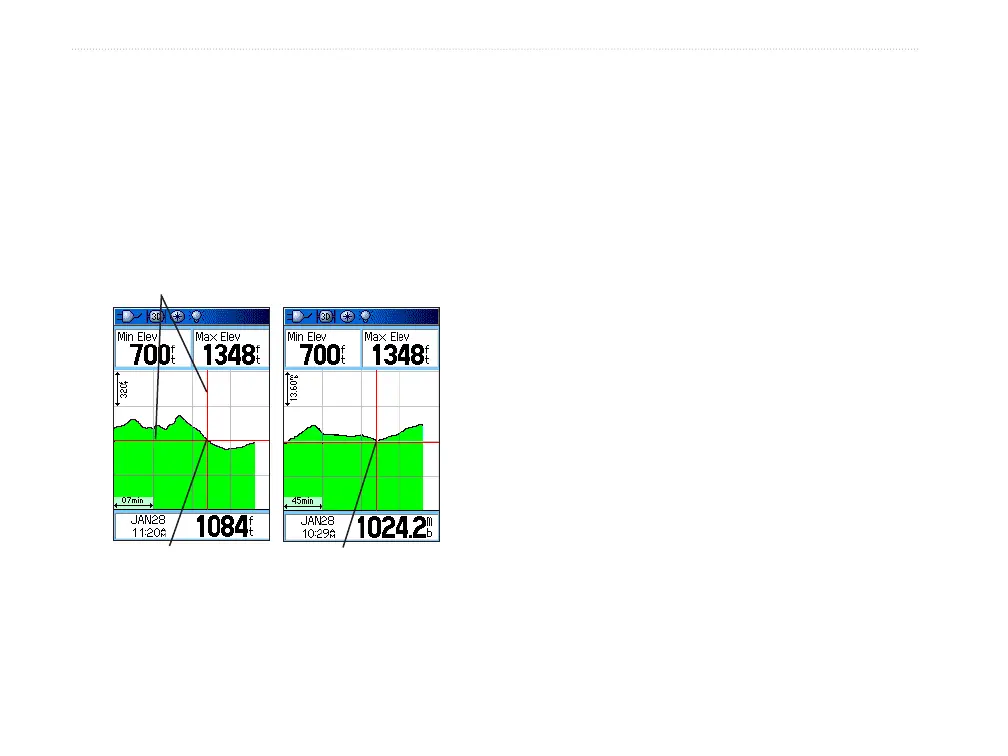
You can scroll through a recorded elevation or
pressure profile to view data for any point along the
profile. When the red vertical and horizontal cross
hairs are stopped at a location along the profile, the
screen shows the elevation or pressure, time of day,
and date the point was created.
View point for an
altitude plot
Red crosshairs
View point for a
pressure plot
To use the View Points option:
1. Press MENU to open the Altimeter Page
Options Menu.
2. Select View Pressure Plot or View Elevation
Plot, and press ENTER to open the Plot Page.
3. Press left or right on the ROCKER to scroll the
cross hairs across the profile.
As the cross hairs move across the profile, the
status window at the bottom of page changes
to show the date, time, and altitude or pressure
for the point at the intersection.
View Points on Map
You can view the location of points on the Map Page.
To view altitude points on the Map Page:
1. With the Altimeter Page open, use the
ROCKER to move the red crosshairs to the
point you want to view.









 To Next Page