The available IP camera will be displayed in a list together with the default settings for IP
address, port and protocol type which have been automatically configured by the Y58.
Step 1: Click on the checkbox to select the associated camera.
Step 2: Click on the (OK) button to bind the camera to the selected channel.
At any time, you may click the (Refresh) button to re-scan and update the list. You may also
click on (Cancel) to return to the previous screen.
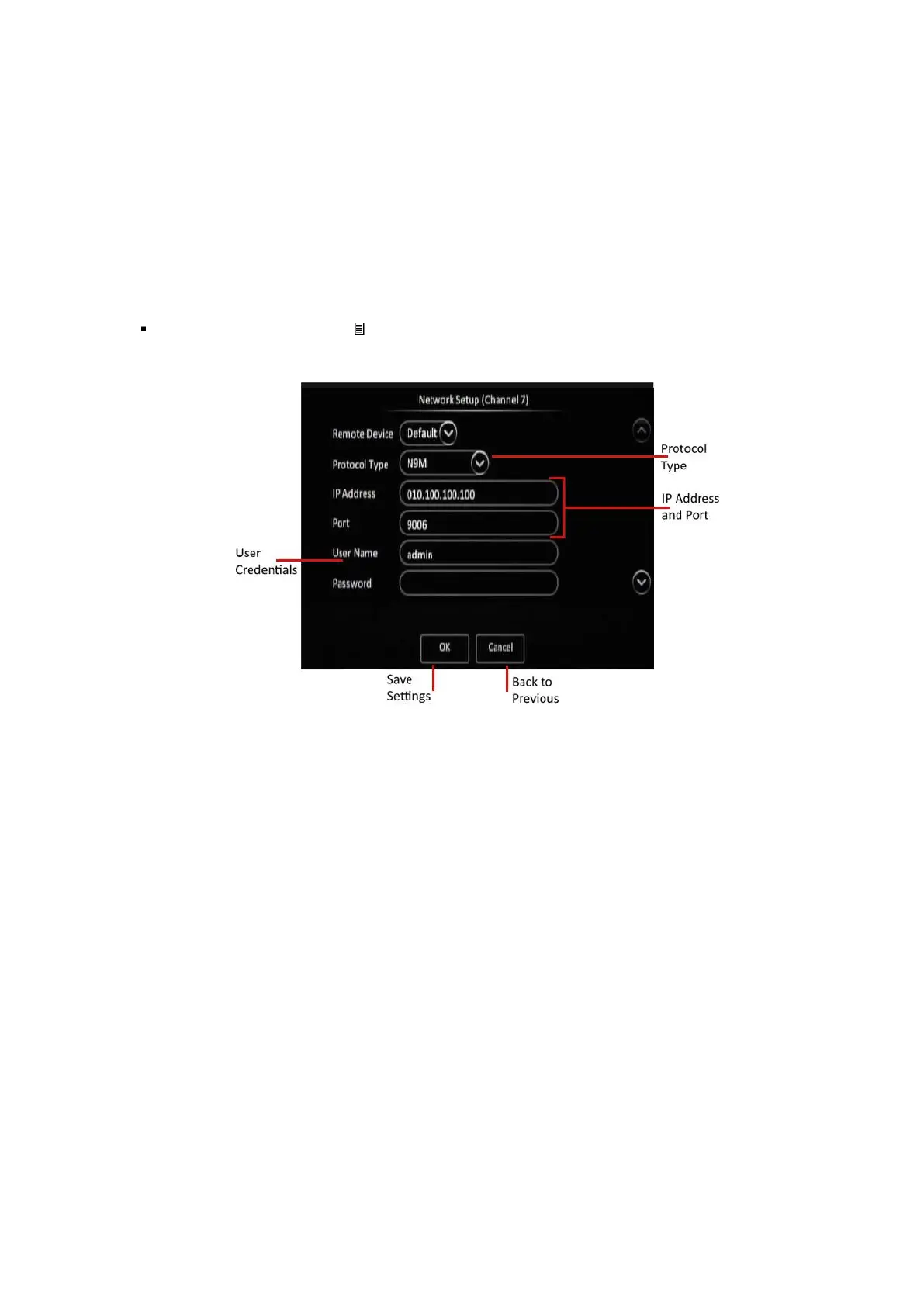
Edit Channel: Click on the ( ) button to edit the settings for the IP camera which is bound to
that associated channel. This displays a pop-up screen with the settings that you can configure.
Figure 6-5 4 IP Camera Settings Configuration Screen
The settings for the IP Camera will be displayed and can be edited:
Click the (OK) button to save the settings for this camera. At any time, you may also click the
(Cancel) button to return to the previous screen.
Revert to Defaults: Clicking the (Default) button will revert all the settings to their defaults.
Save Settings: The (Save) button allows you to save the IP camera configuration settings.


 To Next Page