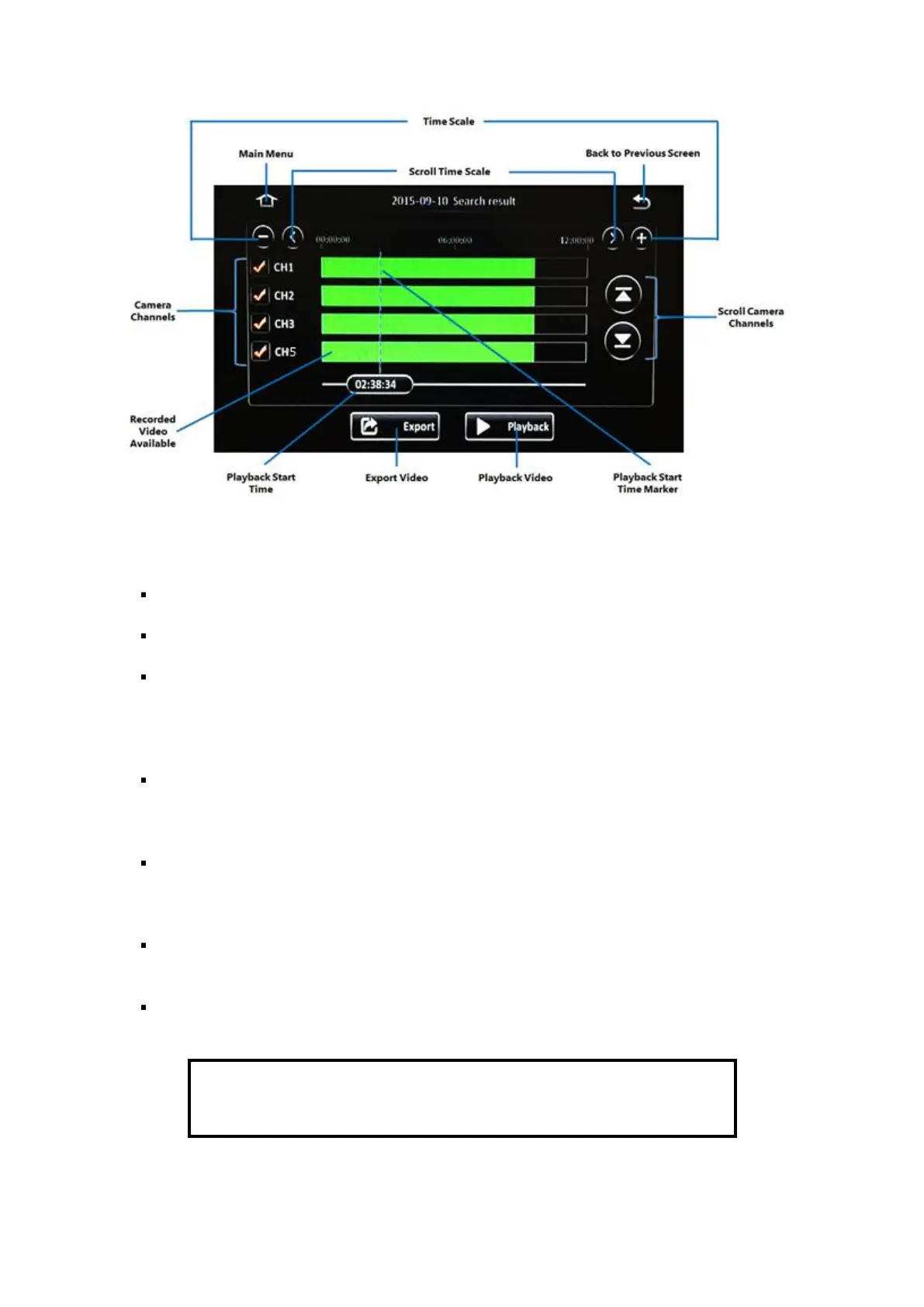
Figure 5-5 REC Search Time Controls
Main Menu: Click this icon to return to the Main Menu.
Back to the Previous Screen: Click this icon to return to the Previous Screen that you were at.
Time Scale: This is the time bar that shows recorded video availability for the day (from
00:00:00H to 23:59:59H). Click the (+) and (-) buttons to zoom in and zoom out respectively.
Zooming in decreases the time scale, and zooming out increases the time scale – to allow for
easier visualization and selection of time periods.
Scroll Time Scale: After zooming in, the entire days’ time scale will not be able to fit on the
screen display. Click the (<) and (>) buttons to scroll the time scale to the left and right
respectively.
Camera Channels: This shows the camera channels for which the recorded video is available.
Use the checkboxes to select/deselect the camera channels which are to be included in the
playback.
Scroll Camera Channels: When more than four camera channels have recorded video available,
click the (˄) and (˅) buttons to scroll up and down in the list of available channels.
Recorded Video Available: The coloured bar shows the times for which recorded video is
available. The bar is coloured coded to indicate the type of video available.


 To Next Page