The Video Playback On-Screen Controls
If you are using a Finger Mouse, you can toggle the on-screen controls by pressing the Right Button,
whereas with the ICD2, you would just tap anywhere on the video. If there is no user input, then the on-
screen playback controls will auto-hide after 15 seconds of inactivity.
You can easily determine whether you are in live camera view mode, or in playback mode, by
attempting to toggle the on-screen controls – if you are in live camera view mode, the on-
screen quick menu will be displayed, whereas if you are in video playback mode, then the
playback on-screen controls would be displayed instead.
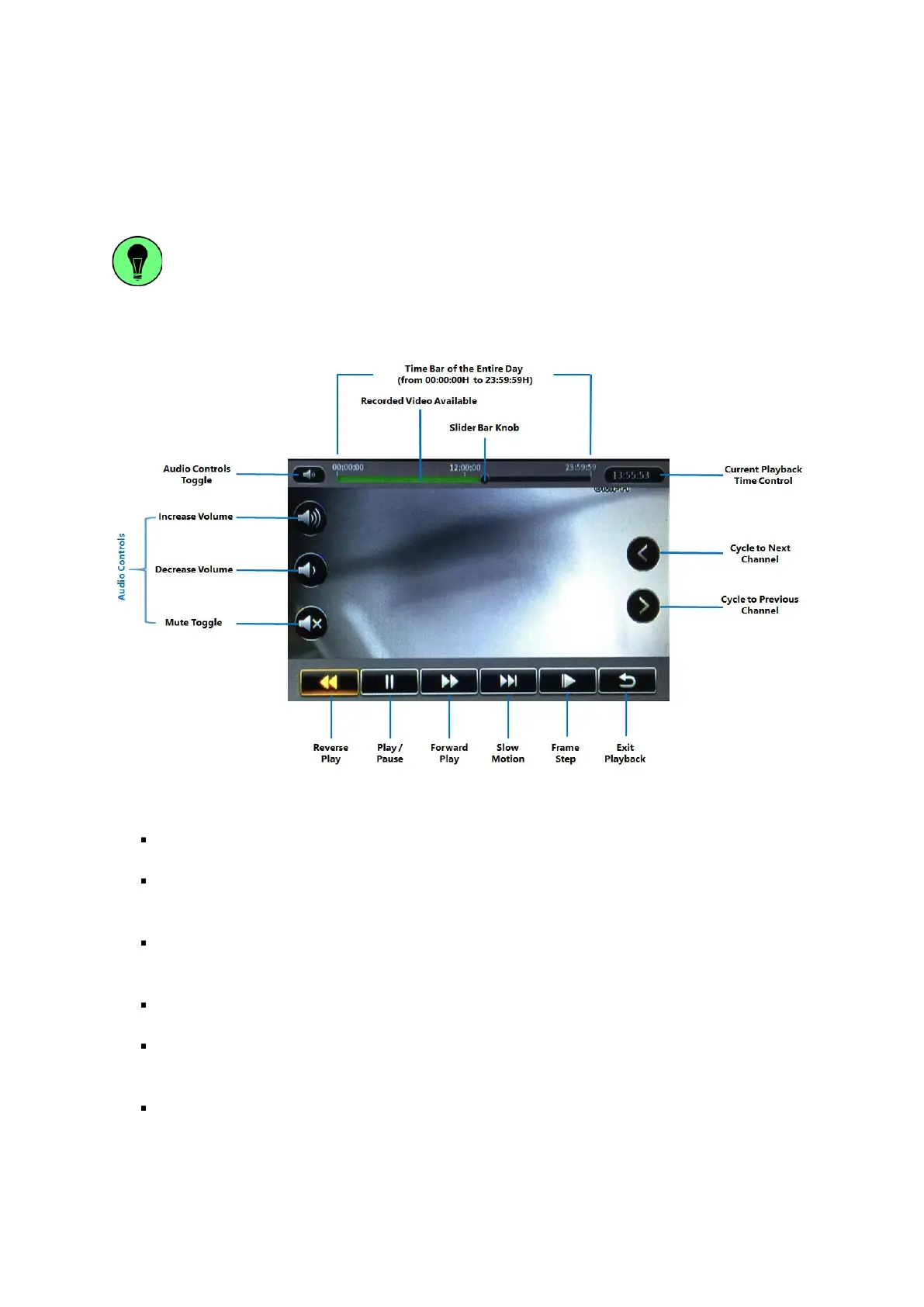
Figure 5-2 Playback On-Screen Controls
Time Bar: This time bar represents the entire day from 00:00:00H to 23:59:59H.
Recorded Video Available: The green shaded areas in the time bar lets you easily identify time
periods during the day where recorded video is available.
Slider Bar Knob: If you are using a Finger Mouse or an ICD2, you can click-and-drag this
moveable knob to the time of day where you wish to begin viewing the recorded video.
Audio Controls Toggle: This toggle button lets you show or hide the audio controls.
Increase Volume: Increase the volume of the audio in the video recording currently being played
back.
Decrease Volume: Decrease the volume of the audio in the video recording currently being
played back.


 To Next Page