!
Remote VCR1/VCR2 Option
If you own a compatible GE, RCA, or ProScan remote that
has a VCR2, VCR2.LD, or DVD°VCR2 button, this feature
allows you to set this VCR to respond to that button.
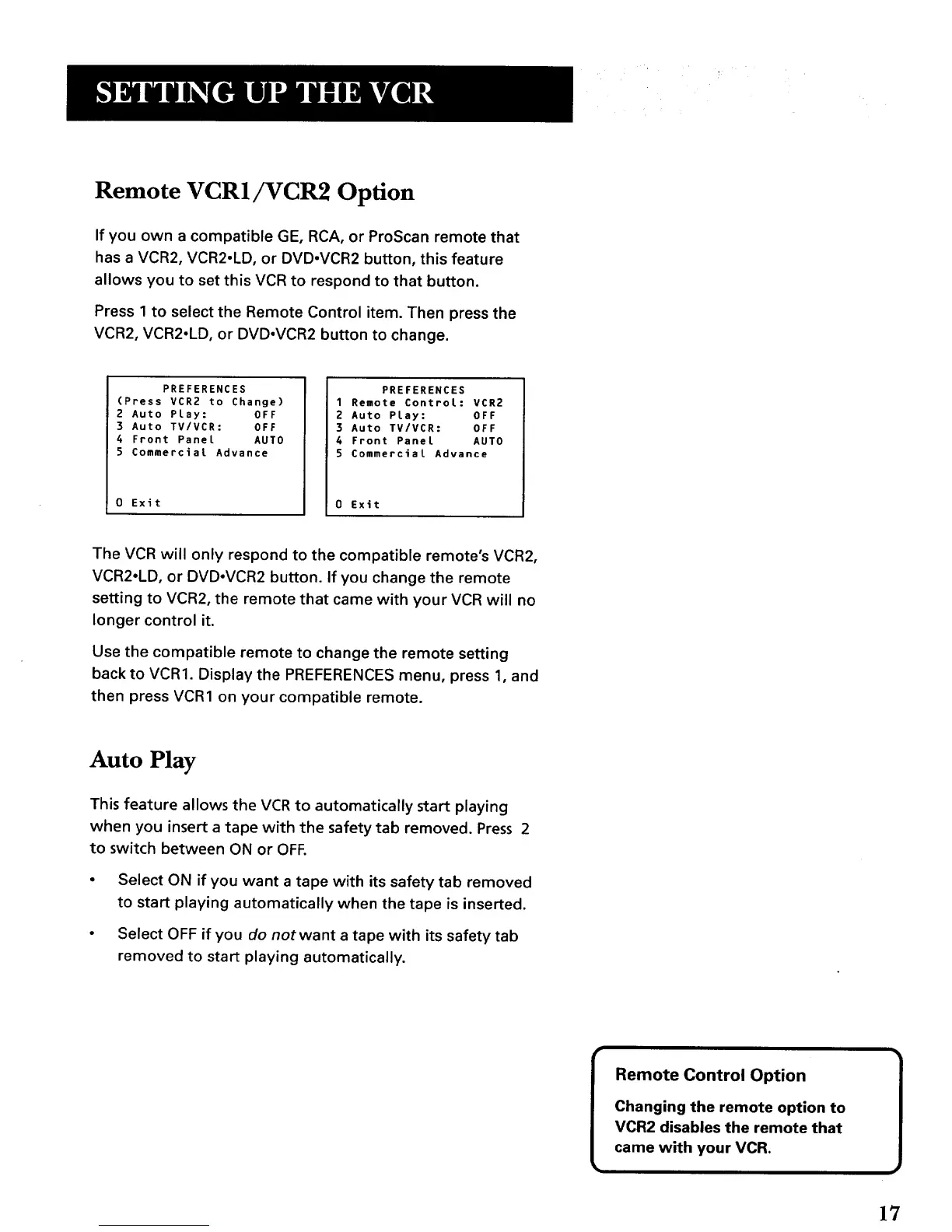
Press 1 to select the Remote Control item. Then press the
VCR2, VCR2°LD, or DVDoVCR2 button to change.
PREFERENCES
(Press VCR2 to Change)
2 Auto PLay: OFF
3 Auto TV/VCR: OFF
4 Front Panel AUTO
5 Commercial Advance
0 Exit
PREFERENCES
1 Remote Control: VCR2
2 Auto Play: OFF
3 Auto TV/VCR: OFF
4 Front Pane[ AUTO
5 Commercial Advance
Exit
The VCR will only respond to the compatible remote's VCR2,
VCR2°LD, or DVD-VCR2 button. If you change the remote
setting to VCR2, the remote that came with your VCR will no
longer control it.
Use the compatible remote to change the remote setting
back to VCR1. Display the PREFERENCES menu, press 1, and
then press VCR1 on your compatible remote.
Auto Play
This feature allows the VCR to automatically start playing
when you insert a tape with the safety tab removed. Press 2
to switch between ON or OFF.
Select ON if you want a tape with its safety tab removed
to start playing automatically when the tape is inserted.
Select OFF if you do notwant a tape with its safety tab
removed to start playing automatically.
Remote Control Option
Changing the remote option to
VCR2 disables the remote that
came with your VCRo
17


 To Next Page