English
-37-
Inst
rive.
2. e Auto-run program will be executed and the welcome screen appears. If your
CD-ROM drive doesn't support the auto-run function, double click on the "My
Computer" icon on the pc. Then double click on the CD-ROM drive icon and click the
Setup.exe file in the root directory.
3. Click on Arcsoft PhotoImpression to install, and this screen will appear:
6-2 Installing the Software Applications to the PC
all Arcsoft Software (take PhotoImpression Installation for example)
1. Insert the software CD-ROM supplied with the package into the CD-ROM d
Th
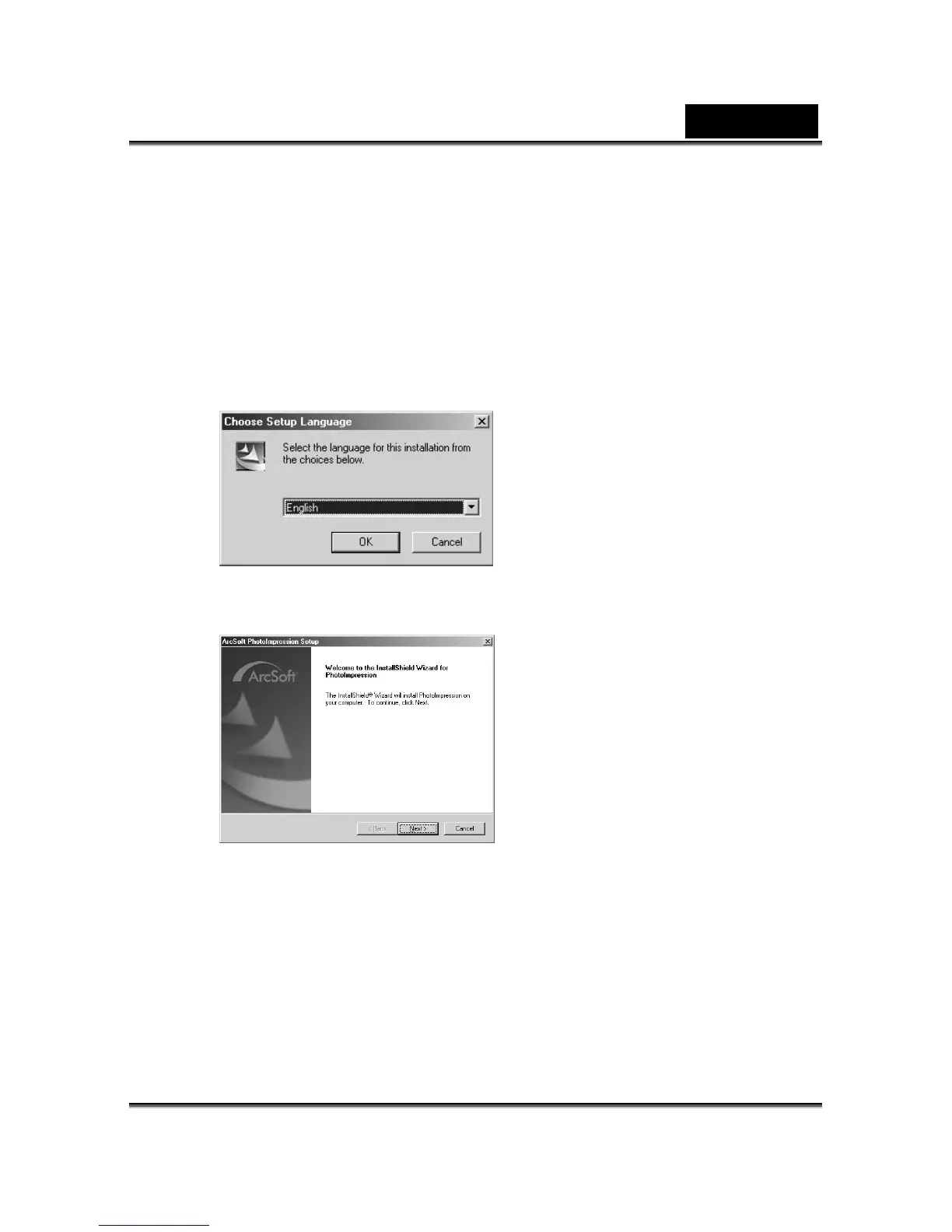
4. Select the language for installation. Click OK to confirm your selection.
5. You w to continue. ill see the Welcome screen. Click Next
6. Enter Software License Agreement window.
Please click Yes to continue the installation.


 To Next Page