English
-31-
the PC Connection menu, perform
z To select the PC Camera or Mass Storage items in
the following:
Using This Camera as a PC Camera
This camera can act as a PC camera, allowing you to hold a v
corporate Intranet, or
ideoconference and talk to
conduct real-time
ssion)
ents for Videoconferencing
To use this ferencing, your computer must contain the following
component
for Windows. The PC
provided on this camera is not supported by the Macintosh platform.
Your
business associates over the Internet or
conversation with friends or family.
To use this camera as a PC camera, follow the steps below:
tep 1: Installing the PC camera driver S
Step 2: Connecting the camera to your computer
Step 3: Running software application (for example: ArcSoft VideoImpre
System Requirem
camera for videocon
s:
Microphone
Sound card
Speakers or headphones
Network connection
Step 1: Installing the PC Camera Driver
The PC camera driver on the supplied CD-ROM is exclusively
camera function
Step 2: Connecting the Camera to
Computer
1. Click the Power button to turn on the camera.
2. Using the mode dial select the PC mode, then select “PC
or button.
Camera” by using the
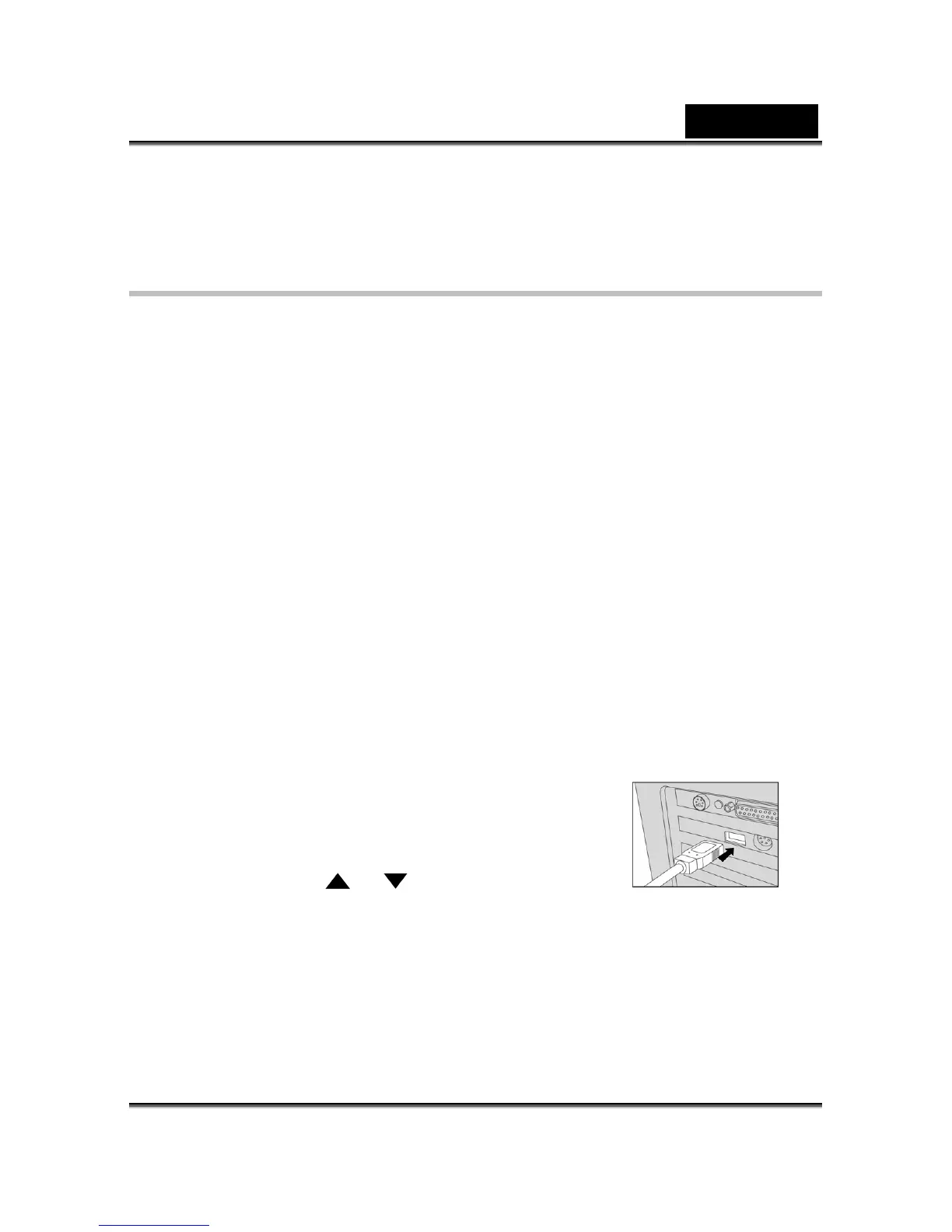
3. Connect one end of the USB cable to an available USB
port on your computer.
ily on top of your computer monitor
.
4. Connect the other end of the USB cable to the USB connector on the camera.
5. Position the camera stead


 To Next Page