2.5.5
TRACKER CHAPTER 5
GEODIMETER SYSTEM 600
Window control
You can change the search window by choosing the RPU
menu, 1 Autolock and 2 Window control.
There are 8 different options on this menu:
1. Auto center – to enable/disable the automatic centering
function when the instrument looses contact with the RMT.
2. Center – to manually change the center of the current
search window to the position where the instrument is
pointing (also in height).
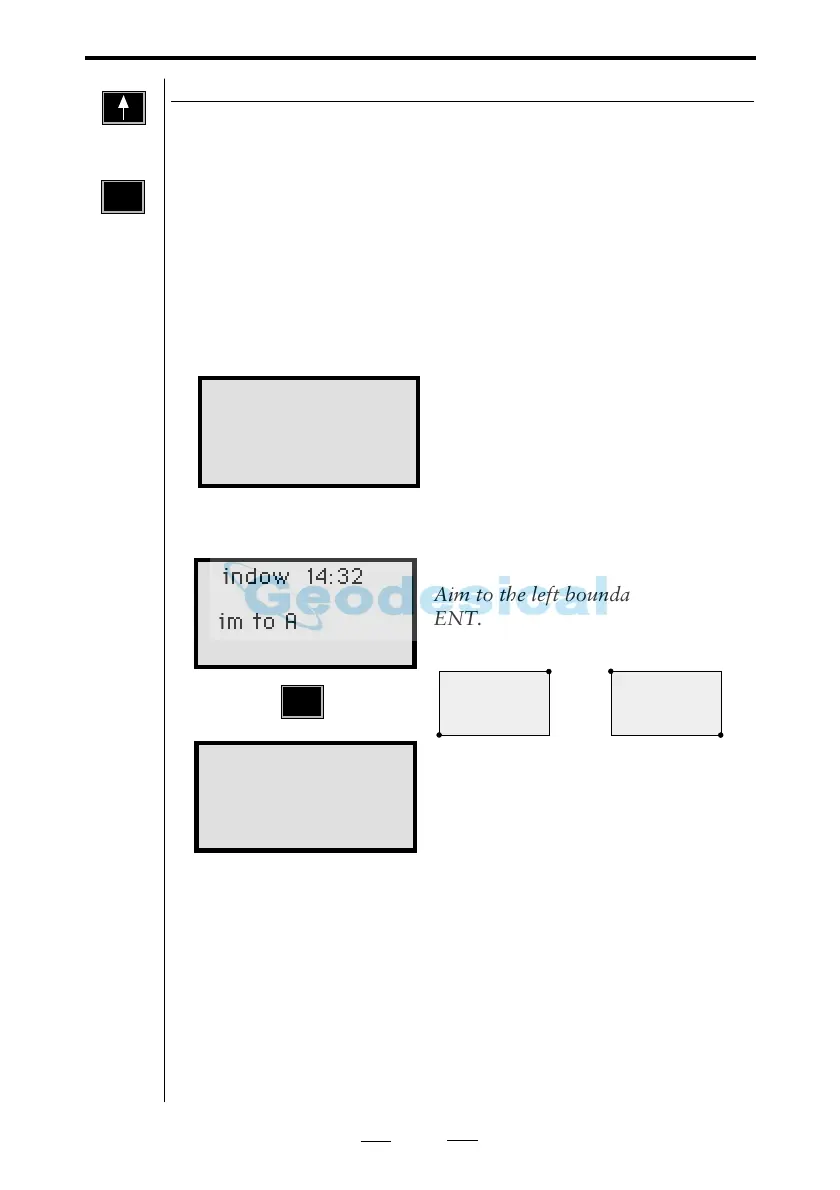
3. Editor – to manually key in the window boundaries:
4. Set – to set a new search window:
5. Reset – to reactivate the last entered window (if you
have used option 6.Remove.
6. Remove – to disable current search window.
7. Left – to change the left boundary of the current
search window to the position at which the instrument is
pointing.
8. Right – to change the right boundary of the current
search window to the position at which the instrument is
pointing.
RPU
4
RPU
or
Aim to the left boundary and press
ENT.
Aim to the right boundary and press
ENT.
Window 14:32
Aim to A
Press ENT
ENT
RPU
menu
or
A
A
B
B
Window Window
Window 14:32
Hor: L=308 R=27
Vert:U=89 D=99
Sel Exit
The first line shows the horizontal
angle of the left and the right
boundary of the window.
The second line shows the vertical
angle of the upper and the lower
boundary of the window.
Window 14:32
Aim to B
Press ENT



 To Next Page