18
Quick QR Code Scanning (Select
Models Only)
If your model has the barcode scanner lens, you can quickly scan an QR code
to access a website.
Note that you have to define a hardware button as “Trigger” via the Getac
Settings app first. (See “Getac Settings” in Chapter 5 for setup information.)
1. Go to the Home screen.
2. Press the Trigger button (i.e., the hardware button that has been defined
as such).
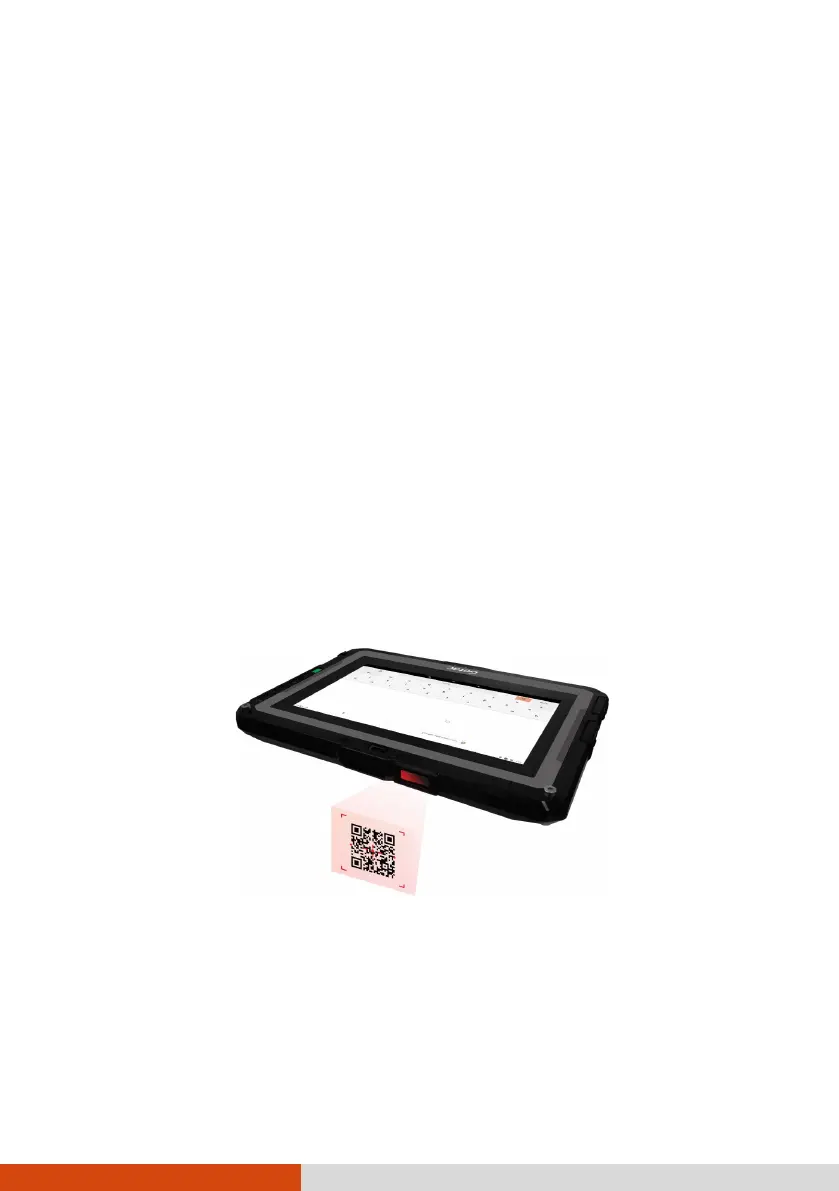
3. Aim the scan beam at the barcode. Adjust the lens’ distance from the
barcode, shorter for a smaller barcode and farther for a larger one.
NOTE:
The scan beam will light up with a slight delay because it is initiated from
the power off state each time.
The scan beam projected from the lens varies with models. The below
illustration serves as an example only.
4. Upon a successful scan, the scan beam turns off and the decoded
barcode data is entered in the Google Search bar.
The scan beam also turns off after timeout.
5. By default settings, the scan beam will turn on again shortly afterwards,
ready for the next barcode. To end the scanning session, press the Trigger
button.


 To Next Page