28
Taking Photos
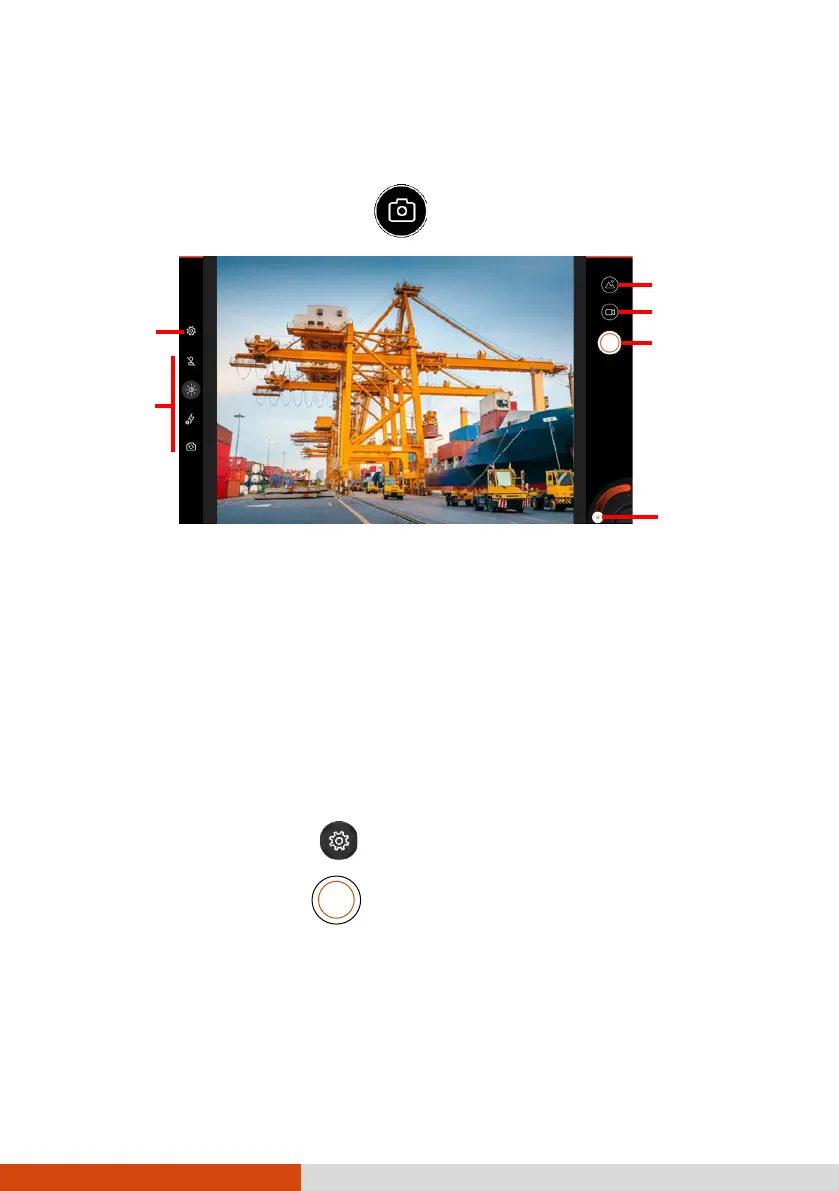
1. Open the Getac Camera app.
If you are in Video mode, tap to switch to Camera mode.
A white circle will appear briefly in the center, indicating the focus area.
2. To focus on a specific area: Tap the area in the preview window. A white
focus frame appears. When the color of the frame changes to green, it
means focus is completed. If the color changes to red, it means a failed
focus.
To zoom in or out: Use the pinch gesture on the preview window or
move the knob along the slider at the bottom corner of the screen.
For other immediate controls, use the control buttons. (See “Control
Buttons” for detailed information.)
For overall settings, tap . (See “Camera Settings”.)
3. To take the photo, tap .
4. The photo you just took is displayed as a thumbnail at the corner. You
can tap the thumbnail to view the photo.
The photo will be saved as a JPG file in the predefined folder.


 To Next Page