32
5.6.2 Set Cut Data
With the slitters in the correct position for the trim job and the register mark function set to off, use the PT 331SCC
programming to set the cut positions.
• Press the M button until Set Cut Data is displayed on the screen. A total of 32 cuts can be programmed for
a single job.
• Set the cut positions according to the job parameters, pressing enter between each value.
• Press Enter twice when all cuts are programmed to return to the Ready screen.
• Place the exit tray and paper guides in place to catch the finished job as it exits the PT 331SCC.
5.7 Slide-in Tools
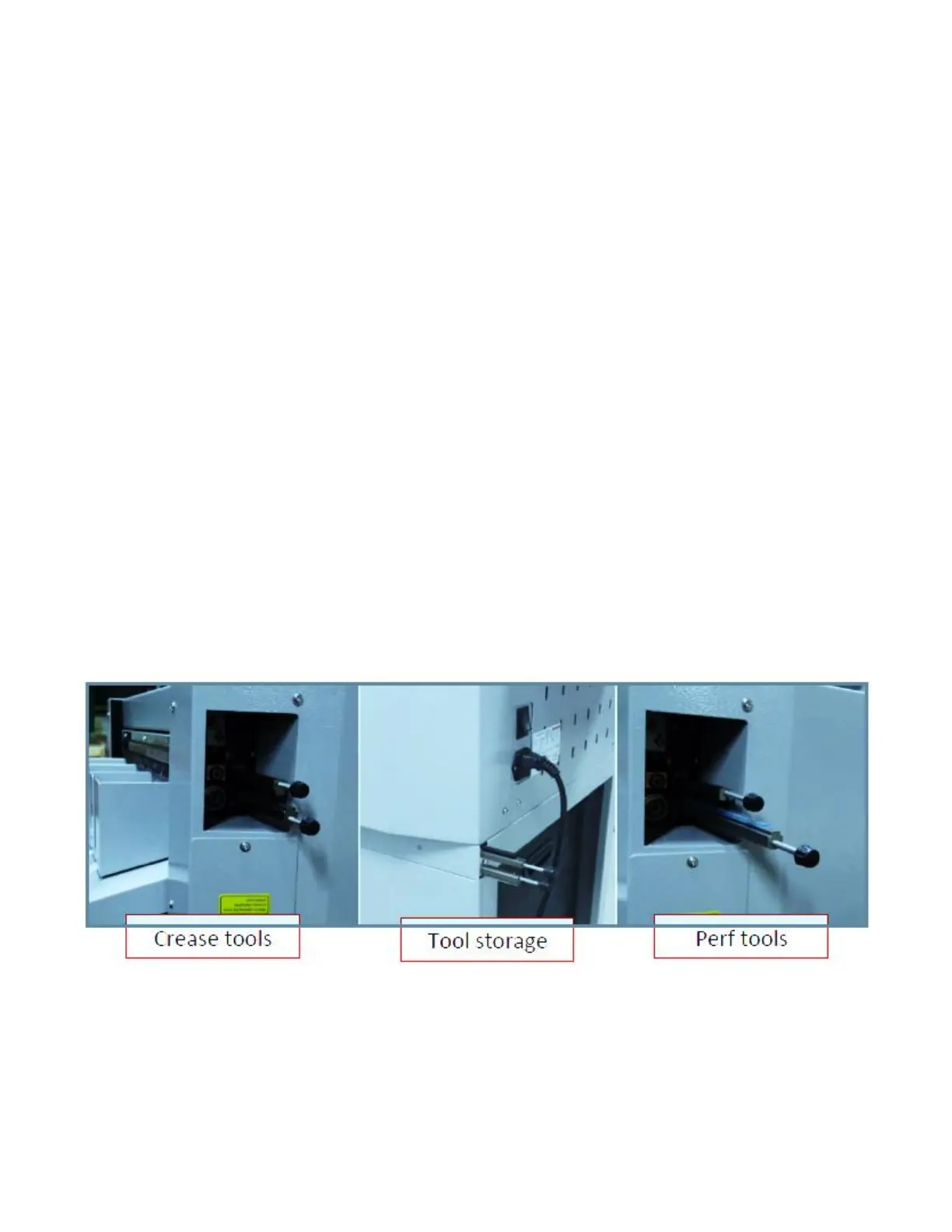
The PT SCC is equipped with a cross crease and/or cross perf function. The tools are comprised of two pieces. For
the crease tools, orientation is not an issue. The crease can be set to crease up or crease down, depending on the
job requirements. The cross perf tool must always be placed with the rubber crash pad in the bottom slot and the
perf blade tool in the top slot.
To remove the tools:
1. Open the side access cover by loosening the top and bottom screws enough to let the cover swing
down.
2. Pull the tools out by gripping the black tool knob. There is no release latch for the crease tools. The
tools should slide in and out, clicking into place when fully inserted.
3. Store the tools in the tool holder located just under the power plug of the PT 331SCC.
Note: the tools do not have to be in place for the PT 331SCC to function.


 To Next Page