EasyManua.ls Logo

GSE 355 - User Manual

Default Icon
34 pages
Print Icon
To Next Page IconTo Next Page
Loading...
AWT35-500349 Issue AA June 2009
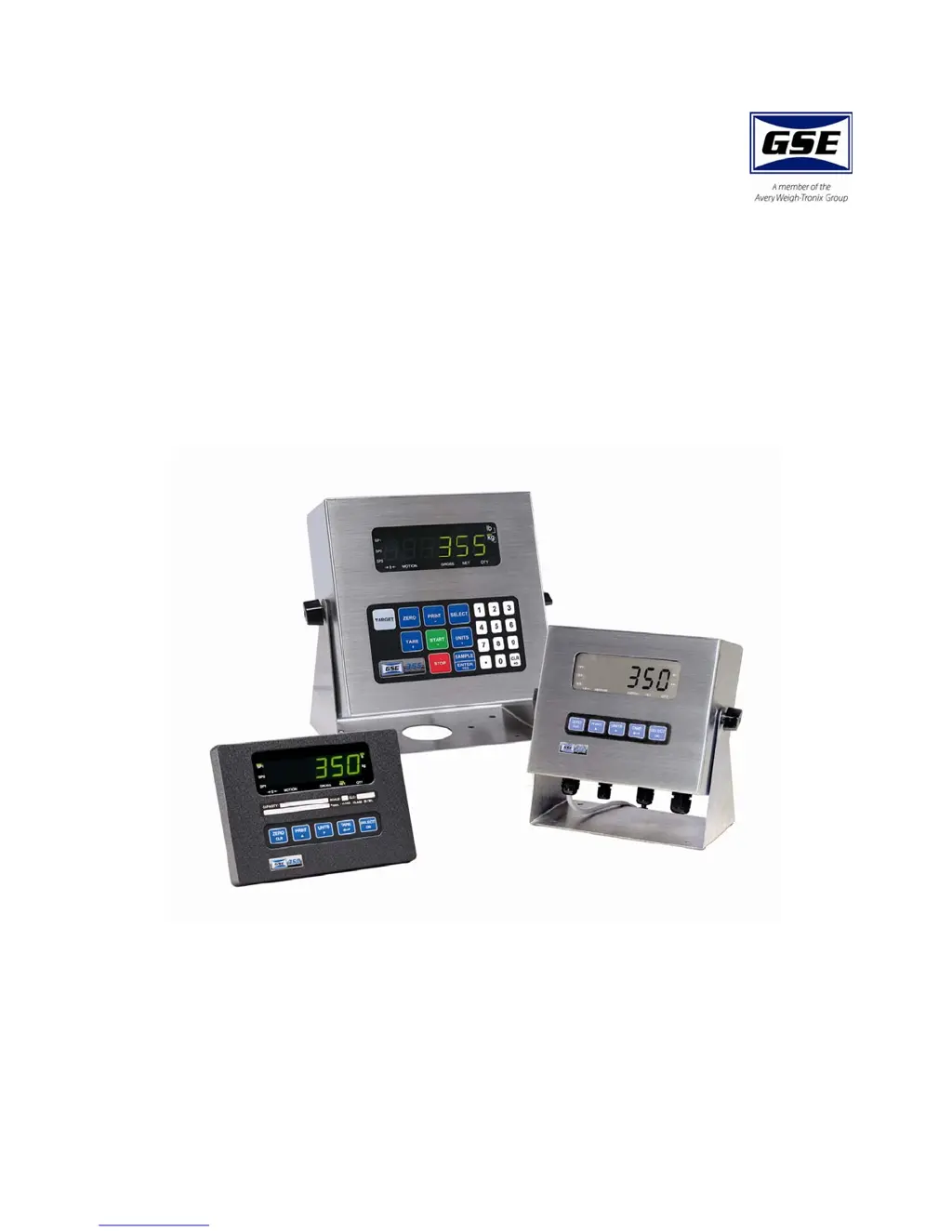
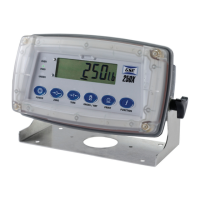
Model 350/355
Digital Weight Indicator
User Instructions

Other manuals for GSE 355

Questions and Answers

  • L
    Lance ChavezSep 10, 2025
    What does 'Error~BaudX' mean on my GSE 355 and how do I fix it?
    • D
      Danielle PowellSep 10, 2025
      The 'Error~BaudX' message on the GSE Touch Panel indicates that the selected baud rate is too high for the microprocessor rate. You can either lower the baud rate or increase the microprocessor rate at P60090.
  • M
    Megan BruceSep 9, 2025
    Why does my GSE 355 Touch Panel display 'F.S. ~ TooLo'?
    • A
      amyrussellSep 9, 2025
      The 'F.S. ~ TooLo' message on your GSE Touch Panel means that the calibration weight entered will result in a full scale input signal that is less than the minimum allowed. To fix this, verify that the full scale (P110) and the entered weight value are correct.
  • K
    Kelly DavisSep 8, 2025
    Why does my GSE Touch Panel display 'F.S. ~ TooHi'?
    • C
      Charles JonesSep 8, 2025
      The 'F.S. ~ TooHi' error on your GSE Touch Panel means that the calibration weight you entered will cause an over-capacity condition at full scale. Make sure that the full scale (P110) and the calibration weight value are correct.
  • A
    Ashley PetersonAug 22, 2025
    What to do if my GSE Touch Panel displays 'Over load'?
    • J
      Jennifer HollandAug 23, 2025
      If your GSE Touch Panel displays 'Over load', perform the same checks as you would for an 'under load' situation. This involves inspecting the load cell wiring.
  • M
    Monica SimpsonSep 5, 2025
    What to do if my GSE 355 Touch Panel displays 'Code03 Over Load'?
    • V
      vshortSep 5, 2025
      If your GSE Touch Panel shows 'Code03 Over Load', perform the same checks as you would for an 'under load' situation. This includes checking the load cell wiring and verifying that the correct capacity is selected at P110.
  • F
    Felicia CharlesSep 4, 2025
    What to do if my GSE Touch Panel displays 'Trans~Hold2'?
    • P
      palexanderSep 4, 2025
      This message on the GSE Touch Panel indicates that data transmission is being blocked because of a deasserted handshake on communication port 2. To resolve this, press the [ZERO] or [CLR] button to stop the transmission and then check P204.
  • B
    Brian MendezSep 3, 2025
    What to do if my GSE 355 displays 'Trans~Hold1'?
    • S
      Scott OsborneSep 3, 2025
      This message on the GSE Touch Panel indicates that data transmission is being blocked because of a deasserted handshake on communication port 1. To resolve this, press the [ZERO] or [CLR] button to stop the transmission and then check P204.
  • C
    ccoffeySep 2, 2025
    What should I do if my GSE 355 displays 'Problem with A/D chip detected'?
    • G
      Gabrielle Smith MDSep 2, 2025
      If your GSE Touch Panel displays 'Problem with A/D chip detected', disconnect any options installed and re-power the unit.
  • B
    Bethany CoxSep 1, 2025
    What does 'EEPROM data could not be read' mean on my GSE 355?
    • B
      becky41Sep 1, 2025
      If your GSE Touch Panel displays 'EEPROM data could not be read', the device is attempting a power-up reset.
  • C
    Courtney WhiteAug 31, 2025
    What does it mean if my GSE Touch Panel displays 'An error occurred when reading setup data from the EEPROM during power-up'?
    • G
      grantjulieAug 31, 2025
      If your GSE Touch Panel displays 'An error occurred when reading setup data from the EEPROM during power-up', all parameters are set to factory default.

Summary

2.0 Keypad and Display

3.0 Operation

3.5 Parts Counting

3.5.2 Model 355 Parts Counting

3.6 Percentage Checkweigh

3.6.1 Enter a Target Value

Steps to enter the target value and tolerances for percentage checkweighing.

3.6.2 Start Checkweighing

3.7 Fill

3.7.1 Enter a Target Value

Steps to enter the target value and pre-act values for the fill operation.

3.7.2 Start Fill

3.8 Batch

3.8.1 Enter a Target

Steps to enter target and pre-act values for batching up to three ingredients.

3.8.2 Start Batch

3.9 Discharge

3.9.1 Enter a Target

Steps to enter target and pre-act values for discharge operations.

3.9.2 Pre-acts

3.9.3 Start Discharge

3.10 Fill and Discharge

3.10.1 Enter a Target

Steps to enter target and pre-act values for combined fill and discharge operations.

3.10.2 Pre-acts

3.10.3 Activation Method

3.10.5 Fill and Discharge Example

3.11 Absolute Checkweigh

3.11.1 Enter a Target Value

Steps to enter target values and absolute tolerances for checkweighing.

3.11.2 Start Checkweighing

3.12 Target Deviation Checkweigh

3.12.1 Enter a Target Value

Steps to enter target values and tolerances for target deviation checkweighing.

3.12.2 Start Checkweighing

3.13 Batch 2

3.13.1 Enter a Target

Steps to enter target values for Batch 2 operations.

3.13.2 Activation Method

3.13.3 Batch2 Example

4.0 Troubleshooting

4.1 Operational Errors

Details common operational errors (Code02, Code03, etc.) and their causes.

4.2 Miscellaneous Errors

Describes miscellaneous errors (e.g., T.X.YYYY trap error) and how to handle them.

4.3 Hardware Errors

4.4 Communication Errors

5.0 Specifications

PERFORMANCE

Details performance metrics like full scale, resolution, and operating temperature.

ELECTRICAL

Information on power requirements, enclosure types, and transformers.

PROCESS CONTROL

Specifies process control inputs, outputs, and capabilities.

COMMUNICATION

Details communication interfaces, protocols, and optional modules.

GSE 355 Specifications

General IconGeneral
BrandGSE
Model355
CategoryTouch Panel
LanguageEnglish

Related product manuals