Troubleshooting
Service Manual for the Accutherm Ultra Printer 8-3
Printer Is Not
Working
No Power 1. Check that the terminal has power.
2. Check that printer cables are properly
co
nnected on both ends.
3. Ensure the latch and receipt cover is closed.
4. Verify the printer co
nfiguration and re-
configure if necessary.
5. Ensure that the printer is being operated in the
pro
per room temperature (not too hot or too
cold). If necessary, move the printer to a warmer/
cooler location.
6. Swap the Power Supply. Refer to “Remove the
Power Supply from the Base Assembly” on page
8-7.
7. Swap the printer.
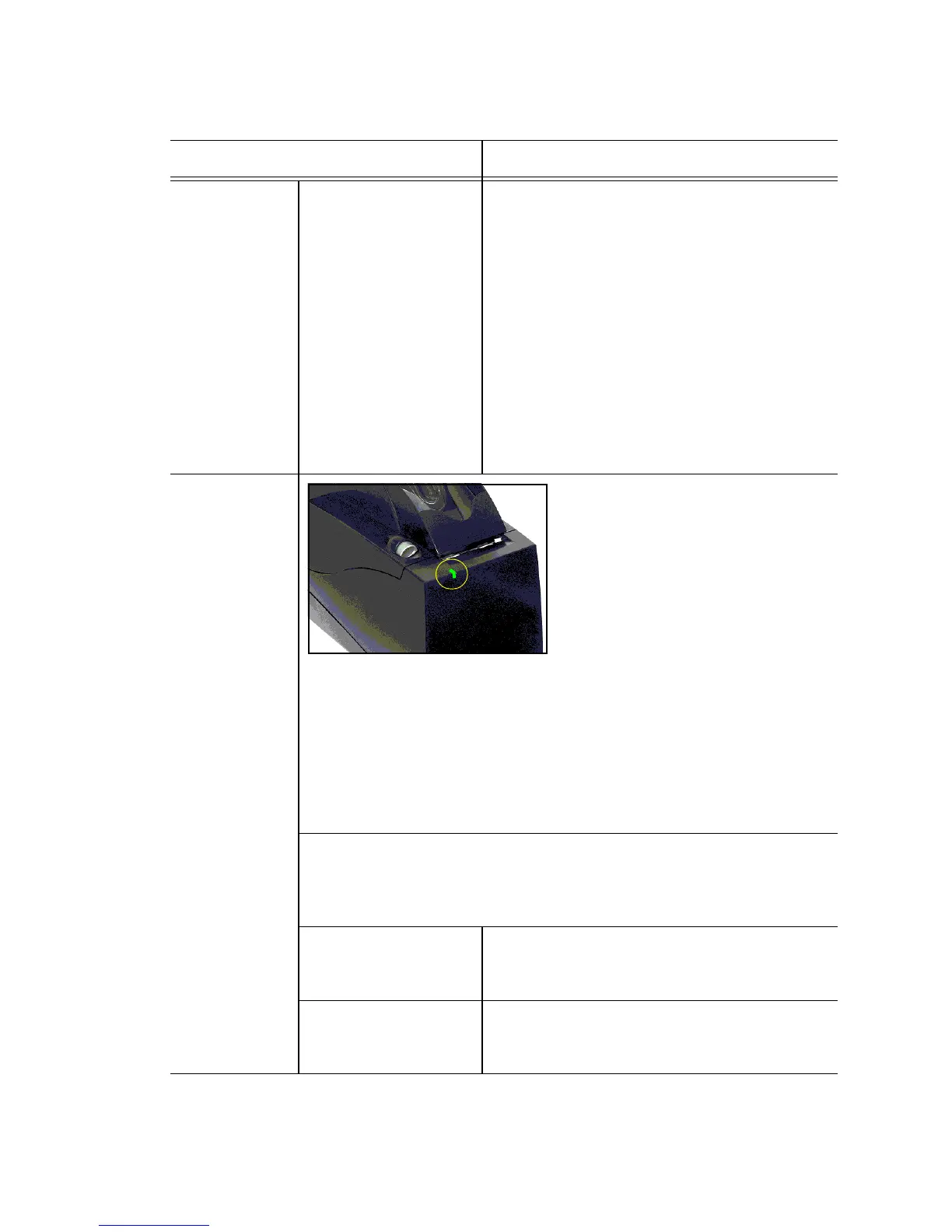
Printer Status
LE
D is
blinking
During Normal operation, the Power
LED remains on unless an error is
indicated. There are two classes of
errors: soft and hard. Soft errors are
recoverable without power cycling the
printer
. Hard errors cannot be recovered
from without removing power from the
printer, correcting the problem, and
then reapplying power.
Error Indicators:
• Power—Green
•
Error—Red
• Paper - Yellow
Note: Wh
en the Indicators for Error and Paper are both illuminated an
Orange/Amber color displays.
Soft Errors: Soft errors
may be recovered by the host or by opening and
closing the printer cover. The following soft errors are indicated by a 5
second repeating blink pattern. Refer to “Soft Errors” on page 5-4 for
specific error information.
Out of Paper 1. Change the paper. Refer to “Loading Paper”
on page 3-6.
2. Swap the printer.
Paper Low Error 1. Change the paper. Refer to “Loading Paper”
on page 3-6.
2. Swap the printer.
Problem Action



 To Next Page