Chapter 9 Page 229
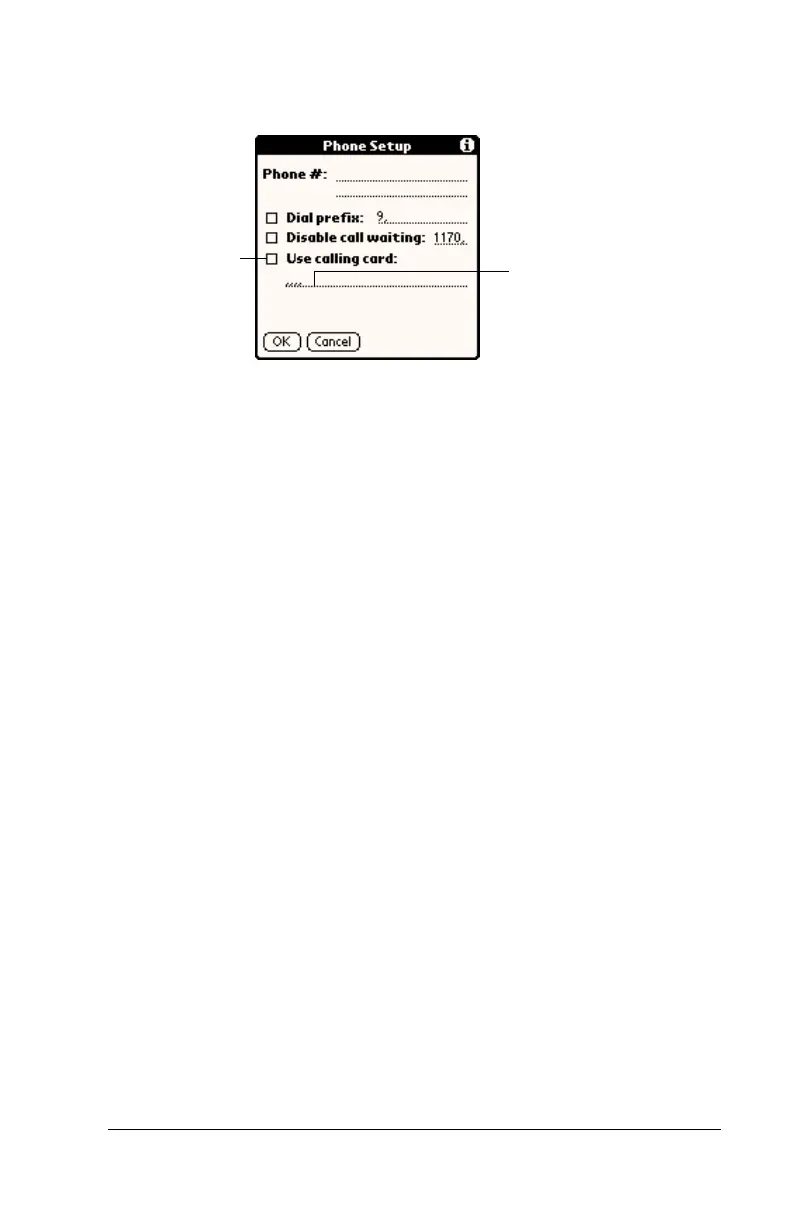
To use a calling card:
1. Tap the Use calling card check box to select it.
2. Enter your calling card number on the Use calling card line.
Note:
It’s a good idea to add at least three commas at the
beginning of your calling card number to compensate for
the cue delay.
Tip:
MCI customers must enter the calling card number in the
Phone # field, and the phone number in the Use Calling
Card field.
3. Tap OK.
Connecting to your service
After you set your Connection and Network Preferences, establishing
a connection to your Internet Service Provider (ISP) or your
company’s network (dial-in server) is easy.
Note:
If you are connecting to an ISP, you need a third-party
application, such as a web browser or news reader, to take
advantage of this connection. For information about third-
party applications that support TCP/IP, check the web site
www.handspring.com.
To establish a connection:
■
Tap Connect to dial the current service and display the Service
Connection Progress messages.
Tip:
To see expanded Service Connection Progress messages,
press the bottom scroll button.
To close a connection:
■
Tap Disconnect to terminate the connection between your
handheld and your service.
Enter your
calling card
number here
Select this
box to use a
calling card


 To Next Page