Chapter 3 Page 57
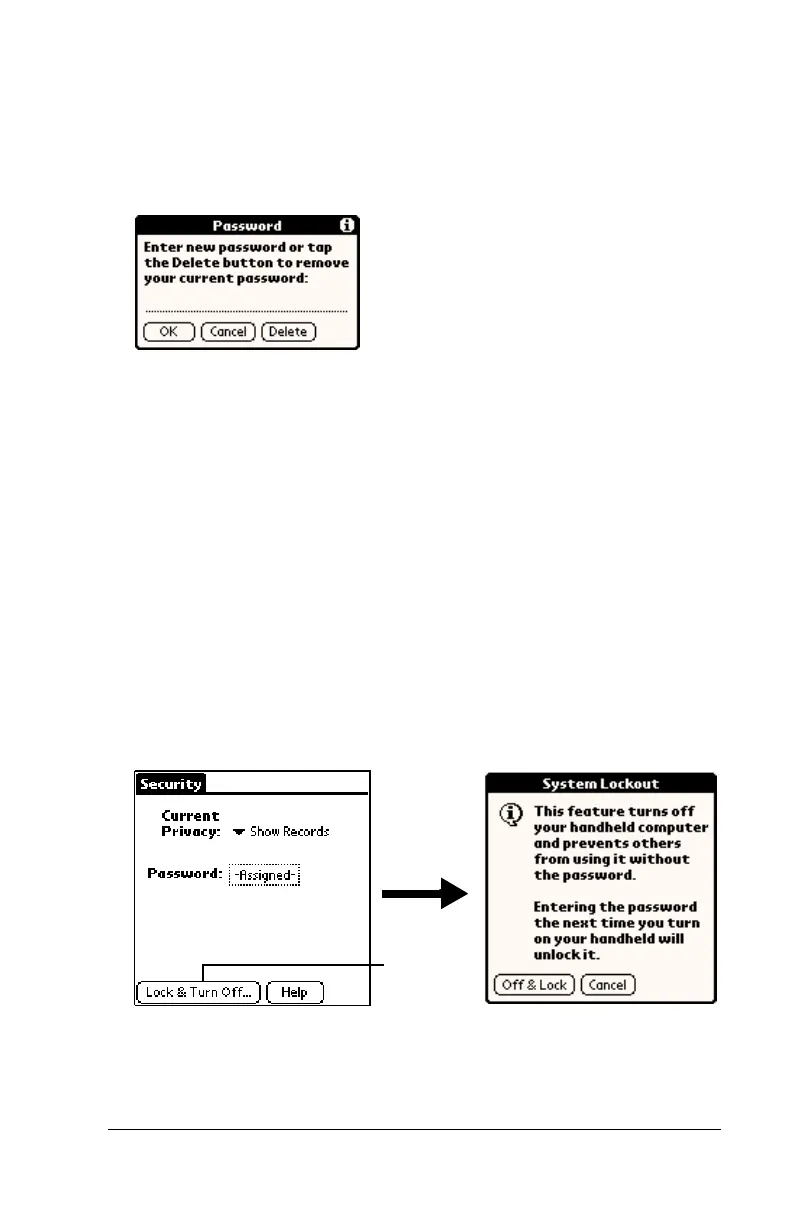
3. Tap OK.
4. Do one of the following:
To change the password, enter the new password, and tap OK.
To delete the password, tap Delete.
Locking your handheld
You can also lock your handheld so that you need to enter your
password to operate it.
Important:
If you lock your handheld, you must enter the exact
password to re-activate your handheld. If you forget the
password, you need to perform a hard reset to resume
using your handheld. Performing a hard reset deletes all
the records in your handheld; however, you can restore
all previously synchronized data at the next HotSync
operation. See “Performing a hard reset” in Appendix A
for details.
To lock your handheld with a password:
1. Assign a password.
2. Tap Lock & Turn Off.
3. Tap Off & Lock.
4. To start your handheld, turn it on, and then enter the password.
Tap Lock &
Turn Off


 To Next Page