Chapter 3 Page 49
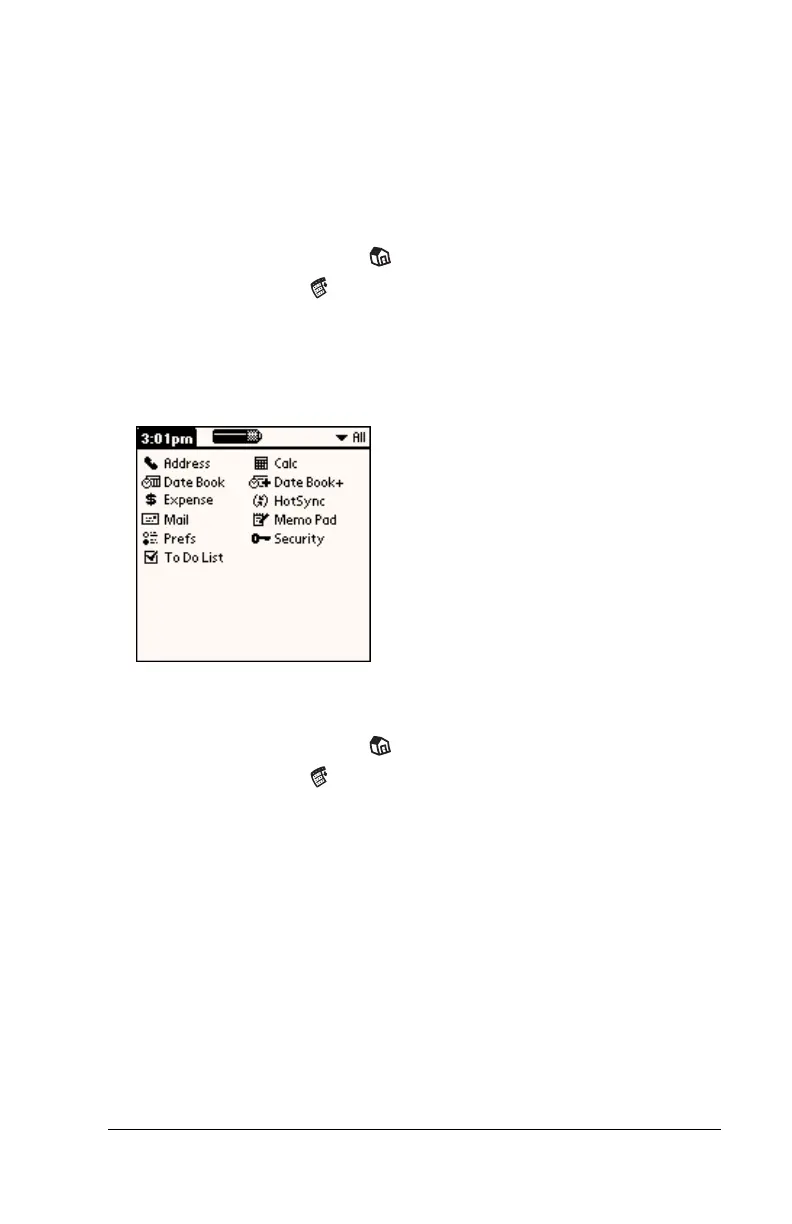
Changing the Applications Launcher display
By default, the Applications Launcher displays each application as an
icon. As an alternative, you can choose to show a list of applications.
You can also choose to view the same category of applications each
time you open the Applications Launcher.
To change the Applications Launcher display:
1. Tap the Applications icon .
2. Tap the Menu icon .
3. Tap Options, and then tap Preferences.
4. Tap the View By pick list and select List.
5. Tap OK.
To open the Applications Launcher to the last opened category:
1. Tap the Applications icon .
2. Tap the Menu icon .
3. Tap Options, and then tap Preferences.
4. Tap the Remember Last Category check box to select it.
5. Tap OK.


 To Next Page