3 - Description
3.5
Map Screen
Work Screen
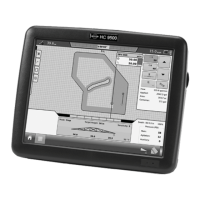
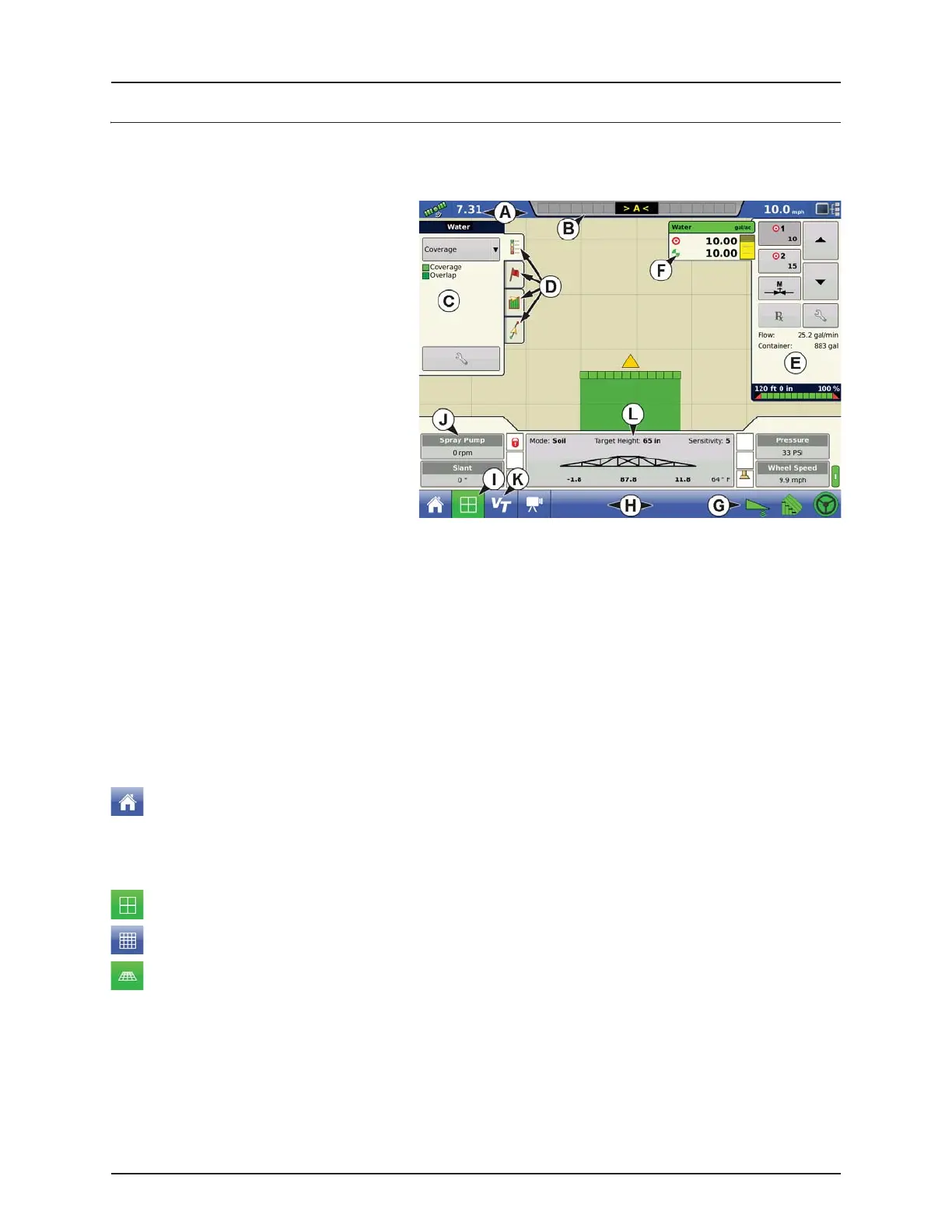
The appearance of the Map screen varies, depending upon which operation you are performing, and your specific operating
configuration.
A. Status Bar
B. On-screen Light bar
C. Mapping Toolbox
D. Mapping Function Tabs
E. Product Control Toolbox
F. Product Tabs
G. Function Buttons
H. Task Bar
I. Main Screen Buttons
J. Equipment Tab
K.
Virtual Terminal Button
L. AutoTerrain/AutoHeight/AutoSlant Settings
The task bar (H) displays buttons relating to various functions of the display. These buttons and status indicators include:
• Home
• Mapping
• AutoSectionControl (Autoswath)
• Logging
These buttons are shown in front of a green background when you are at that screen; otherwise they are shown in front of
a blue background.
Equipment Tabs
Different Display Items can be selected by pressing the Equipment tabs (J).
Home Button
Map Button
Pressing the Map button takes you to the Map screen. Pressing it more than once cycles the Map screen to zoom in and out.
Pressing the Home button takes you to the Home screen.
ZOOM DETAILS
ZOOM TO EXTENT
PERSPECTIVE VIEW
÷
NOTE! The Perspective View is only available when guidance is active.


 To Next Page
 Loading...