4 - System setup
4.62
Display Button
The Display screen contains the following tabs:
• General tab
Displays settings related to Time, Date, display screen settings, operating units, video and display owner information.
• Owner tab
Contains functionality for setting up a Display Owner and making any needed edits to the owner personal information.
• Features tab
Lists unlocks for a particular display.
• Advanced tab
Includes information related to log files and system backups.
General tab
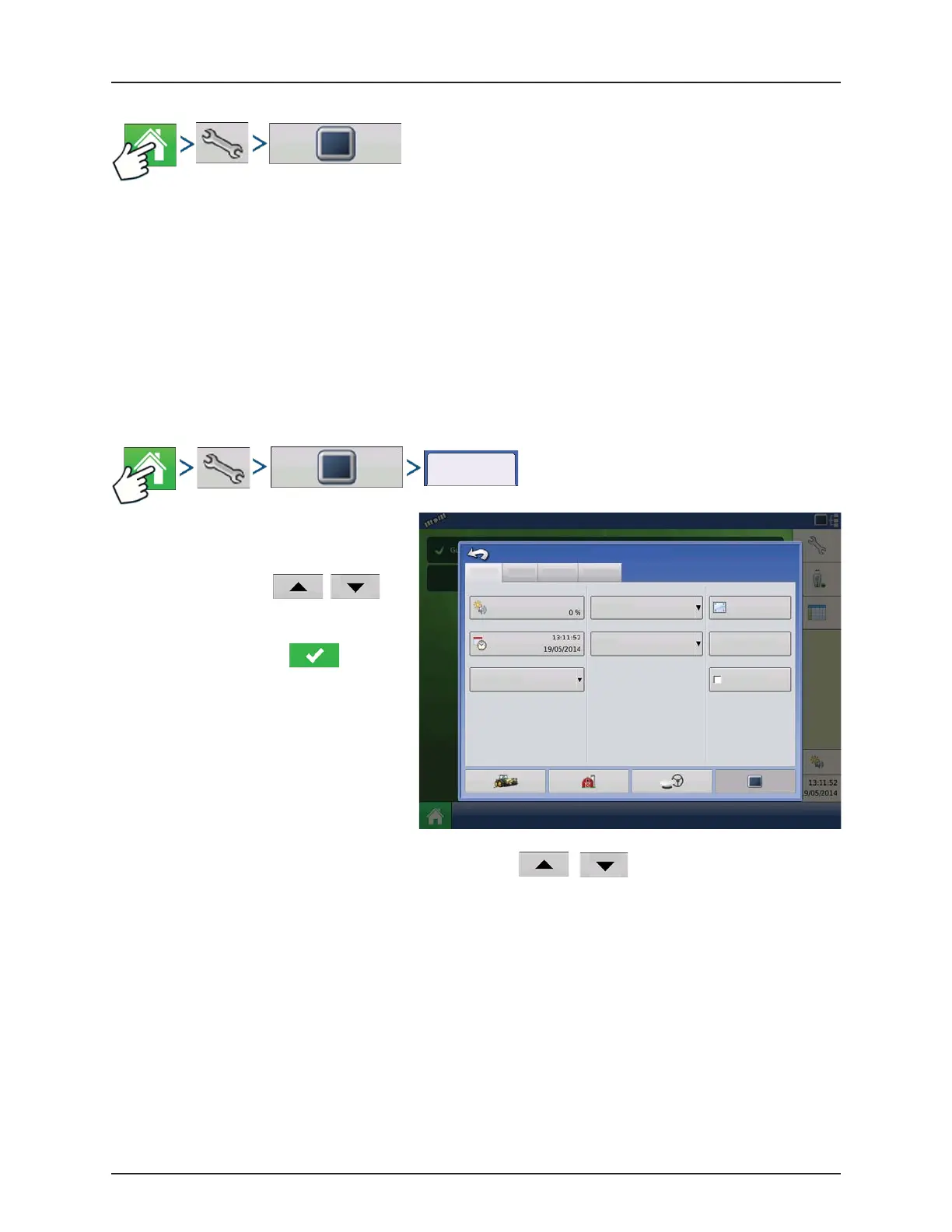
The Setup General Tab is consists of the following
items:
• Time/Date button
Press button and use / to
adjust the hours, minutes, A.M./P.M. settings,
month, date and year. To make these
changes effective, press .
÷
NOTE! The display will then shut down
immediately. If you do not want to shut the
display down, press the Close (Red X)
button; however the time/date changes
will not be accepted until the display is shut
down and restarted.
• Brightness and volume percentages.
To change these, press the Brightness/Volume button and use / to change the percentage of the
Display Brightness and Speaker Volume.
÷
NOTE! Pressing the Automatic box will display the Display Brightness - Trim setting, which makes adjustments to the
display’s brightness according to the available or ambient light.
• Calibrate Touchscreen.
Press this to launch the Touch screen Calibration wizard. Calibrate the touch screen by following the on-screen
instructions.
±
WARNING! Do not use any sharp objects to operate the touch screen or the display may be damaged.
• Time Zone
Use the drop-down menu to select your time zone.
General
Calibrate
Touc hs cr ee n
Console Setup
General Display Features
Advanced
English / US
ISOBUS Settings
Enable Video
Imperial
Americas (Central Time)
Brightness
Volume
Auto
Language / Country
Operating Units
Time / Date
Time Zone


 To Next Page
 Loading...