32
Parts, components & control panel buttons
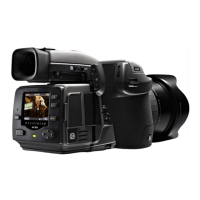
The control panel with its bright TFT display is the main graphical user-interface for image checking and capture settings changes, while the grip display
is the interface for focus and exposure settings (when not tethered to a computer).
The buttons are used for browsing images and navigating the menu system. Two of the buttons, located at the bottom-right and -left of the screen,
are given an on-screen label that changes according to the current context. For example, the Approval button sets the approval rating when browsing
images, but becomes an OK button to conrm settings.
Zoom- in/-out button A
Zoom-in /out rocker button for the preview image. You
can zoom in to view close-ups for focus checking. You can
zoom out to view several small images at once and nally
to view and select batches and media. Also acts as a selec-
tion button for value setting on the menu.
MENU / (EXIT) button B
Opens and closes the menu system. Also used for
various other tasks (EXIT button, for example)
as you issue commands within the menu system
indicated by a description beside the button on the
preview screen.
Navigation button C
A four-way rocker button enabling you to step through
preview images and navigate the menu system. To use
it, press the side of the button that corresponds to what
you wish to do (e.g., move up, le, right or down).
Display D
e display is a 3 inch, TFT, 24 bit, 230,000 pixel type. Contrast
and brilliance can be adjusted.
View-mode button E
Steps through the various view modes for the preview
image: standard, histogram overlay, image details, screen
o and full-screen.
H I J K L M N O P
A
B
C
D
E
F
G



 To Next Page
 Loading...