58
H4D
Tethered to a computer
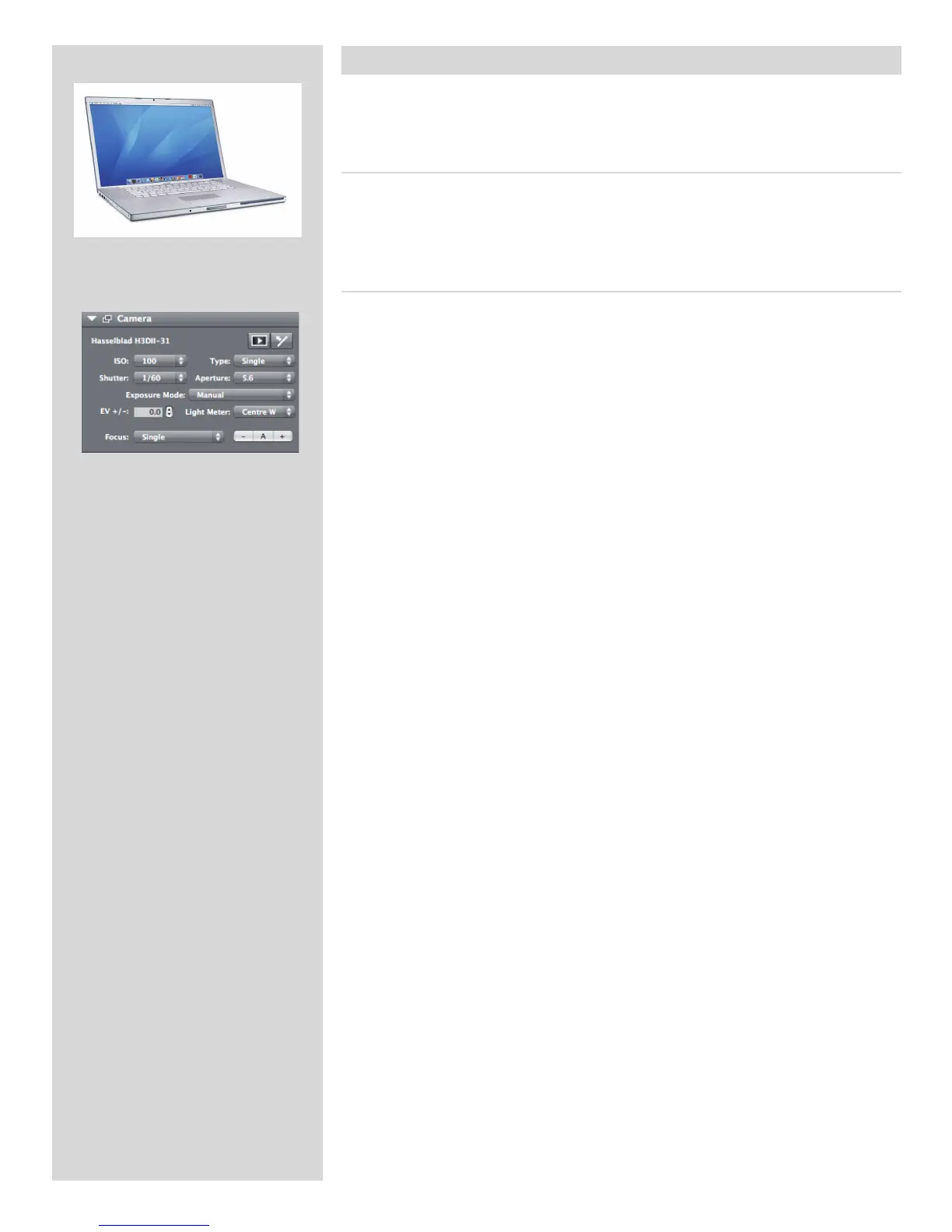
When tethered to a computer, you can control many camera functions using Phocus
software. All captures are saved as 3F les (as opposed to 3FR les from a CF card) and
can be immediately exported to other formats if desired.
Connecting to a computer
To connect to a computer, attach a FireWire cable from the FireWire port on a computer
to the port on the side of the digital capture unit. The port is protected behind a hinged
cover. Please note, however, that the camera still needs a charged battery attached to
function properly.
Shooting with Phocus running
When you are connected to a computer, the following rules apply:
• ThedestinationmediumandlocationarecontrolledfromPhocus.
• All exposure settings, including ISO, aperture and exposure time, are controlled
from Phocus if you choose to expose from Phocus. In addition extra tools such as
Live Video, remote focus control etc are available. See Phocus user manual for full
description.
• Themenusystemonthedigitalcaptureunitisdisabled.
• ThedigitalcaptureunitwilltakepowerfromtheFireWirecableifitisavailable(not
all computers can supply power, notably laptops). This will help conserve the bat-
tery power of the H4D. However, you must still have a charged battery connected as
the camera body needs it in order to operate.
When initiating a shot from Phocus, the computer sends a signal to the digital capture
unit, which triggers the shutter (and strobe/ash, if any). The unit then sends the capture
back over the FireWire connection to the computer, where it is displayed on the com-
puter screen and saved as a 16-bit 3F le in the currently selected folder on the computer
hard disk.
3FR is a proprietary Hasselblad format for storing raw captures. It contains the complete raw
image exactly as it was captured by the camera, plus technical details that enable Phocus to
process and display the image correctly, amongst other things. This 3FR le is converted into
a 3F le (denoted by each le now bearing the sux “.f”) that furthermore stores a complete
history of the Phocus settings that you have applied to each image and stores meta-data
such as camera settings, image name, photographer, copyright, etc.
If you prefer not to correct and adjust your captures in Phocus, then you can export 3F les
from Phocus (and Aperture/Mac OS 10.5.2) directly to DNG, TIFF or PSD and use Adobe Pho-
toshop, for example.
Finally, some raw processors (for example, Adobe Camera Raw 5.4 onwards and Adobe Light-
room 2.3 onwards) can directly open 3FR les without the need for Phocus. Please note, how-
ever, that a direct 3FR export will not include DAC, HNCS etc, and those benets will therefore
be lost.
To clarify:
• For maximum quality and benets, retain 3F les (for the eventual opportunity to re-process
les utilizing any future Phocus improvements).
• 3F les exported to the DNG format will not include DAC, HNCS etc.
• 3FR les imported directly to a raw processor (see above) will not include DAC, HNCS etc.
Please refer to the Phocus user manual for further instructions about using Phocus.












 To Next Page