84
H4D
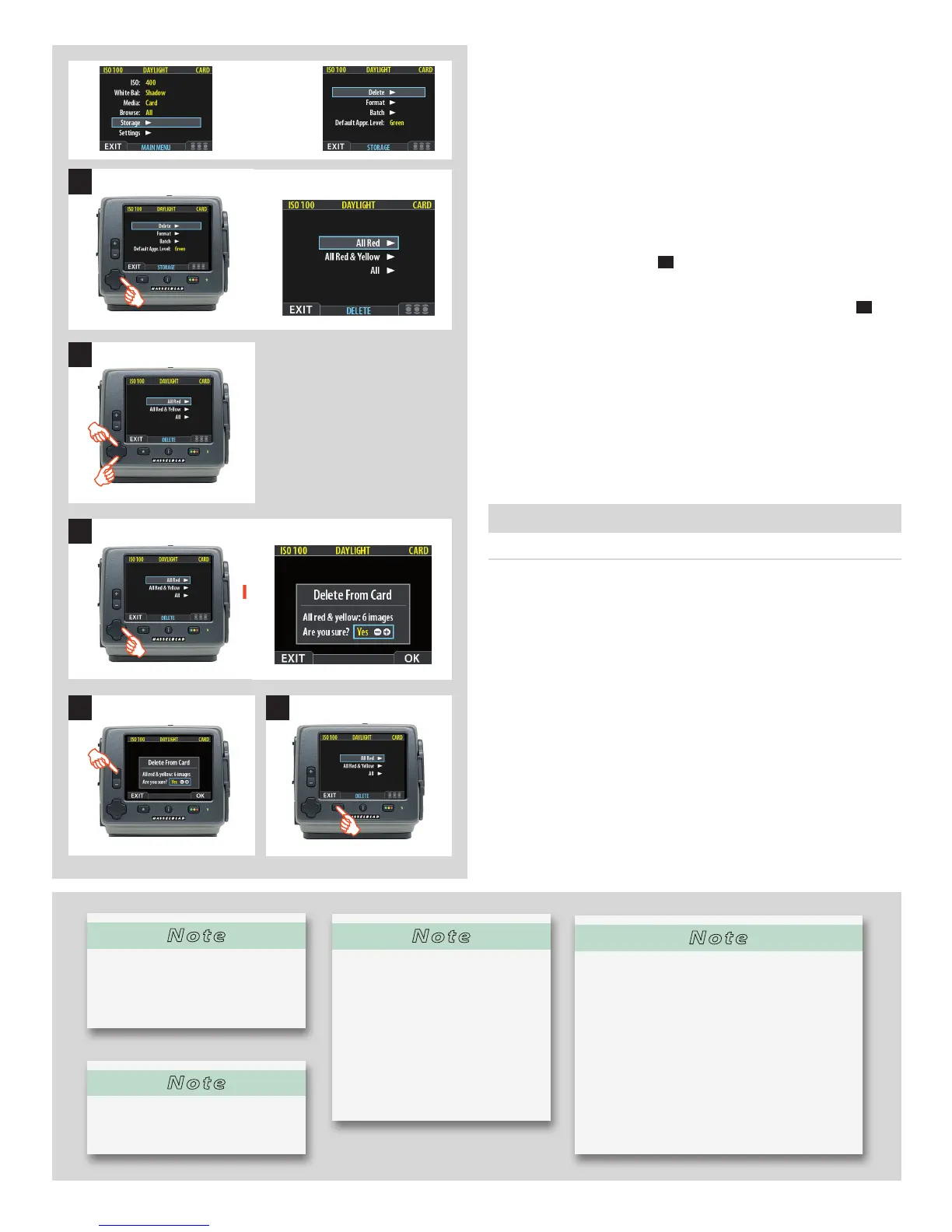
5. You must now select the approval status that you wish to
delete. All images from the selected medium that are also of
the status that you select here will be deleted by the opera-
tion.
Use and to select
All Red
,
All Red & Yellow
or
All
.
6. Then press to open the delete dialog for your selected
status.
You are now asked to con rm the delete.
7. • Toconrm,pressthe
+
button to change the status to Yes
and then press the OK button to execute the delete.
• Tocancel,pressthemenubuttontoexit;orpressthe
–
but-
ton to set the status to No and then press the OK button to
cancel.
You now return to the main menu. Either move on to another
setting by using the navigator button or
8. Press the menu (
EXIT
) button to exit the menu system.
Transferring images
Transferring to a computer
To transfer images stored on the compact- ash card to your com-
puter, simply connect the digital capture unit to a computer us-
ing a FireWire cable and then run Phocus. Alternatively, use a card
reader and connect to a computer. See the Phocus manual for
details.
See also
Connecting to the Computer
for details about how to con-
nect to a computer.
4
5
6
7
8
Note
Use the delete shortcut immedi-
ately after an unwanted capture
to save space on a card.
Note
Another way of working is to
simply assign unwanted images
as Red. In this way, you retain the
option (for a while) of changing
your mind later while allowing
the system to automatically de-
lete the unwanted images as the
storage medium lls up.
Note
Note that both each listed medium shows
a set of three coloured numbers in brackets
to the right of the medium name. These in-
dicate the total number of images of each
approval status (green, yellow and red) that
exist on the medium. For example, if you see
a medium that shows (18/5/3), then the me-
dium contains a total of 26 images: 18 green
(approved), 5 yellow (unclassi ed) and 3 red
(marked for probable delete).
Note
You will always be asked to con-
rm each delete operation.












 To Next Page