78
H4D
Organizingworkwithbatches
Collections of captures are stored in named and dated folders
called batches. They help you to organize your shots as you work
and function exactly as folders on a computer.
Batches have the following properties:
• Whenyoucreateanewbatch,youassignanametoit.
• When you copy images from a compact-ash card, each
batchissavedasasub-folderonthedestinationdisk.
• Whendeletingmultipleimages,youareabletorestrictyour
delete command so that it a ects just a single batch.
• Whenbrowsing images,you will onlyseeimagesfromthe
current batch.
• You can change between batches by using the navigation
controls .
• Thebatchnamealsoshowsthedateonwhichitwascreated
(using the Year/Month/Day convention).
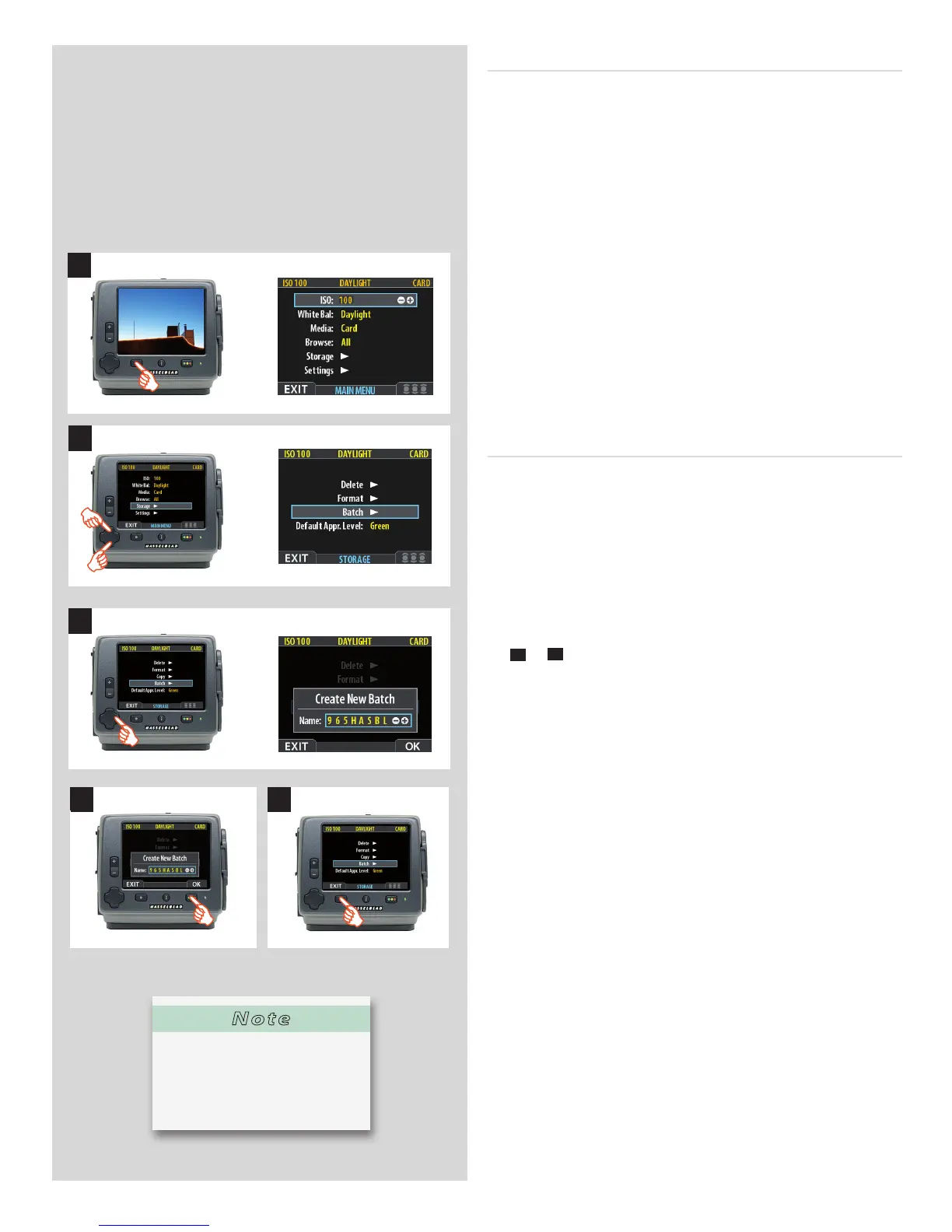
Creating a new batch
1. Press the
MENU
button.
2. Press to navigate down and select the
Storage
dialog.
Press and then to navigate down and select
Batch
.
3 Press to open the
Batch
dialog. The new batch name will
always begin with a three-digit number, which automatically
increments by one with each new batch. Following this is ve
letters, which you can assign yourself to help make the batch
easier to identify. To set the letters:
Use and to select one of the ve letters. Then use the
+
or
–
button to step the currently selected letter up or
down the alphabet until you have found the letter you want.
Continue working until you have set the name you want.
4. Press the approve (
OK
) button to save the new batch with the
name you selected.
5. You now return to the
BATCH
menu. Press the menu (
EXIT
)
button to exit the menu system.
3
4 5
1
2
Note
Each new capture will be saved in
the latest created batch only. You
cannot select to save it in another
batch.












 To Next Page