65
H4D
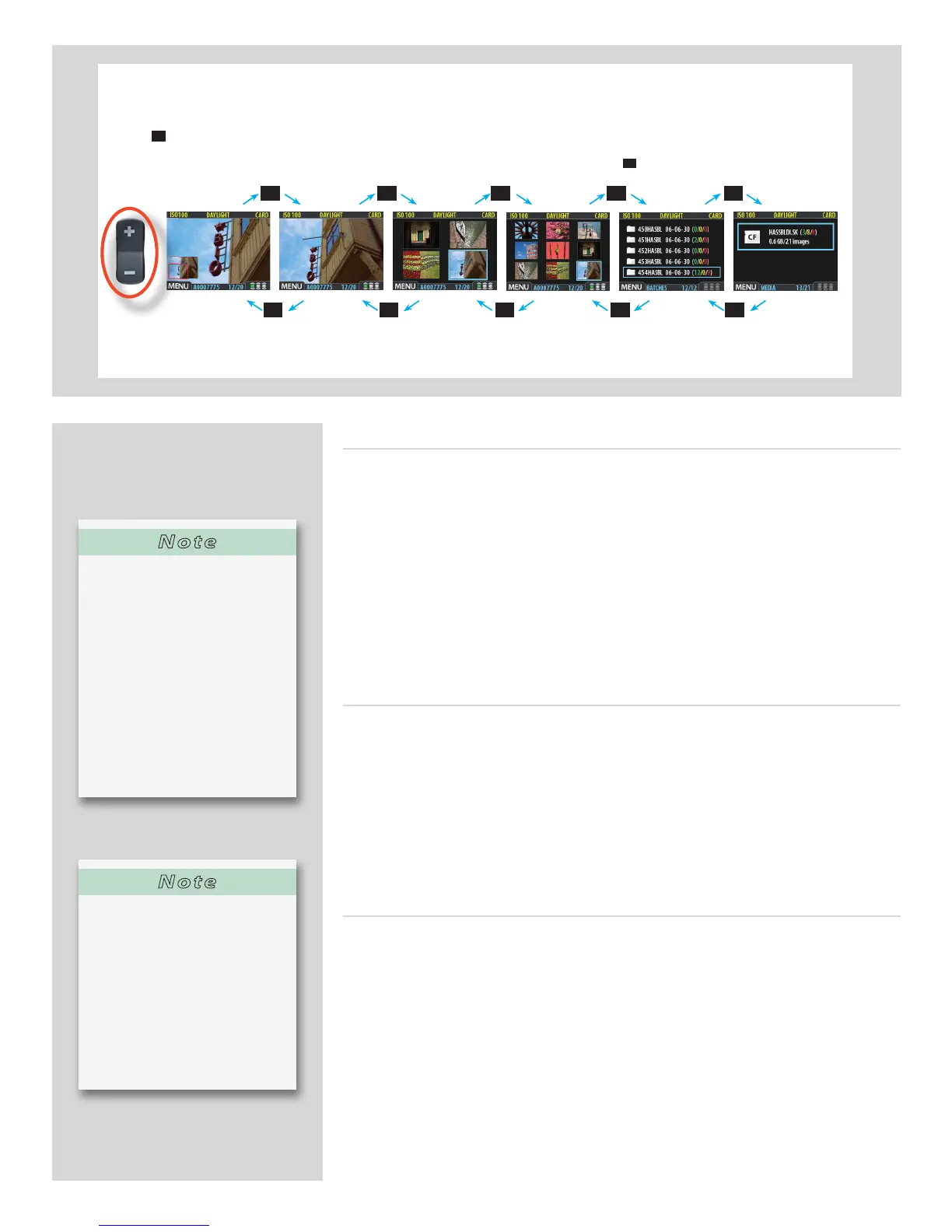
Thumbnail views
Preview thumbnails are small versions of each preview, sized to t either four or nine
images on the screen at once. Use them to get an overview of your work so far and to
help nd speci c shots.
To see the thumbnails, start with the standard preview display and press the zoom-out
button once to see four thumbnails or twice to see nine.
When viewing thumbnails, the selected image shows a blue border. When an image is
selected, you can zoom in on it using the zoom-in button or delete it using
MAIN MENU
> STORAGE > Delete
(see also
MAIN MENU > STORAGE > Delete
for a detailed procedure).
Use and to scroll the thumbnails when you have more shots than can be shown.
Browsing by IAA (approval status)
You can set the camera to browse only images of one or more speci c approval levels
from the current batch. You can use this, for example, to review all of your red-status
shots to make sure you don’t need them or to review all of your yellow-status shots to
decide whether they should be moved to green or red status. When you use the browse
lter, you will not see images excluded by the lter, but they are still there.
See
"IAA - Instant Approval Architecture"
for complete details about how to check and
set the browse lter.
Viewing modes
Various amounts of information can be displayed when viewing previews. This rang-
es from histograms to a set of metadata. There are ve modes. See
Preview Modes
for
details.
Note
If you continue to zoom out be-
yond the nine-thumbnail view,
you will come to the batch list
and then to the media list. You
can use this to select the current
medium and batch for brows-
ing and for storing new images.
See Working with Media and
Batches for details.
Note
When you browse using the navi-
gator button, you will only see
images from the current batch on
the current medium. To view an-
other batch, you must navigate
to it by zooming out to the batch
or media level and then zooming
in on the appropriate folder. See
Navigating Media and Batches
for complete details about how
to select the current medium
and/or batch.
You work your way deeper into the menu branching o the selected item (framed in blue) each time you press
the
–
button to view media, batch, thumbnail view etc.
Conversely, you work your way back out of the menu each time you press the
+
button.
Media | Batch list | 9-Thumbnail view | 4-Thumbnail view | Normal view | Zoomed
– – – – –
+
+
+
+
+












 To Next Page