72
H4D
3. If no problem is detected, then the image is saved with the chosen default approval
status.
4. When you are browsing through your shots, keep an eye on the approval status of
each and consider whether you should promote or demote each shot based on its
appearance on the preview screen. You can also apply a browse lter, for example,
to browse only red shots when looking for images to delete or to browse only green
shots to make sure you have a good version of each shot that you need.
5. When you begin working with the images in Phocus, use the approval status as a
guide for organizing your work. For example, you might begin by opening and opti-
mizing the green shots and then go to the yellow shots only if you still need more
images and then, nally, check the red shots as a last resort.
Note that the system is very exible so you can use it in any way that you like. For exam-
ple, you can set the camera to assign all new images a yellow or green status regardless
of the exposure warning. Be careful when assigning red status because red images may
be deleted if the current storage medium becomes full.
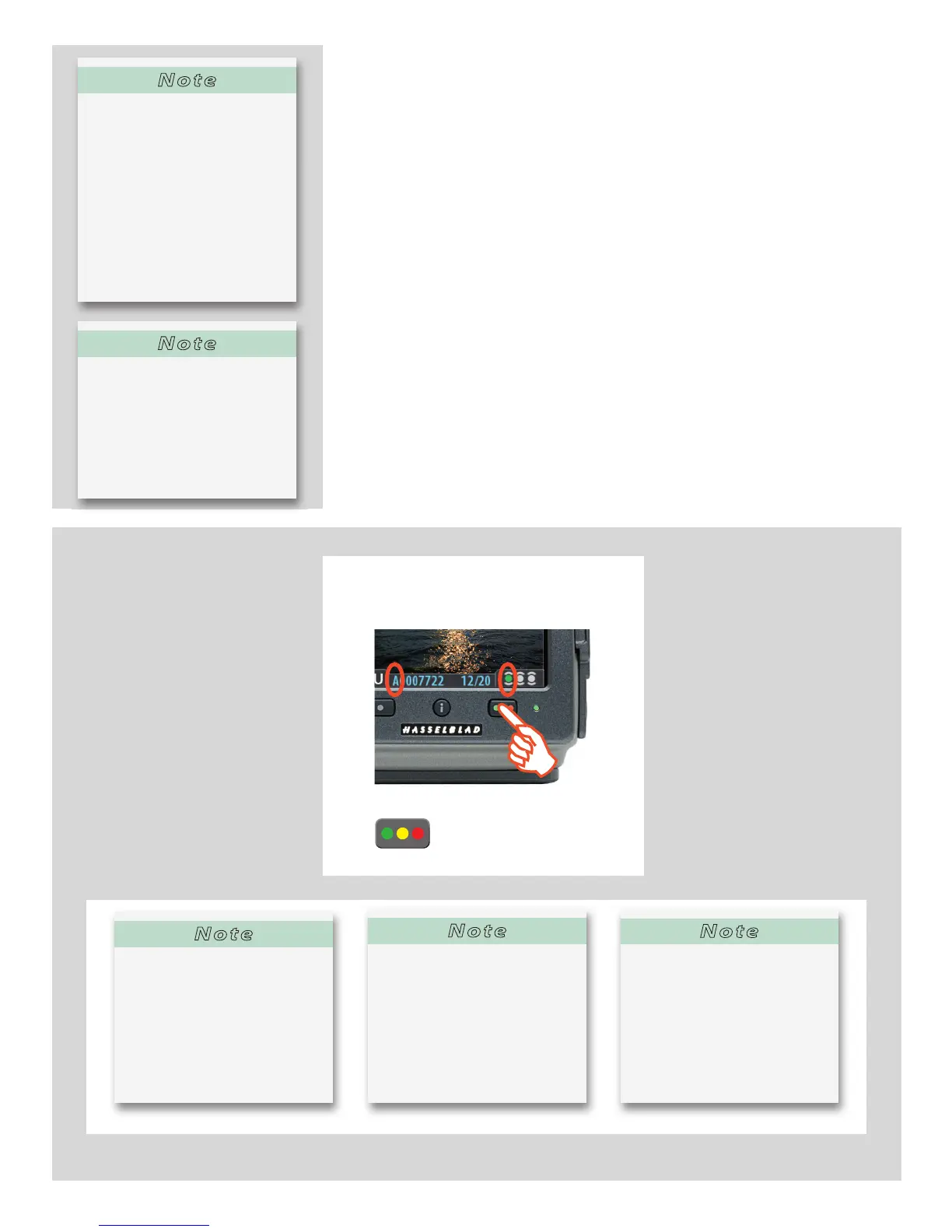
By keeping an eye on the le name and/or coloured dot as you browse your images at
the single-image, four-thumbnail or nine-thumbnail level, you can easily see the current
approval status of each of them.
To change the approval status of the currently displayed/selected image, simply press
the approval button until the desired approval status is shown.
Press the approve button to change the
status of the currently selected image.
ChangingtheIAAapprovalstatusofindividualcaptures.
Note
When the current storage me-
dium is full, red-status images
will be deleted (one at a time) to
make room for new shots.
You can continue shooting until
no red-status images remain. If
you then try to take additional
captures, you will get a 'medium-
full' message.
Note
Some captures may trigger the
warning even though they are
exposed according to your inten-
tions. You should consider these
warnings only as a guideline.
This feature can be turned off .
Note
You can set the camera to fi lter by
approval status as you browse,
which means that some images
may be hidden (though they are
still there). See “Browsing by Ap-
proval Status”, below, for details
about how to work with the fi lter.
Note
Be careful when assigning red
status because red images may
be deleted if the current storage
medium becomes full.
Note
If you set Approval to ‘Auto’, all
images will be stored as Green
if judged as correct and Yel-
low if judged as doubtful. No
images are ever stored as Red
automatically!












 To Next Page