11
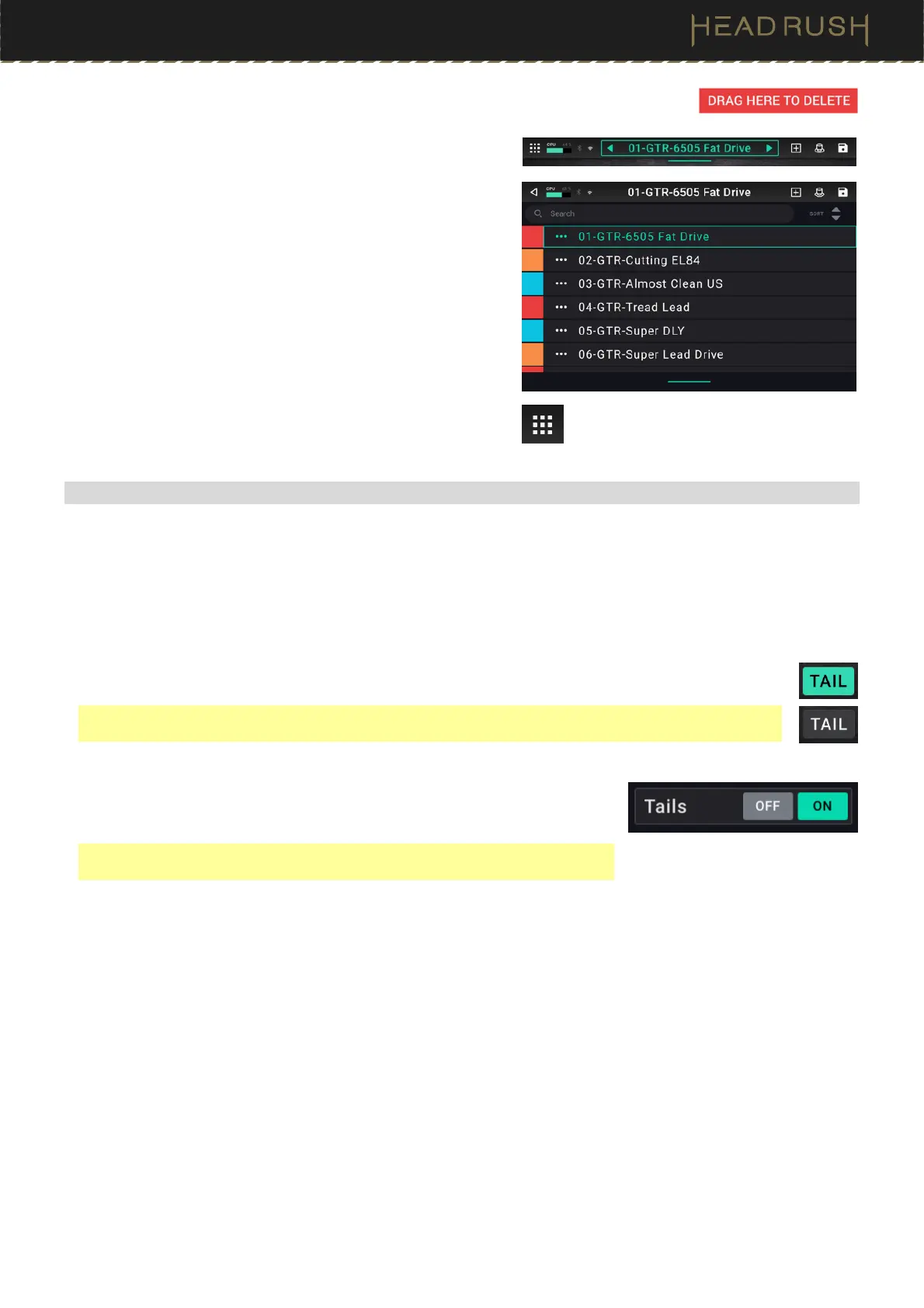
To remove a block, tap and hold the block, and then drag it to the bottom bar.
To load another rig (preset), do any of the following:
•
Tap the
or
next to the name of the current rig on the
screen.
•
Tap the name of the rig on the screen and then turn the
encoder.
•
Hold the horizontal line below the rig name and drag
downwards until a rig list is shown, then tap a rig to load it.
When this list is shown, you can use the search bar to help
find a specific rig quickly.
To view other options, tap the menu icon in the upper-left
corner, and then tap an option.
(4.1.3) Reverb/Delay Tail Spillover
HeadRush Core features two types of Reverb/Delay Tail Spillover:
1.
If you have reverb and/or delay effect(s) active on your rig and then switch to a different rig, the effect(s)
will continue to decay after switching to the second rig.
2.
If you have a reverb or delay effect active on your rig and then bypass this effect, it will continue to decay
after it is bypassed.
To enable or disable Reverb/Delay Tail Spillover for the whole rig, tap Tail on the main screen.
Note: This feature will not work if you are using an effects loop or if USB Audio is enabled in the Global
Settings.
To enable or disable Reverb/Delay Tail Spillover for an individual effect,
double tap the effect in the Main Screen to access the effect’s settings
screen. Then change the effect’s Tails by tapping the Off and On buttons.
Note: Adjusting this parameter will not impact the Reverb/Delay Tail Spillover
setting for the whole rig.


 To Next Page