21
(4.4) Adjusting Settings
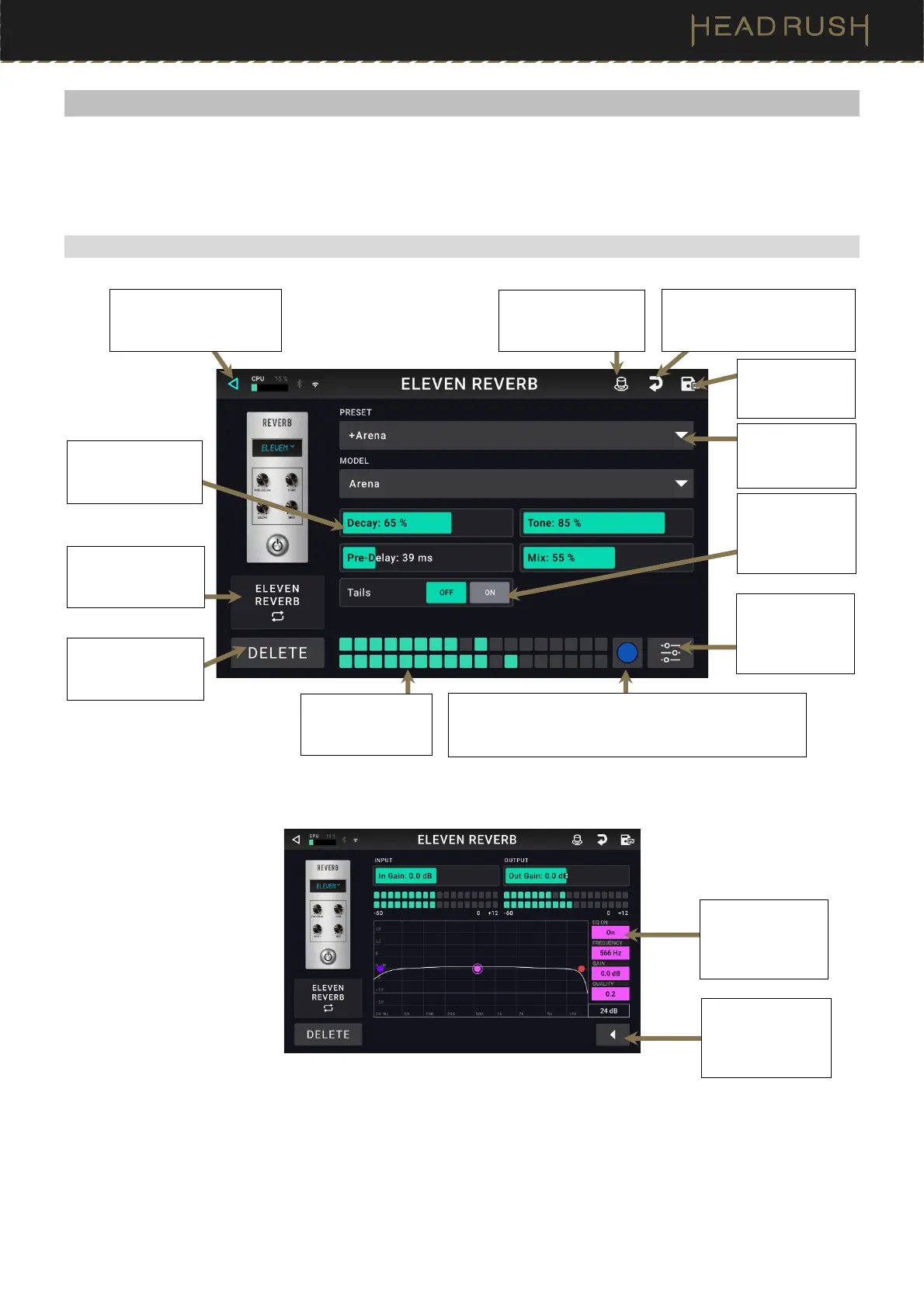
To adjust the settings of a block in your rig, double-tap it to open its settings screen. You can adjust the settings
of any block (amp, cab, IR, clone, or effect), the input (the In/Lock icon), the output (the Out icon), or mix (the Mix
icon).
(4.4.1) Overview
Tap the Preset
menu to select a
preset.
Tap this icon to discard any
changes you’ve made since
opening this screen.
Tap Delete to
unassign the block
from the slot.
Tap to return to retain
your changes and return
to the main screen.
See (4.4.3)
Saving a Block
Preset.
Tap a button to
change a
parameter’s
setting.
Tap and slide a
fader to change a
parameter’s value.
Tap a color to assign it to this block. That color will be
shown in the Hardware Assign screen, and in the
footswitch indicator for this model.
Tap this icon to enter
the (4.6)
Hardware
Assign menu.
Tap the sliders
icon to open the
advanced block
edit page.
Tap the block name
to assign a different
block to this slot.
Tap the arrow
icon to return to
the first page of
settings.
These buttons
turn the model EQ
on/off and adjust
its settings.
This meter
displays the output
level of the block.


 To Next Page