52
(4.17) Amp Cloner
The Amp Cloner feature enables you to clone the sound of a real guitar or bass amplifier or pre-amp (with or without
speakers), as well as real distortion, overdrive, and fuzz pedals, and expand the amount of available amp and effect
sounds in your HeadRush Core. However, please be aware that some pedals cannot be cloned:
• Certain gated fuzz pedals are not able to be cloned at this time. A “gated fuzz” doesn’t mean that there is an
actual noise gate in the fuzz pedal, but that the bias is shifted so hard, that the signal is cutting out on low input
volumes (which is a Noise Gate-like behavior).
• Some older fuzz pedals that were designed to be connected to a high-Z (high impedance) guitar output (7k to
15k Ohms) are not able to be cloned directly into the HeadRush Core without the use of a ReAmp box.
• Time-based effects like flanger, chorus, and delay effects are unable to be cloned at this time.
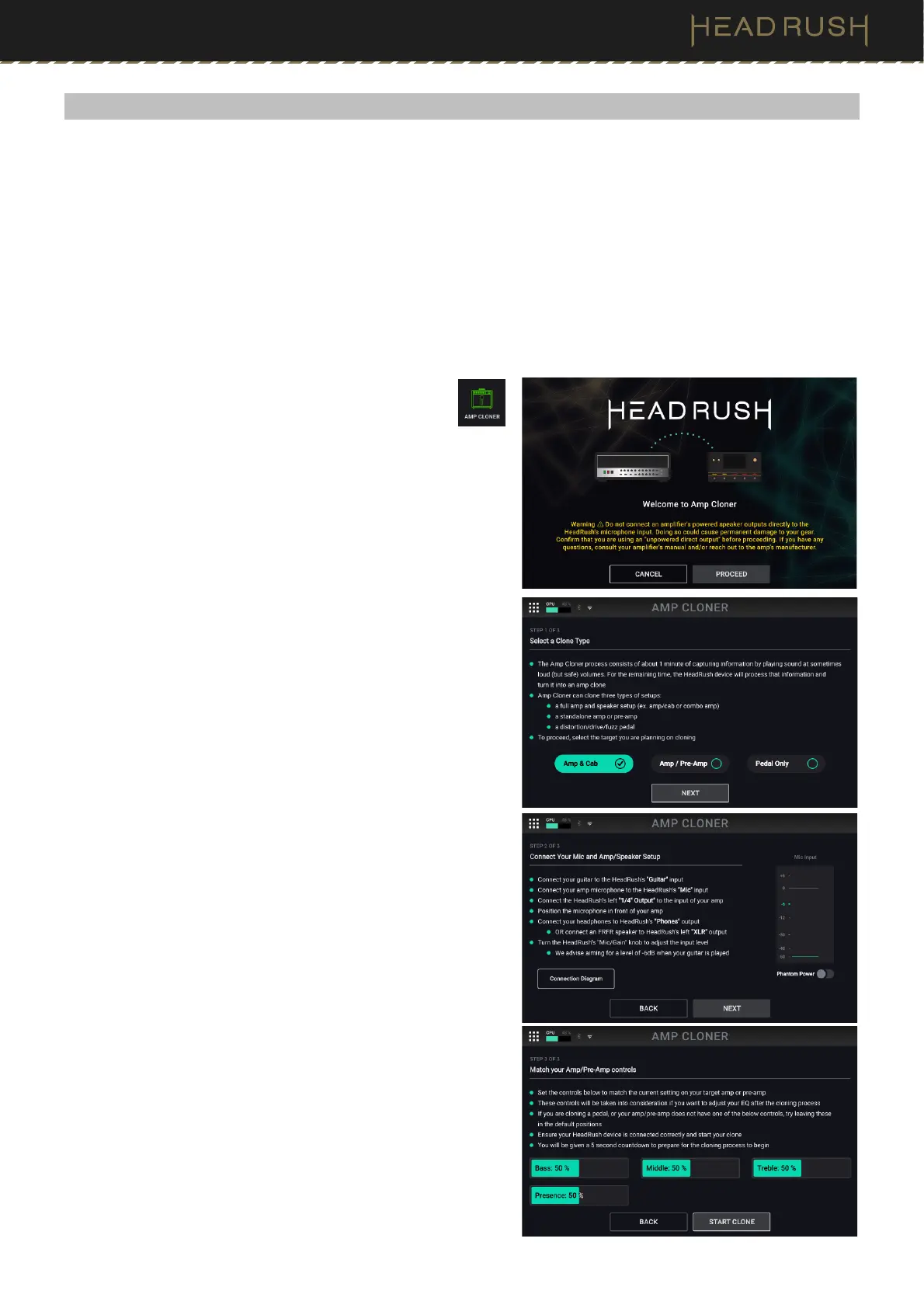
To access Amp Cloner, tap the Menu icon in the top
left of the Main screen, and then tap the Amp Cloner
icon.
Once Amp Cloner has loaded, you will be guided through an
easy 3 step process of preparing to clone your gear via the
on-screen directions shown below.
Once you are ready to clone your gear, tap Proceed to begin
the process.
1. In Step 1, you will choose the type of gear that you would
like to clone: Amp & Cab, Amp / Pre-Amp, or Pedal Only.
2. In Step 2, HeadRush Core will guide you through the
process of correctly connecting your Amp or Pedal to
HeadRush Core. During this step, you can tap the
Connection Diagram button to view a visual diagram and
ensure that your connections are correct. Additionally, you
can preview and set your signal level using the on-screen
meter.
3. In Step 3, you can match the on-screen controls to the
controls on the gear being cloned. Matching these controls
is helpful as they will be taken into consideration if you want
to adjust your EQ after the cloning process. Once you have
matched your controls, tap Start Clone to begin the
cloning process.


 To Next Page