34
(4.6.3) Expression Pedal
When an external expression pedal with a toe switch is connected, it can control two parameters (in Classic Mode)
or two sets of parameters (in Advanced Mode). Use the external pedal’s toe switch to switch between them—
Expression Pedal A or B.
Note: When you save your rig, the current selected Expression Pedal state (A or B) will be saved and then recalled
when you load the rig again.
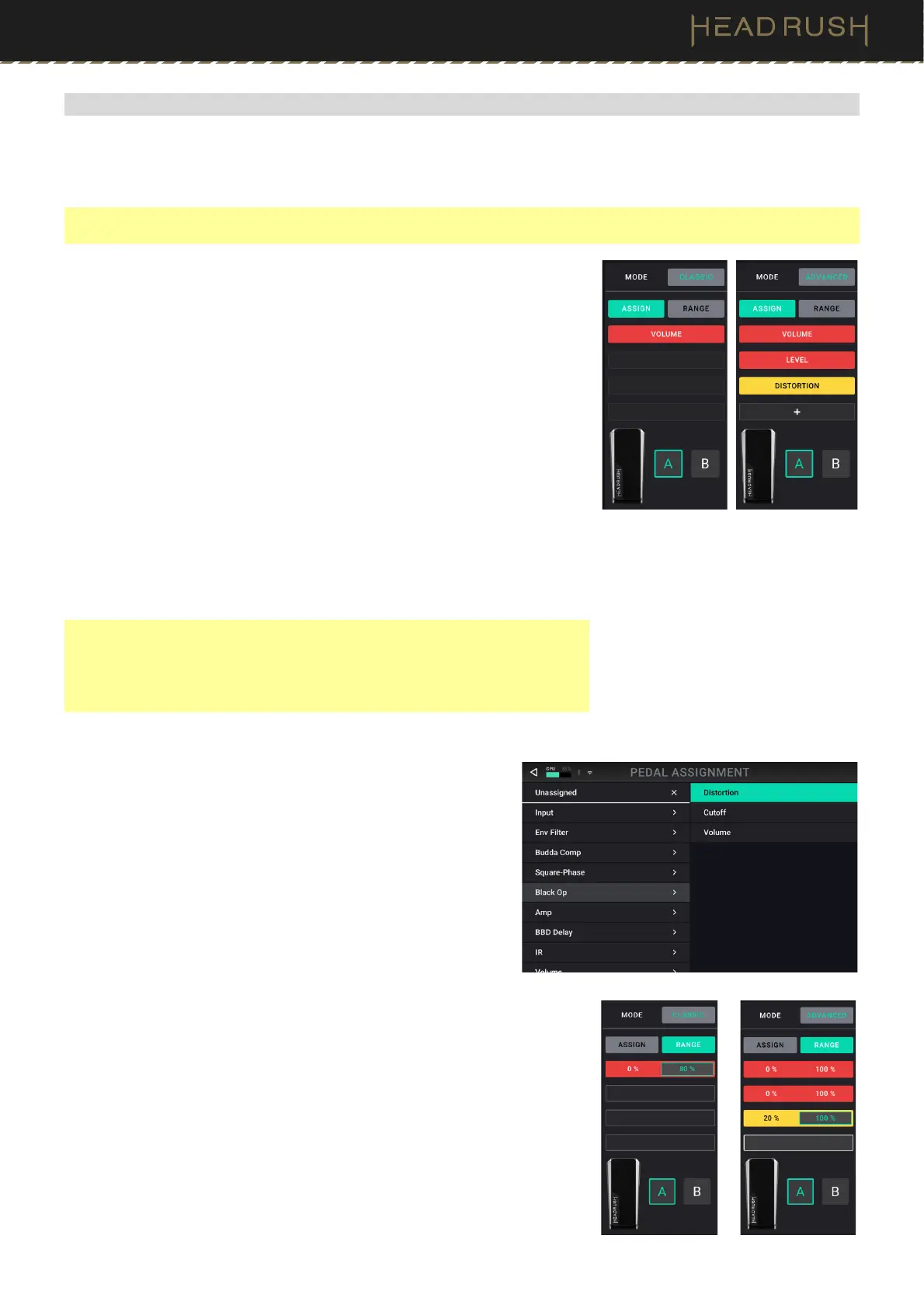
The column of four boxes represents the expression pedal settings. You can
assign one or more continuously adjustable parameters (ones with a range
of values) to the expression pedal.
To set the expression pedal mode, tap the button above Range in the
upper-right corner to select Classic or Advanced.
• Classic: You can assign one parameter to each expression pedal
(A and B). Using the toe switch will select the other expression
pedal parameter and deactivate (bypass) the current expression
pedal’s parameter. For instance, if you assign a wah pedal to
Expression Pedal A and a volume pedal to Expression Pedal B,
only one of them will be active at any time; when you are
controlling the wah pedal, the volume pedal will be bypassed, and
vice versa.
• Advanced: You can assign up to four parameters to each
expression pedal (A and B). Moving the pedal will adjust all its
assigned parameters simultaneously. Using the toe switch will
select the other expression pedal and leave the current pedal’s
parameters active and at their maximum values.
Important: You cannot edit any parameters assigned to the expression pedal
in Classic Mode (they will show a lock icon and be grayed out in other
screens to indicate this). You can edit any parameters assigned to the
expression pedal in Advanced Mode (they will show a pedal icon in other
screens to indicate this).
To assign a parameter to the expression pedal:
1. If the Assign button is not on, tap it.
2. Tap a box under the Assign button. indicates an empty
box.
3. In the list that appears, tap the model with the parameter
you want to assign.
4. In the list that appears, tap the parameter you want to
assign.
Tap Unassigned to unassign that box.
To swap two assignments (while in Advanced Mode), tap and
drag one of them over the other, and then release it.
To set the range of an assigned parameter:
1. If the Range button is not on, tap it.
2. Tap a value under the Range button.
3. Turn the encoder to set the desired value as a percentage of
the parameter’s entire range. Press the encoder or tap
elsewhere to confirm the value.


 To Next Page