63
(4.22) Remote Editor Web UI
The HeadRush Remote Editor web UI provides a quick and easy-to-use tool for working with your HeadRush Core.
You can use it to view and edit rigs and setlists, access the HeadRush Cloud, and more.
Note: For best results, we recommend using a computer or tablet with a 7” or larger screen, and using the native
web browser for that device (e.g., Microsoft Edge for Windows-based devices, Safari for macOS/iOS-based
devices, or Google Chrome for Android-based devices). You may find that other browsers are incompatible with
the Remote Editor web UI.
To access the Remote Editor:
1. On HeadRush Core, tap the Menu icon in the upper-left corner of the Main screen, and then tap Global
Settings.
2. Select the Wi-Fi page on the left side of the screen, and ensure that the HeadRush Core Wi-Fi is set to On, and
then connect to your local network.
3. Once you have connected, set the HeadRush Remote setting on the Wi-Fi page to On.
4. On your computer, tablet, or other external device (connected to the same Wi-Fi network), open a web browser
and enter headrushcore.local or the IP address shown on HeadRush Core (for example, http://192.168.68.81)
into the address field.
(4.22.1) Edit Rig
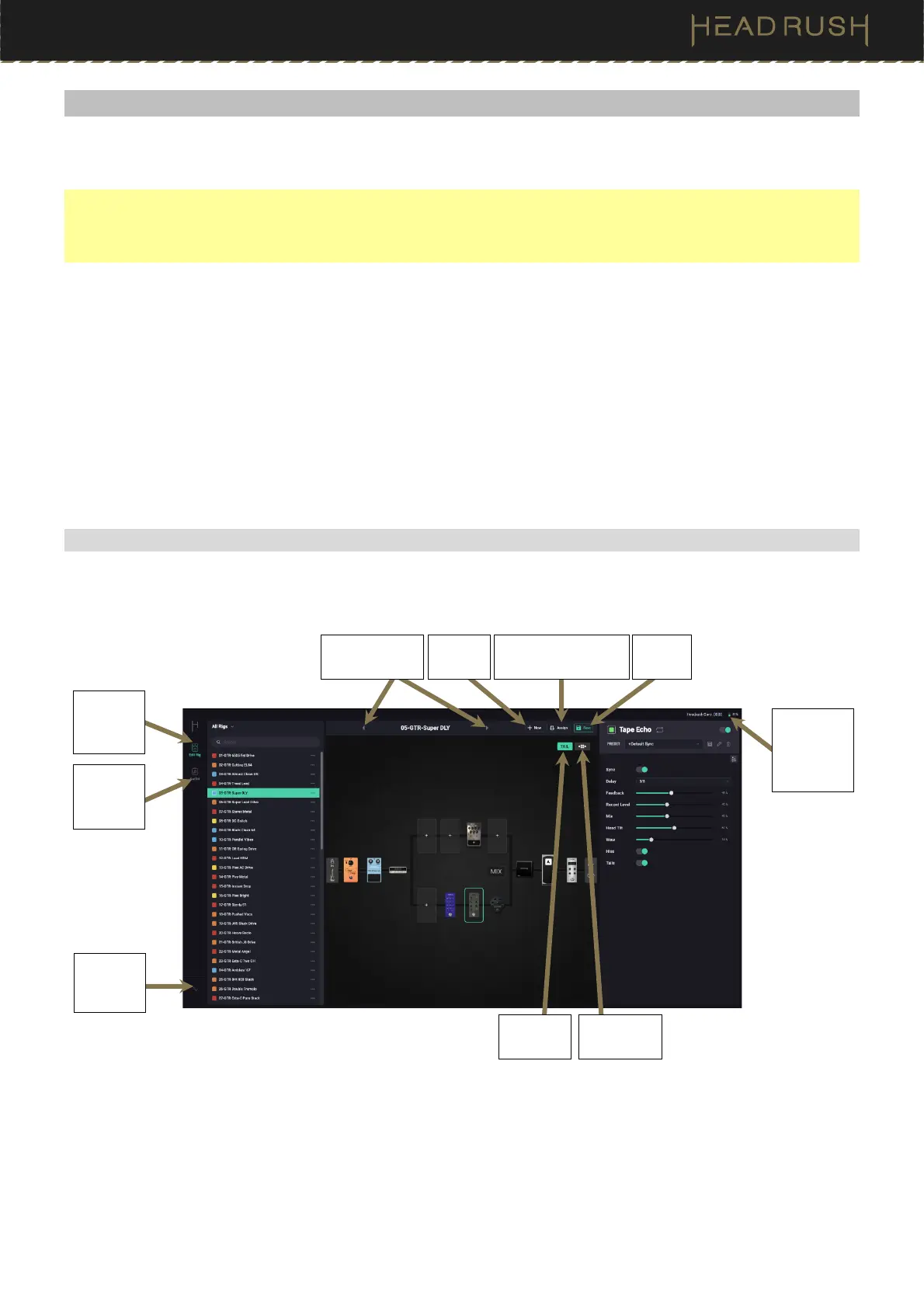
The Remote Editor will open with a view just like My Rig mode on your HeadRush Core device. From here you can
browse, edit, and save rigs; adjust block settings and manage presets; apply hardware assignments; and more.
Open the
Setlists
page.
Open the
Edit Rig
page.
Open
Global
EQ.
Displays
the current
CPU
usage.
Create
new rig.
Open the Hardware
Assign page.
Save
the rig.
Load previous
or next rig.
Edit signal
path.
Turn tails
on/off.


 To Next Page