53
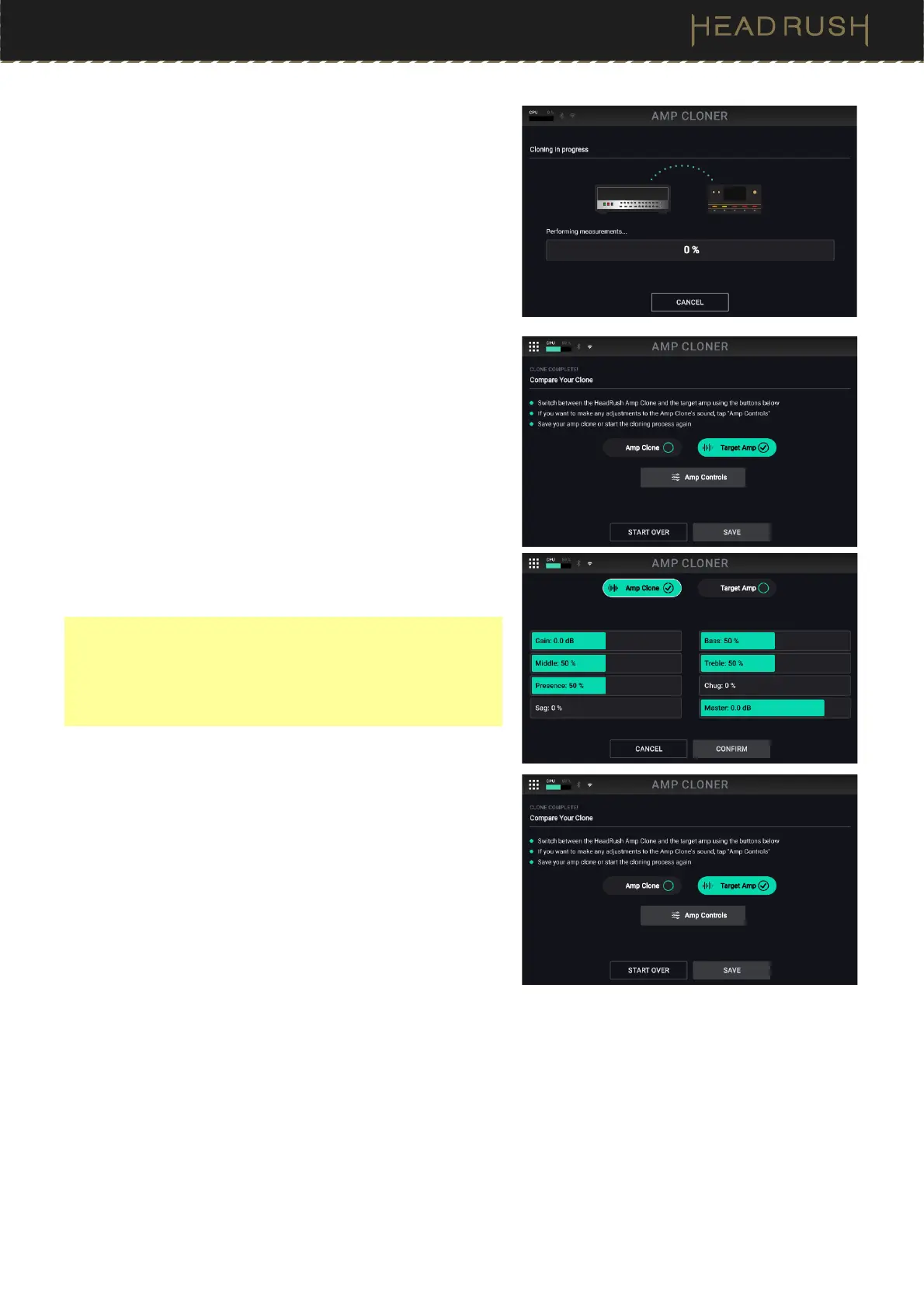
Once the cloning process has begun, a progress bar will be
shown with details about what’s happening. You will hear about
1 minute of measurement tones, and then the remaining time
will be spent processing the information. The entire process
lasts about 3 minutes or less; however, you can tap the Cancel
button to abort the process at any time.
After the cloning process is complete, you will be brought to a
screen where you are able to preview your clone, as well as
compare it to the target device you cloned. You may choose to
refine the clone at this time by tapping the Amp Controls
button.
While on this screen, you can make adjustments to the clone’s
sound. You can also switch between the sound of the new
clone and the target device.
Tip: If you are cloning an Amp & Cab, it is much easier to
compare the sound of your clone to the target Amp & Cab if
you place your HeadRush Core in a seperate room away from
the target Amp & Cab. This can help you listen more objectively
and not get distracted by any sound that you may still be able to
hear while using headphones and listening to the comparisons.
Once you have finished making any last adjustments, tap the
Confirm button. You will be brought back to the previous page.
Once you are finished, tap the Save button. After you have
saved your clone, you can add your clone to a rig in the same
way you would add a traditional amp model or effect pedal by
tapping an empty block on the Main page, and selecting Amp
Clone.


 To Next Page