39
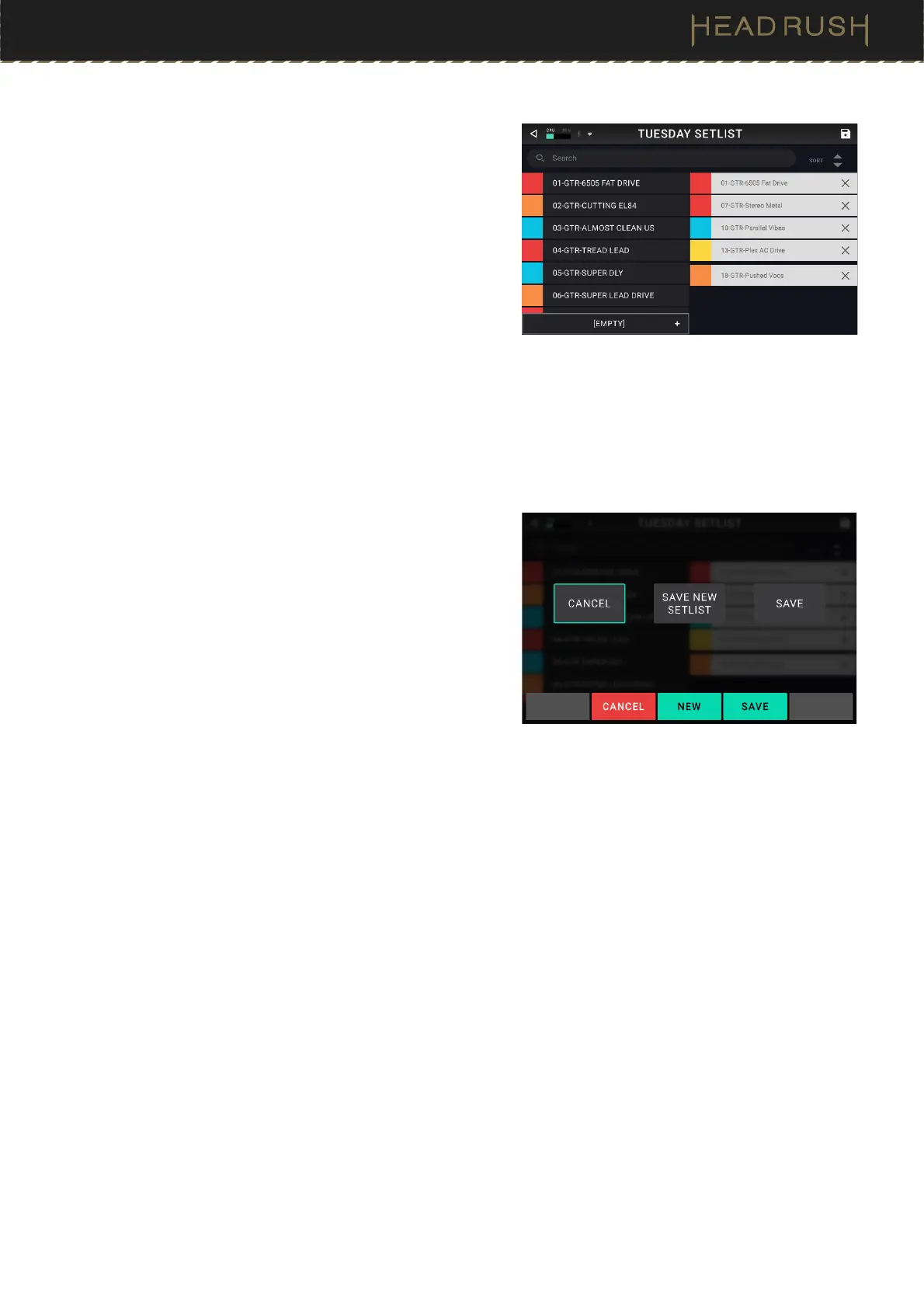
To create a setlist:
1. Tap + in the upper-right corner of the main setlist screen.
2. In the screen that appears, the left half is a list of all
available rigs, and the right half is the list rigs in the setlist.
• To add a rig to the setlist, tap it in the list on the left
half of the screen. It will automatically be added to the
end of the setlist. Alternatively, you can tap and hold
the rig while dragging it to the desired location in the
setlist. You are able to add the same rig to more than
one slot in a setlist.
• To rearrange a rig in the setlist, tap and hold the rig
while dragging it to the desired location in the setlist.
• To further customize the arrangement of your rigs, tap the [Empty] + button in the lower-left corner. In
place of a rig, a blank will be inserted into the setlist, and you can rearrange it as you would any other rig.
In the Rig, and Hybrid footswitch modes, the blank will be assigned to the footswitch corresponding to its
position in the setlist, and this footswitch will be disabled. Use this feature if you would like to limit the
number of selectable rigs in a row of footswitches or in one of your banks of rigs.
• To remove a rig from the setlist, tap the X on its right edge.
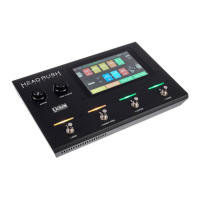
To save your changes to the current setlist, tap Save in the
upper-right corner.
• To save your changes as a new setlist, tap Save
New Setlist, use the virtual keyboard that appears to
enter a name, and then tap Save.
• To return to the previous screen without saving, tap
Cancel.


 To Next Page