58
Vocals: This setting determines where the vocal path from a rig’s output signal is sent to. Choose XLR to send
the signal to HeadRush Core’s XLR outputs, 1/4” to send the signal to the 1/4” outputs, and Phones to send
the signal to the 1/8” headphones output.
Mic Dry: This setting determines where the dry vocal out from a rig’s output signal is sent to. Choose XLR to
send the signal to HeadRush Core’s XLR outputs, 1/4” to send the signal to the 1/4” outputs, and Phones to
send the signal to the 1/8” headphones output.
Practice Tool: This setting determines where the Practice Tool’s output signal is sent to. Choose XLR to send
the signal to HeadRush Core’s XLR outputs, 1/4” to send the signal to the 1/4” outputs, and Phones to send
the signal to the 1/8” headphones output.
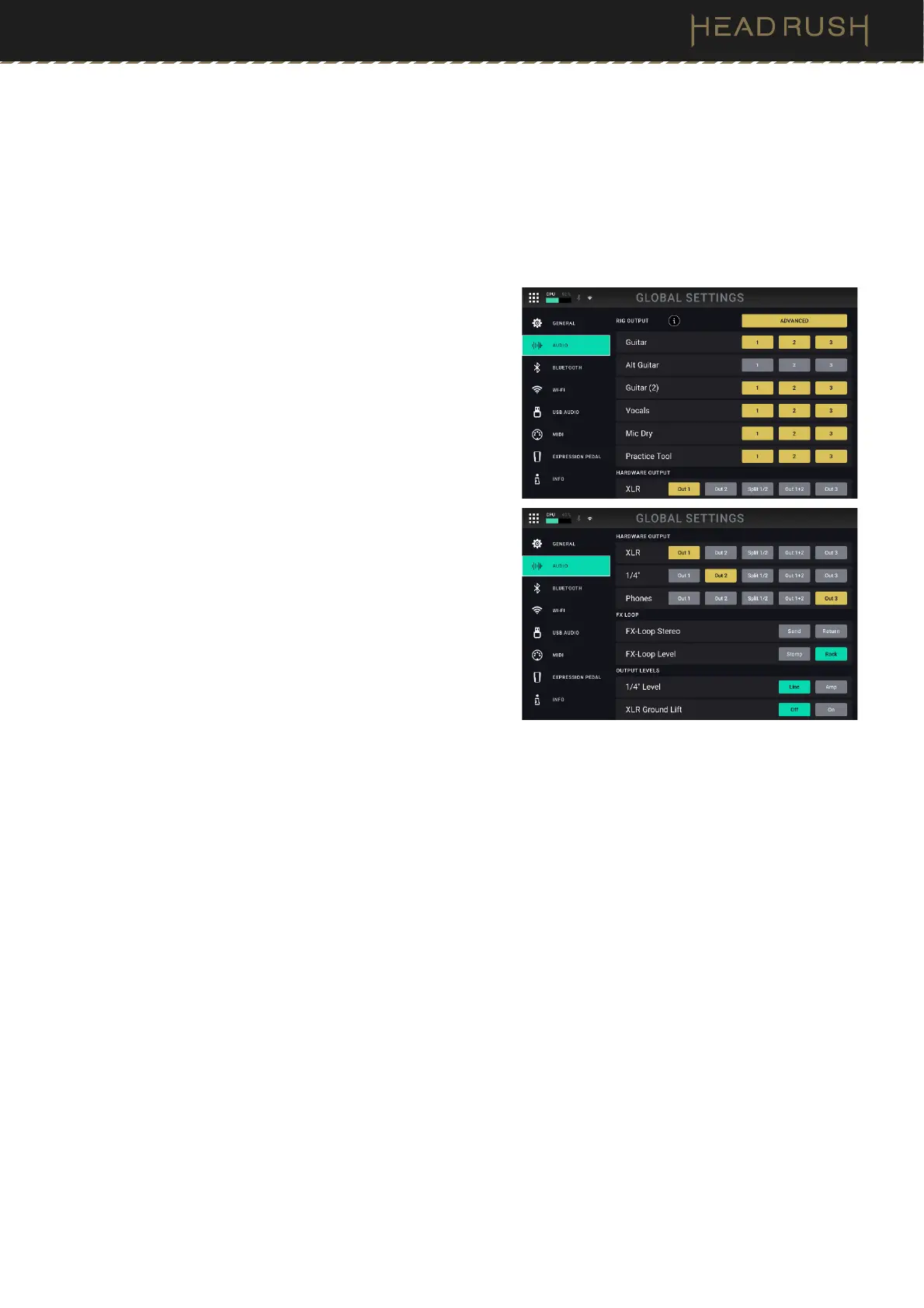
Tap the Advanced button to access an additional set of
parameters for more control of how your rig’s audio output is
assigned to the hardware outputs. These parameters are set
globally, which enables you to quickly rearrange your output
configuration for all rigs if you are in a new performance
environment and need to adjust your settings.
Rig Output: This setting allows you to select any of the three
available audio bus settings (1, 2, or 3) for each audio signal
that is available from a RIg's output (Guitar, Alt Guitar,
Guitar (2), Vocals, and Mic Dry).
Hardware Output: This setting allows you to assign how the
three buses are assigned to the XLR, 1/4”, and
Headphones outputs.
• OUT 1: This will assign Bus 1 to the selected hardware
outputs (in stereo).
• OUT 2: This will assign Bus 2 to the selected hardware
outputs (in stereo).
• SPLIT 1/2: This will assign Bus 1 to the left side and
Bus 2 to the right side of the selected hardware outputs
(in mono).
• OUT 1+2: This will assign both Bus 1 and
Bus 2 to the
selected hardware outputs (in stereo).
• OUT 3: This will assign Bus 3 to the selected hardware
outputs (in stereo).
FX Loop:
FX-Loop Stereo: These settings determine whether the incoming and outgoing signal in the effects loop is stereo
or mono. Tap Send to enable or disable the stereo signal for the send outputs. Tap Return to enable or disable
the stereo signal for the return inputs.
FX Loop Level: This setting determines the signal level received by the FX Return Input (1/4”/6.35 mm, TRS).
When set to Rack, the output level will be line level, +18 dBu. Use this setting if you are connecting a rack
effects processor in HeadRush Core's FX-Loop. When set to Stomp, the output level will be +6 dBu. Use this
setting if you are connecting a traditional guitar pedal (“stompbox”) in the FX-Loop.
1/4” Level: This setting determines the signal level sent to the main Outputs (1/4”/6.35 mm, TRS). When set to
Line, the output level will be +18 dBu. Use this setting if you are connecting HeadRush Core to a full-range,
flat-response amplifier, PA speaker, mixer, or audio interface. When set to Amp, the output level will be +6 dBu.
Use this setting if you are connecting HeadRush Core to a traditional guitar amplifier.
XLR Ground Lift: This setting determines whether the XLR ground lift feature is enabled (On) or disabled (Off).
Use this feature to reduce hum or noise in the signal from the XLR Outputs.


 To Next Page