20
(4.4.2) Parameters
Listed below are some of the common parameters that you can adjust for each type of block. The block types
include amps, cabs, IRs, clones, effects, input settings, output settings, and mix settings (if you are using a split
signal path). See (4.4.3) Saving a Block Preset to learn how to save a preset after adjusting parameters.
Advanced Block Edit Page
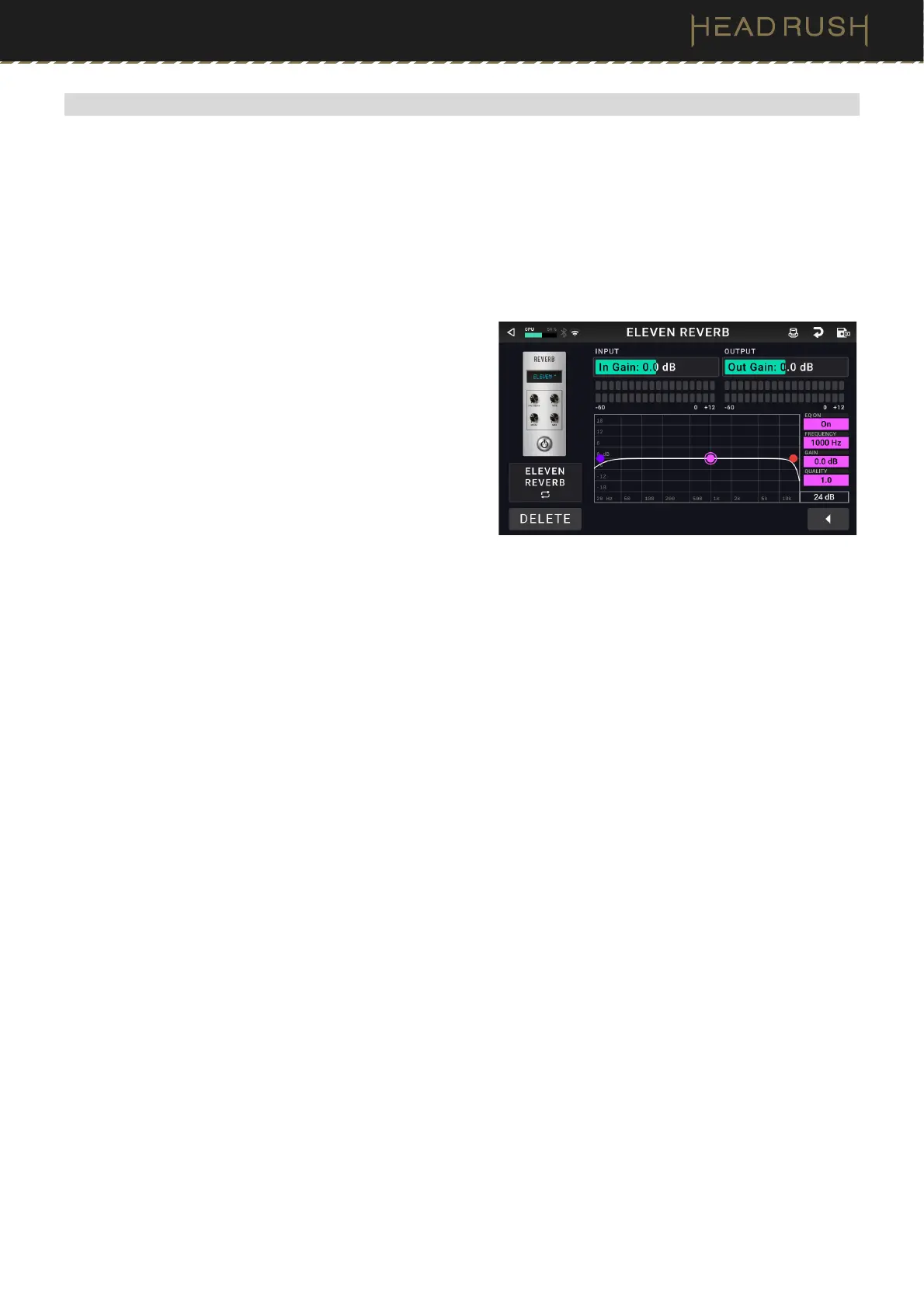
The amp, cab, IR, clones, and effects blocks also feature a second page of parameters, where you can adjust gain
and EQ. The settings on this page are the same for each available block type.
Input Gain: This setting controls the gain level of the
signal sent going into the block. The available range
is -12.0 to 12.0 dB.
Input Level Meter: This level meter indicates the
current level of your input signal before the input
controls shown on this screen.
Output Gain: This setting controls the gain level of the
signal after it has been processed by the block. The
available range is -12.0 to 12.0 dB.
Output: This level meter indicates the current level of
your output signal after the output controls shown
on this screen.
EQ On: This setting determines whether equalization is enabled (On) or disabled (Off) for the outputs.
Level: This setting determines if/how much the signal level from the outputs is boosted or cut. This value is
applied to the level set by the Main knob.
Low Band & High Band: These settings determine what type of equalization is applied to the lowest-frequency
band (Low Band) and to the highest-frequency band (High Band): Shelf or Cut.
EQ Bands: There are four available EQ bands: Low (blue), Low Mid (teal), High Mid (yellow-green), and High
(orange). Tap to select each band. To adjust each band’s Frequency and Gain, you can simply drag the dots
along the graph, or use the parameters on the right side of the graph.
Frequency: This setting determines the center frequency of each EQ band, in Hertz (Hz).
Gain: This setting determines how much the equalizer boosts or cuts the signal and the corresponding
frequency band.
Quality: This setting determines the width of the frequency band. The higher the setting, the wider the band
will be around the center frequency (the first setting). This setting is applied whether Low Band or High Band
is set to Shelf or Cut.
Mode: For the Low and
High frequency bands, this determines whether the the equalization is applied as a
Shelf or Cut.
Zoom: You can view the EQ graph on a 12 dB or 24 dB scale by tapping this setting at the bottom.



 To Next Page