37
(4.10) Practice Tool
Flex Prime includes a convenient built-in Practice Tool that you can use to play along with songs from your Flex
Prime’s internal storage, connected USB storage devices, or a linked Dropbox account.
In addition to being able to play along with a song, you can also set loop points within a song, and use speed
controls to slow it down to making learning the song easier, or use pitch controls to practice a song in different keys.
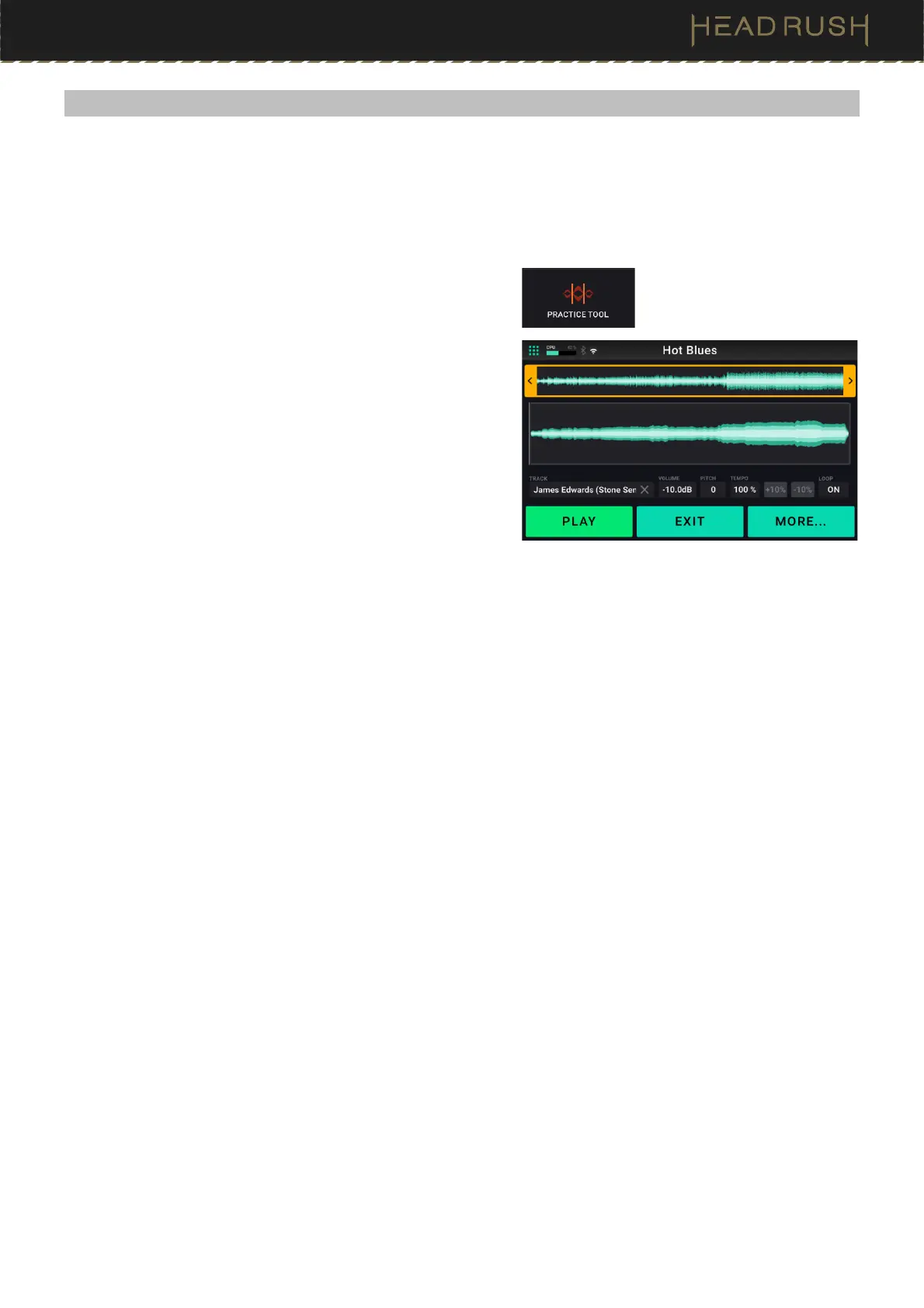
To access the Practice Tool, tap the Menu icon in the top left
of the Main screen, and then tap the Practice Tool icon.
Tap or press footswitches 1-3 to control the three functions
displayed at the bottom of the screen. Tap More… or press
footswitch 3 to cycle between the available controls.
Play: Press footswitch 1 to start playback. During
playback, press footswitch 1 again to pause, or hold
footswitch 1 to stop.
Exit: Press footswitch 2 to return to the menu.
Loop In: Press footswitch 1 to set the loop start point.
Loop Out: Press footswitch 2 to set the loop end point.
RWD: Press footswitch 1 to rewind the track.
FWD: Press footswitch 2 to fast-forward the track.
Speed -: Press footswitch 1 to reduce the speed of the track (without affecting the pitch) by 10%.
Speed +: Press footswitch 2 to increase the speed of the track (without affecting the pitch) by 10%.
To load a track to the practice tool, tap the box titled Track.
To set loop points within the track, tap and drag the yellow arrows at the top of the screen, or tap the footswitches
labeled Loop In and Loop Out.
To adjust the playback volume of the track, tap the box titled Volume, and then turn the main encoder.
To adjust the pitch of the track (in semitones) without affecting the speed of the track, tap the box titled Pitch,
and turn the main encoder.
To adjust the speed of the track
without affecting the pitch of the track, tap the box titled Tempo, and turn the
main encoder. You can also tap the +10% or -10% buttons located next to the tempo percentage, or tap the 2
footswitches labeled Speed – or Speed +.
To control playback of the track, tap the transport icons (Rewind, Stop, Play/Pause, Forward) at the bottom of
the screen, or use the 3 footswitches labeled Rwd, Play, and Fwd.
To turn the Loop feature of the Practice Tool on and off, tap the box titled Loop until it displays On or Off
accordingly.



 To Next Page