48
(4.16) Lock Screen
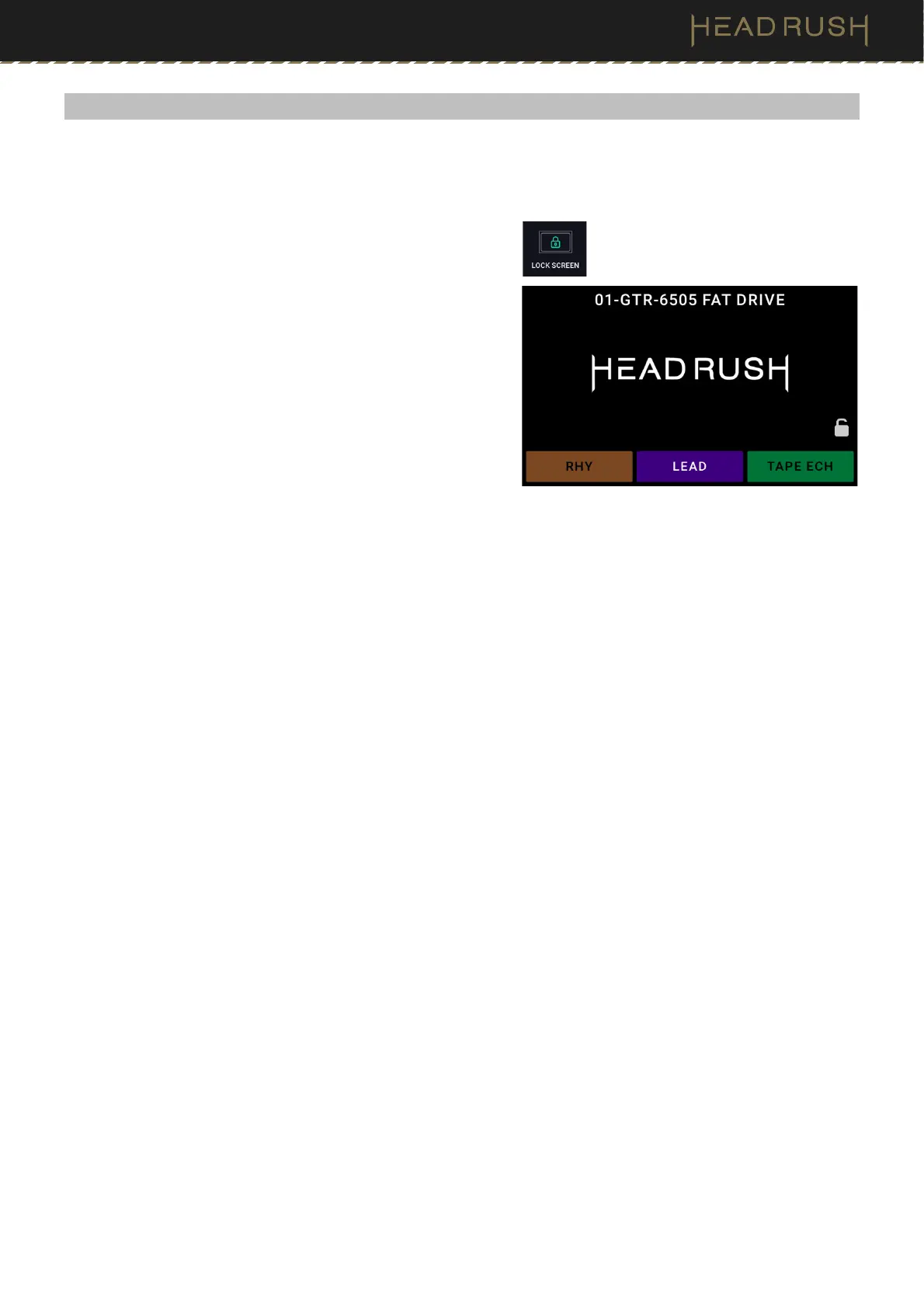
The Lock Screen feature disables the touchscreen and gives you a simple interface that shows your current rig
name, the current footswitch mode blocks, and a customizable image.
To access the Lock Screen feature, tap the Menu icon in the
top left of the Main screen, and then tap the Lock Screen
icon. You can also press and hold footswitch 1, and then
press and hold footswitch 3.
To exit the Lock Screen feature back to the Menu, simply
tap the touch screen 3 times. You can also press and hold
footswitch 1, and then press and hold footswitch 3 again.
To customize the Screen Lock image, place a .png, .bmp,
.jpg, or .jpeg file named LockScreenLogo in the root
directory of the HeadRush drive while using the (4.15.1)
Transferring Files and Setttings feature.
We recommend using an 800x400-pixel image (it will be
automatically scaled to this size after transferring it). Note
that any changes you make to the contents of your
HeadRush are immediate and cannot be cancelled.



 To Next Page