49
(4.17) Global EQ
The Global EQ screen lets you quickly apply additional equalization to all your presets without permanently saving
them. These settings are especially useful when a venue, rehearsal space, or other environment has different acoustic
characteristics than the room where you originally created your presets (e.g., the venue may sound “boomier,” or a
rehearsal space with soundproofing may deaden some of the high end).
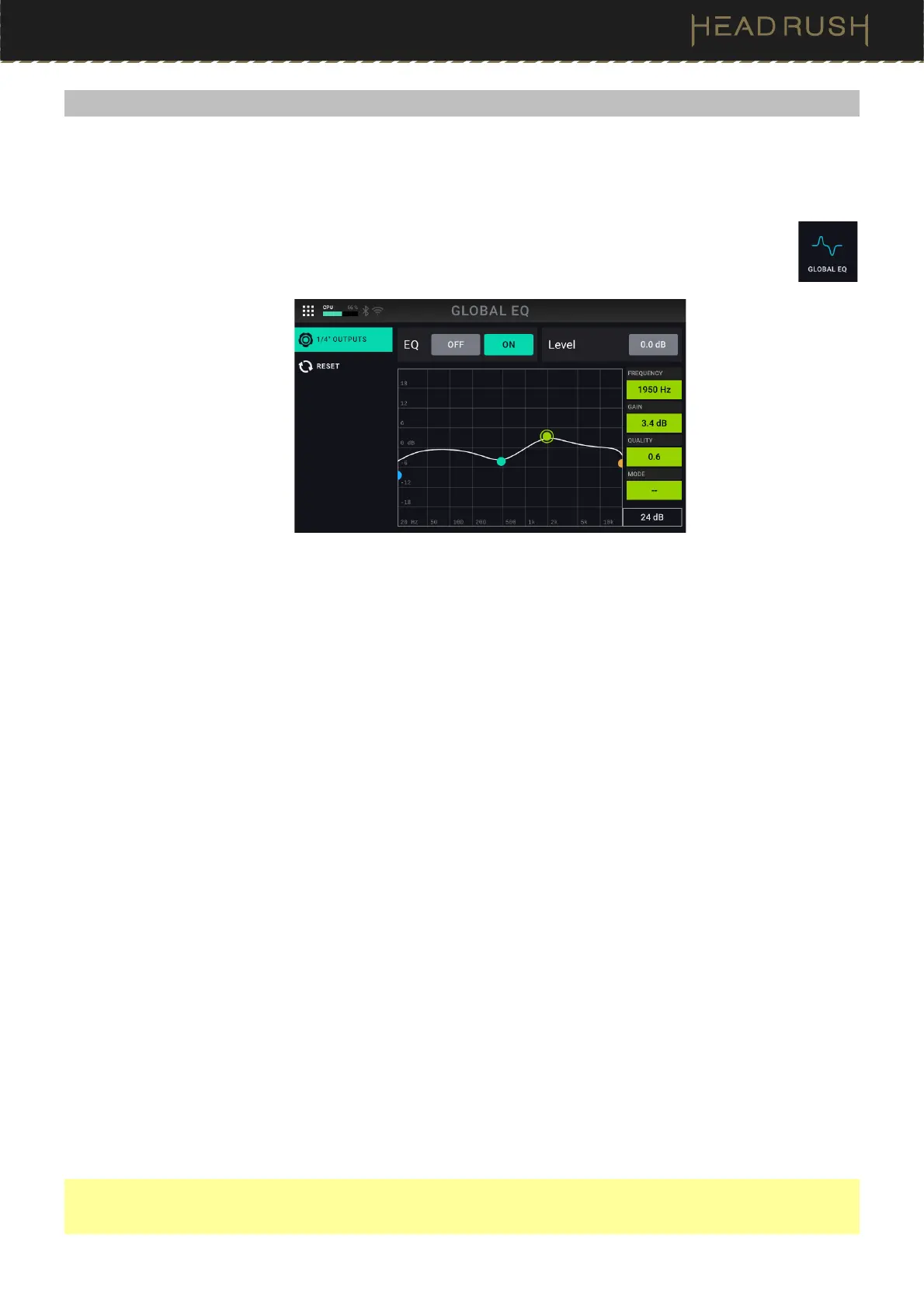
To access the Global EQ screen, tap the Menu icon in the top left of the Main screen, and then
tap the Global EQ icon.
These settings determine if/how equalization is applied to the 1/4” (6.35 mm) outputs. Each equalizer is a four-band
parametric equalizer.
The available settings are as follows:
EQ On: This setting determines whether equalization is enabled (On) or disabled (Off) for the outputs.
Level: This setting determines if/how much the signal level from the outputs is boosted or cut. This value is
applied to the level set by the Main knob.
Low Band & High Band: These settings determine what type of equalization is applied to the lowest-frequency
band (Low Band) and to the highest-frequency band (High Band): Shelf or Cut.
EQ Bands: There are four available EQ bands: Low (blue), Low Mid (teal), High Mid (yellow-green), and High
(orange). Tap to select each band. To adjust each band’s Frequency and Gain, you can simply drag the dots
along the graph, or use the parameters on the right side of the graph.
Frequency: This setting determines the center frequency of each EQ band, in Hertz (Hz).
Gain: This setting determines how much the equalizer boosts or cuts the signal and the corresponding
frequency band.
Quality: This setting determines the width of the frequency band. The higher the setting, the wider the band
will be around the center frequency (the first setting). This setting is applied whether Low Band or High Band
is set to Shelf or Cut.
Mode: For the Low and High frequency bands, this determines whether the the equalization is applied as a
Shelf or Cut.
Zoom:
You can view the EQ graph on a 12 dB or 24 dB scale by tapping this setting at the bottom.
You can reset the Global EQ feature back to the factor defaults by tapping the Reset icon in the left column on this
screen. On the next screen, tap Reset again, and then tap Yes or press footswitch 3 to confirm. Tap No or press
footswitch 2 to cancel reset and return to the previous screen.
Note: This feature is specifically designed for adjusting the sound of every rig at once to accommodate your
performance environment. If you would like to use an EQ with a similar interface in a specific rig, try the Para EQ
block, located in the EQ category when adding a block to a rig.



 To Next Page