52
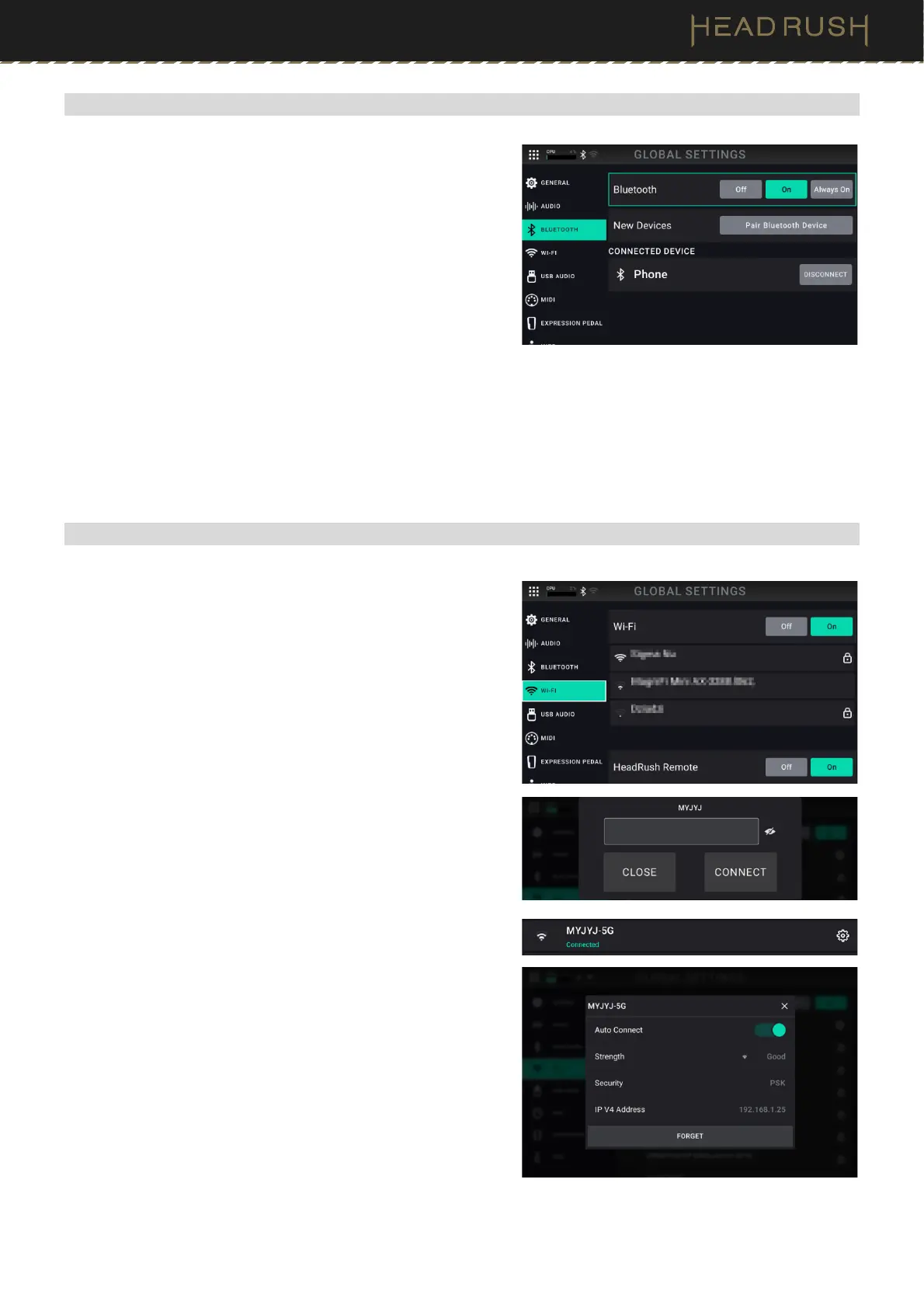
(4.18.3) Bluetooth
Flex Prime features an integrated Bluetooth audio receiver,
enabling you to connect a mobile device and play along with
songs, lesson apps, etc. The settings for this feature are
located on this tab.
To enable the Bluetooth audio receiver for pairing to your
mobile device, tap the ON button at the top of the screen.
By default, Bluetooth will automatically turn off when Flex
Prime is powered off. To keep Bluetooth on each time
Flex Prime is powered on, select Always On.
To pair to Flex Prime, search for “HeadRush Flex Prime”
in the Bluetooth Settings menu on your device and
connect to it.
To disconnect a paired Bluetooth Audio device, tap the disconnect button next to the name of the device
under the list of connected devices.
To disable the Bluetooth audio receiver, tap the OFF button.
(4.18.4) Wi-Fi
Flex Prime also features an integrated Wi-Fi connection,
enabling you to connect your Flex Prime to a local network so
that you can receive new firmware updates, use the
HeadRush Cloud to download/share new rigs and clones, or
access files from a Dropbox storage account when using the
File Browser.
To connect Flex Prime to your local Wi-Fi network, tap
the ON button at the top of the screen. Then, tap the local
network that you would like to connect to, and enter the
password for the network when prompted.
While you are connected to a Wi-Fi network, you can tap
the settings icon located next to the network name to
view the Wi-Fi signal strength, security, and IP details, as
well as access settings for auto-connect, and forgetting
a local network.
To disconnect Flex Prime from your local network and
disable Wi-Fi, tap the OFF button.
HeadRush Remote: When Flex Prime is connected to Wi-Fi, set
this to On to enable access to the Web UI editor. Once enabled,
open a web browser and enter the IP address shown here or
headrushflexprime.local. You can use this interface to edit and
save rigs and setlists as well as adjust global settings. See (4.20)
Remote Edtior Web UI for more information.



 To Next Page