34
(4.8) File Browser
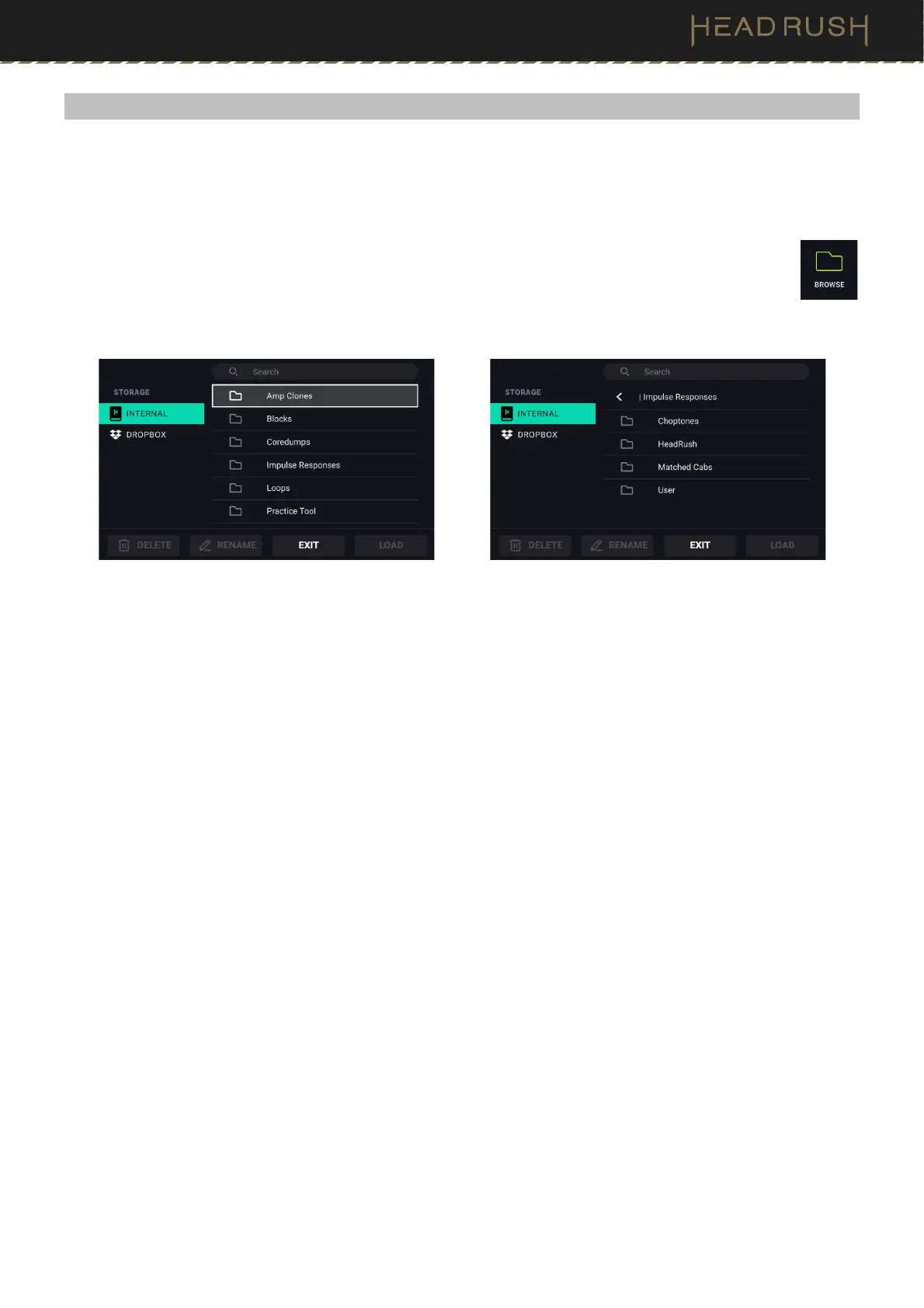
The File Browser is a handy tool for navigating your files and folders on Flex Prime’s internal storage. In addition
to the internal storage, any USB storage devices connected to Flex Prime’s USB-A port will appear along the left
side of this screen.
To access the File Browser, tap the Menu icon in the top left of the Main screen, and then tap the
Browse icon.
The File Browser will also appear on other screens when performing actions like adding an IR or Clone
to a rig, as well as loading a track to the Practice Tool or Looper.
While the File Browser is open, you can tap folders to view their contents, as well as select a file and choose to
Delete, Rename, or Load it.
You can also import or load files from a linked Dropbox account using Flex Prime’s onboard Wi-Fi connection. This
is especially useful for loading your own songs to the (4.10) Practice Tool.
To link your Dropbox account, tap the Dropbox icon located on the left side of this screen and follow the on-
screen directions.



 To Next Page