9
To load another rig (preset):
• Tap the name of the rig on the screen and then turn the encoder.
• Tap the name of the rig on the screen and then tap the / buttons to move to the previous or next rig.
• Press footswitches 1 and 2 (), or footswitches 2 and 3 () simultaneously when Flex Prime is in Stomp
Mode.
• Press a footswitch assigned to a preset when Flex Prime is in Rig Mode.
• Press a footswitch assigned to Prev Rig or Next Rig when Flex Prime is in Hybrid Mode.
To create a new rig, tap the + button in the toolbar.
To rename the current rig, double-tap the rig name. Use the keyboard that appears, and then tap Rename.
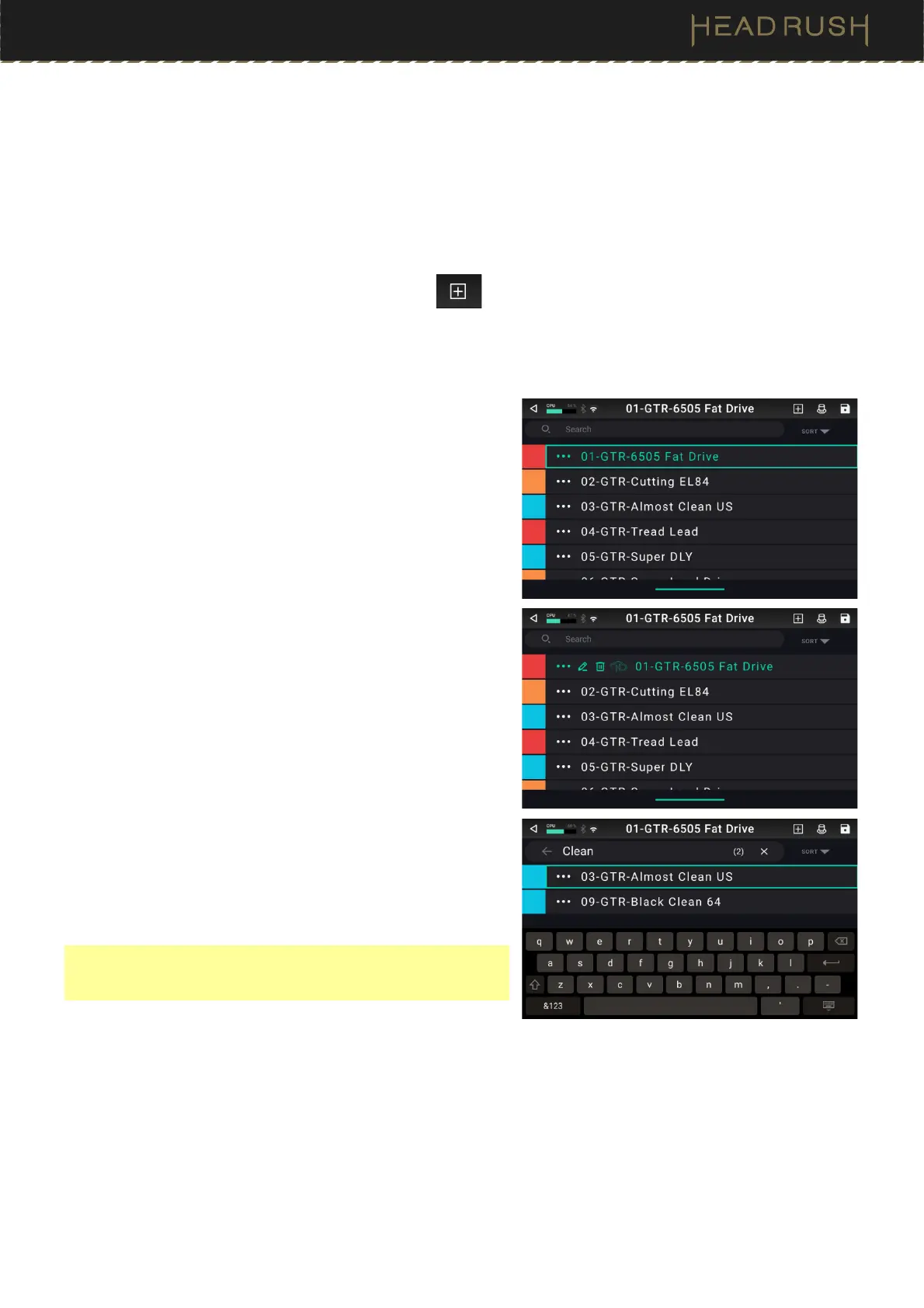
To show a list of available rigs on your Flex Prime, tap the rig
name and drag downward. In this list you can tap a rig’s name
to load it.
Tap the button to the left of the rig name to access additional
options:
To rename the rig, tap the pencil icon.
To delete the rig, tap the trash can icon, and then tap Delete
or press footswitch 3 to continue. Tap Cancel or press
footswitch 2 to return to the rig list.
To add the rig to the HeadRush Cloud, tap the cloud icon. See
HeadRush Cloud for more information.
To search for a rig on your Flex Prime, tap the magnifying-
glass icon in the upper-left corner and use the virtual keyboard
that appears to enter a search term (e.g., part of the rig name).
The results will appear below. Tap a result to load that rig.
To sort the list, tap the Sort button. You can sort by name A to
Z, by name
Z to A, or by Color.
To hide this list, tap the current rig name in the toolbar, or drag
upward from the bottom of the list.
Note: If you have not selected a setlist, all rigs on your Flex
Prime will be shown on this rig list. If you have selected a setlist,
only the rigs from that setlist will appear on this rig list.



 To Next Page