S321 User Guide Chapter 3
Setup and Configuration Page 27 of 65
The Format Internal Disk button allows you to reformat the internal hard drive in the S321.
Self-test provides an application review to ensure the device functioning properly (See self‐check
for more information).
Restore Factory Settings returns the S321 to all default settings and perform a full power cycle.
Reset initiates a complete device shut down, creating a hard reset to the device and stopping any
application activity. (See Resetting the S321 for more information).
WebUI Settings
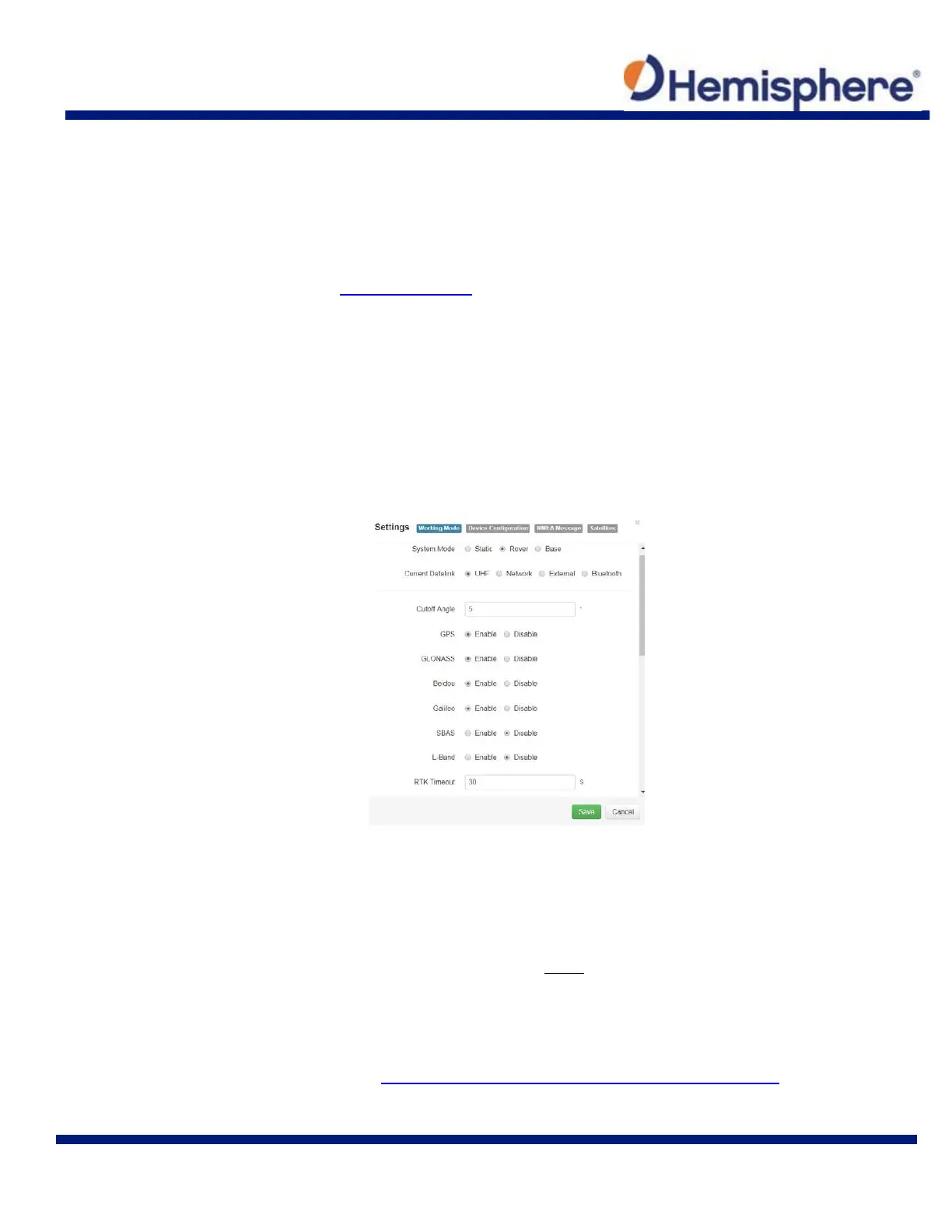
Working Mode: UHF
When using a UHF datalink, channel tables must be configured by a certified Hemisphere GNSS
dealer, or by uploading a channel table file provided by a dealer.
Important: The Advanced UHF Settings can only be accessed by Hemisphere GNSS or a
certified Hemisphere GNSS dealer.
Cutoff Angle: satellites at a lower angle to the horizon than “5” are not used in the
GNSS solution
GLONASS: Enable or Disable the use of GLONASS satellites
BeiDou: Enable or Disable the use of BeiDou satellites
Galileo: Enable or Disable the use of Galileo satellites
SBAS: Enable or Disable the use of SBAS for DGNSS corrections
L‐Band: Enable to use Atlas corrections or aRTK
RTK Timeout: this field indicates the amount of time an RTK correction will continue
to be used after RTK corrections are lost. (Note: If using aRTK, set the L‐Band to
Enable and RTK Timeout to 2700.)
Athena Log: Record raw data for converting to Rinex and post‐processing. If “Yes” is
selected, the following dialogue will display: Access the Rinex converter using the
following hyperlink: https://hemispheregnss.com/Resources-Support/Software


 To Next Page