S321 User Guide Chapter 3
Setup and Configuration Page 41 of 65
Updating Firmware via MicroSD Card
Using the WebUI, select “Settings” and “Device Configuration”. Under “Device Configuration”,
locate the “First Storage” option, and select the “SD Card” radio button. Click the “Save” button
at the bottom right of the screen.
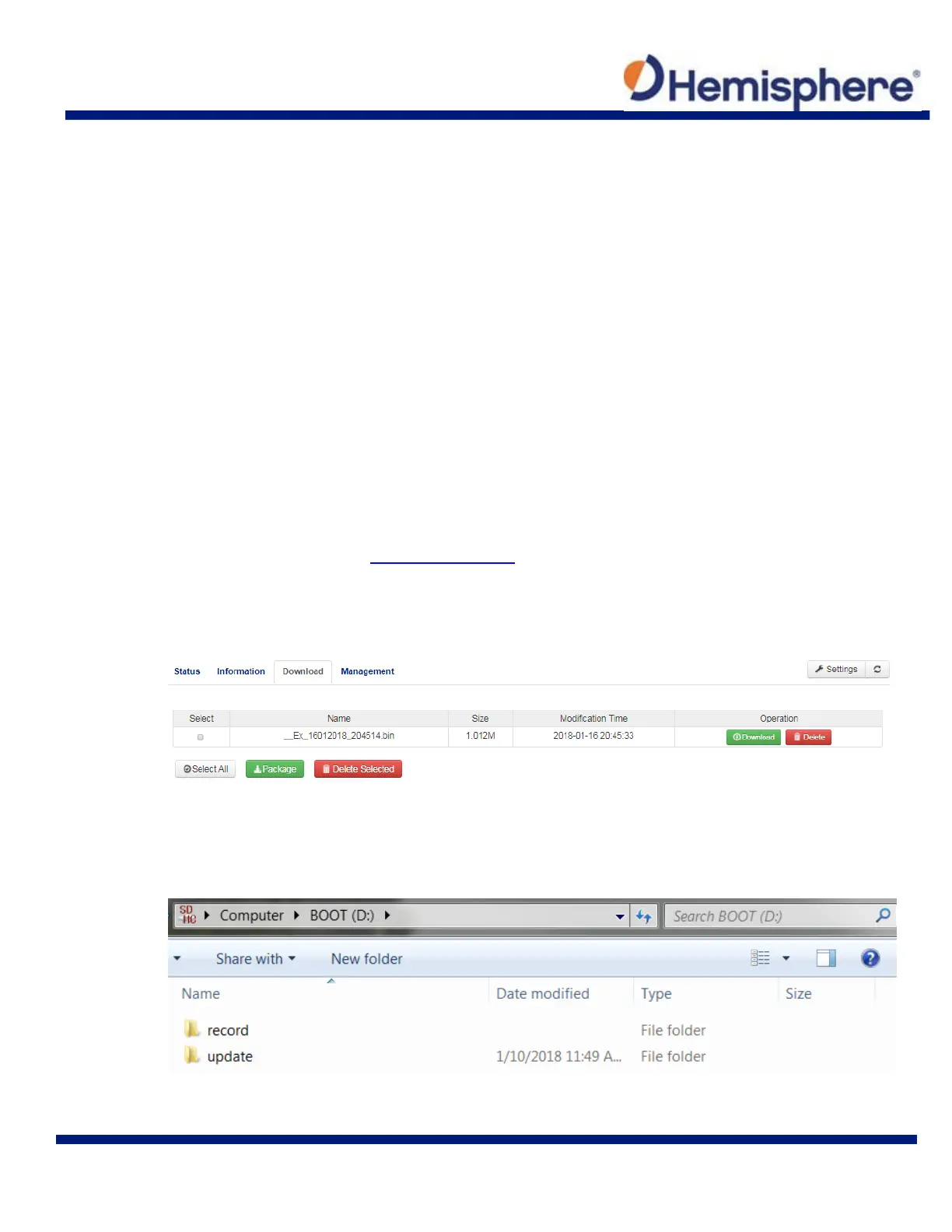
Place the upgrade files under “update” folder of the MicroSD card. Version info must be place
after the file name and separated by “_”. The name must follow the naming convention listed
below:
Receiver firmware: S321_update_YYMMDD.bin YY: Year MM: Month DD: Day
e.g. S321_update_160202.bin
Radio firmware: SATEL_update_XXXXX.bin XXXXX: version
e.g. SATEL_update_V07.27.2.0.8.6.bin
3G module firmware: PHS_update_XXXXX.bin XXXXX: version
e.g. PHS_update_03.001.bin
How to Download Static Data
Static data can be logged to the S321 internal memory or to a MicroSD card. If “First Storage” is
set to “Internal Storage” (see Device Configuration), the log files save to the internal memory of
the S321.
To download the logs, log into the WebUI and click Download.
If “First Storage” is set to “SD Card,” the files save to the MicroSD in the S321. If the MicroSD is
full, or the S321 does not have a MicroSD card placed inside, the files save to the S321 in a
folder called “record.”



 To Next Page