40
Hills – ComNav User Manual V1.3 www.das.com.au
Zone Name – Voice Recording
How to: Record a zone name
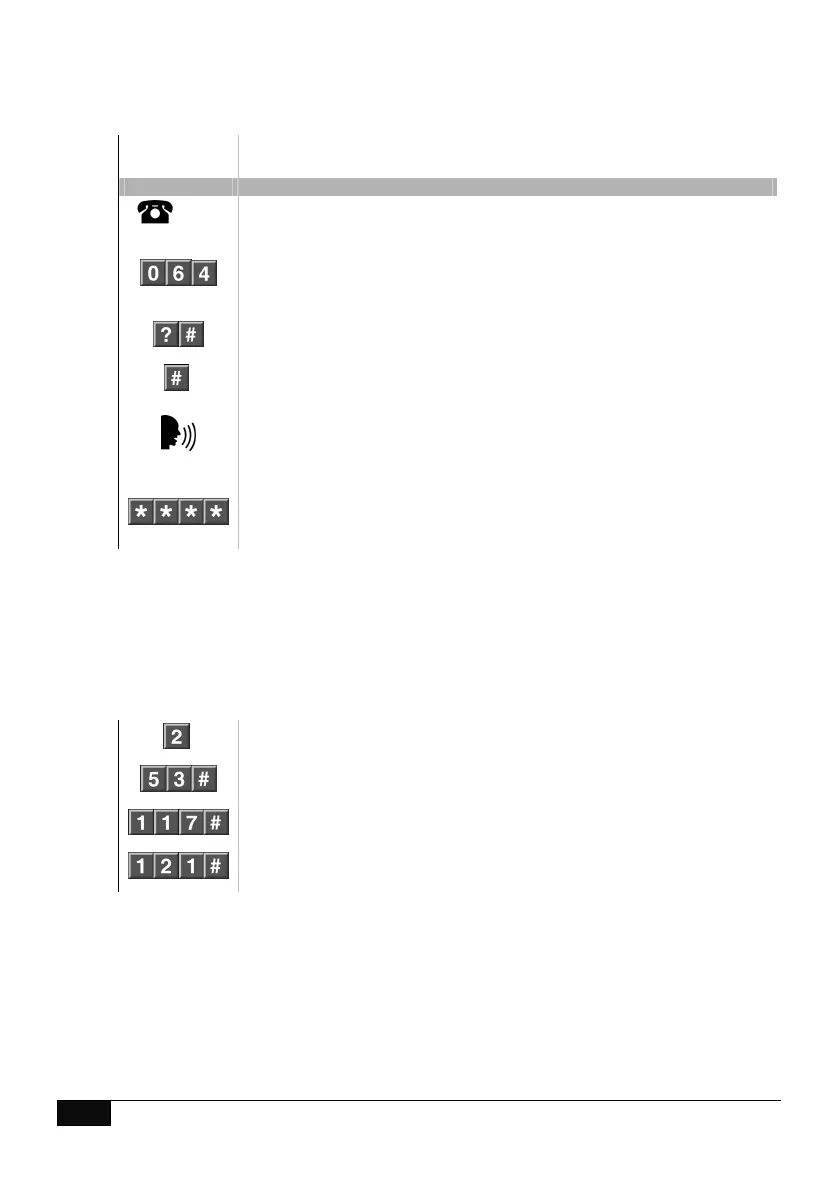
Step Example
To record a new zone name, and add this new recording to connected
VoiceNav code pads.
1.
[PIN]
Call the ComNav via an offsite touch-tone phone to begin the session.
2.
Press [0] for system configuration menu
Press [6] for voice message recording
Press [4] to record or configure a zone
3.
Select a zone number to record or configure, followed by #
4.
Press #, to record a new zone name
5.
Record 3 second zone name after the beep
6.
1
st
star, moves back to step 4, (select a zone number to record)
2
nd
star, moves back to voice message recording menu
3
rd
star, moves back to main menu
4
th
star, disconnects session
Zone Name – library word configuration
To configure a zone name using words from the word library (page 55) instead of recording your
own voice, replace steps 4 and 5 above with the following steps. Example: Dining room sensor
Up to eight library words can be strung together to achieve your desired phrase.
4.
Press [2], To configure a new zone name
5
Select library word one, followed by #. (EG: Dining = word 53)
Select library word two, followed by #. (EG: Room = word 117)
Select library word three, followed by #. (EG: Sensor = word 121)
Note: If your system is configured with VoiceNav code pads, you will be prompted to either copy
changed recordings or copy all recordings when exiting this menu. Copy changed recordings, will
only add the latest recordings whilst selecting copy-all recordings will overwrite all recordings, new
and old. Please contact your security provider to verify how your system is configured.
For multiple recordings, press * once at step 6, which will take you back to step 4, this will allow
additional recordings without exiting the system



 To Next Page