48
Hills – ComNav User Manual V1.3 www.das.com.au
Status and Area Control
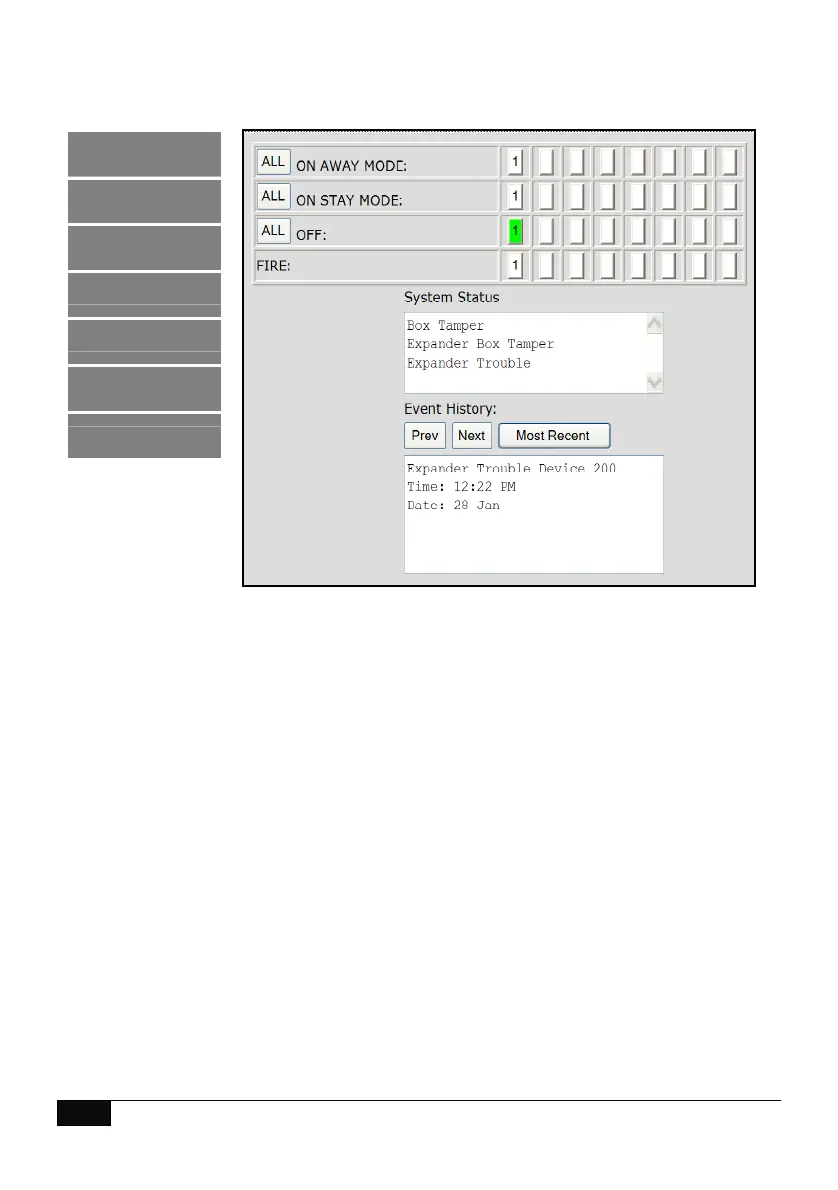
This menu allows for easy operation of the Hills Reliance security system, from arming and
disarming individual areas to reviewing the systems 185 event log.
Up to 8 active areas can be displayed, and control can be individual or as a group. Active areas will
be populated on the buttons on the right, with the screen shot above showing only one active area,
with all zones secure and disarmed.
To arm (turn on) an individual area/s, click on the area number/s in the “On Away Mode” row. To
fully arm all areas, click the “All” button in the “On Away Mode” row. The corresponding area
number/s will illuminate red indicating a successful arm of that area.
To stay arm (partially turn on) an individual area/s, click on the area number in the “On Stay Mode”
row. To stay arm all areas, click the “All” button in the “On Stay Mode” row. The corresponding area
number/s will illuminate yellow indicating a successful stay arm of that area.
To disarm area/s from either the stay or away arming modes, click on the area number to be
disarmed in the “Off” row. To disarm all areas, click the “All” button in the “Off” row. The
corresponding area number/s will stop illuminating red indicating a successful disarm of that area.
Area number
showing
Area is active, but some zones are not secure
Green Area is active, and all zones are secure
Yellow Area is armed in the stay mode
Red Area is armed in the away mode
Logout
Status and Control
Voice Reporting
Users
SMS Reporting
Call Divert
Email Reporting



 To Next Page