113
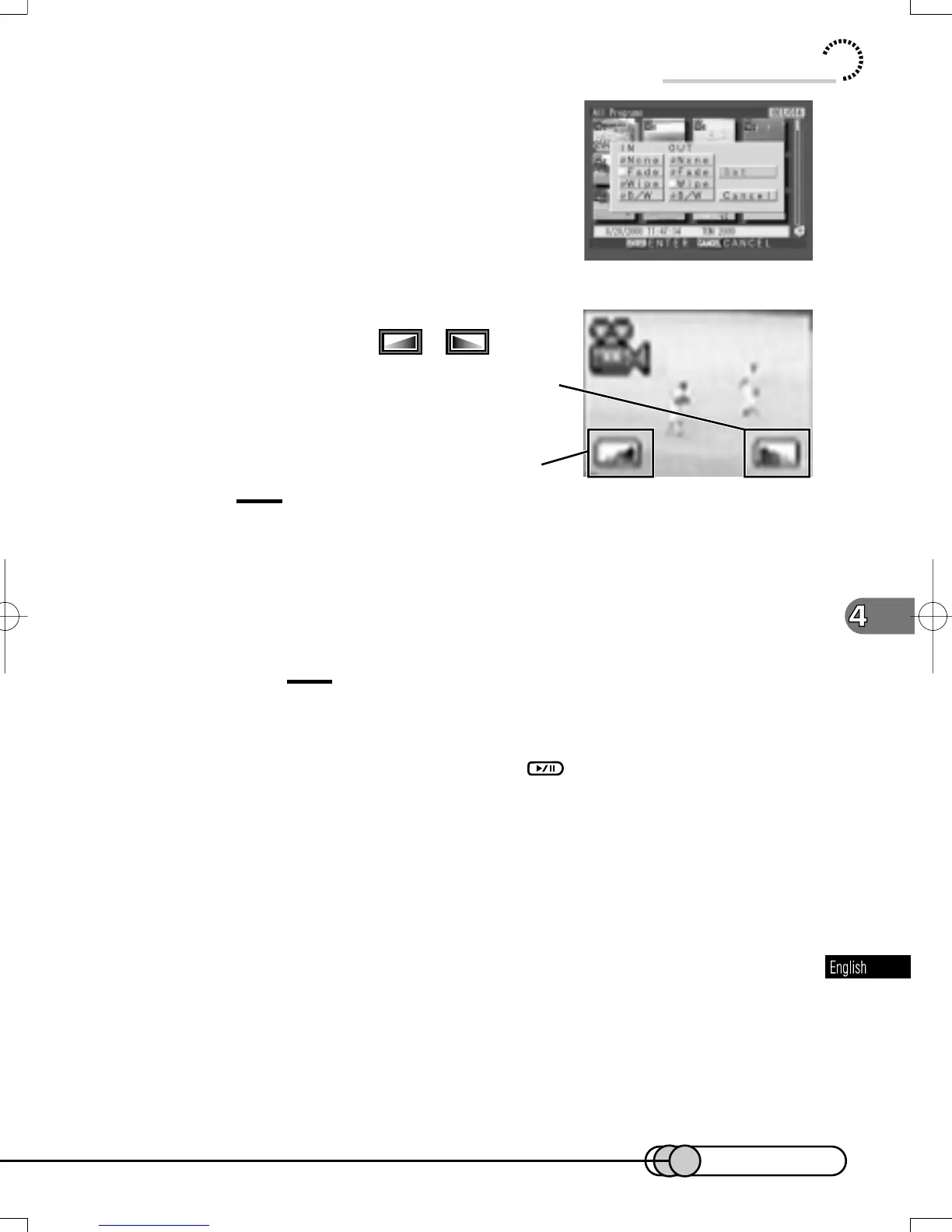
5. After selecting effects for “IN” and
“OUT”, choose “Set”, and then press
the ENTER button.
After the proceeding message appears, the
thumbnail display screen will be restored.
The scenes for which special effects have been set
will be attached with marks “
”, “ ”.
Tips:
• Any registered special effects can be changed at any time using the same
procedure as above.
• Special effects can also be added to on-screen information displayed
during playback.
Cautions:
• Special effects that can operate with stills are only fade in, wipe in and B/
W in.
• No special effect will operate if you press when in the recording
pause status.
• If you locate the start of a scene by skipping, the image at the start of the
scene will appear for a moment, and then fade will operate.
"In"effect
"Out"effect
Using Disc Navigation
E-P89-126 01.1.29, 1:53 PMPage 113 AdobePageMaker6.5J/PPC















 To Next Page