4-7
Connecting Cables
Connecting a Single Monitor, Multi-Display System, or Text-Only Terminal
Power Cord
If your monitor has an attached power cord, connect the plug to a power
source. If your monitor has a separate cord, connect the cord to the monitor,
then connect the plug to a power source.
WARNING: Do not connect your monitor to a power extension strip. Doing so can
cause a shock hazard.
NOTE: Do not turn on your monitor at this time.
Connecting a Terminal
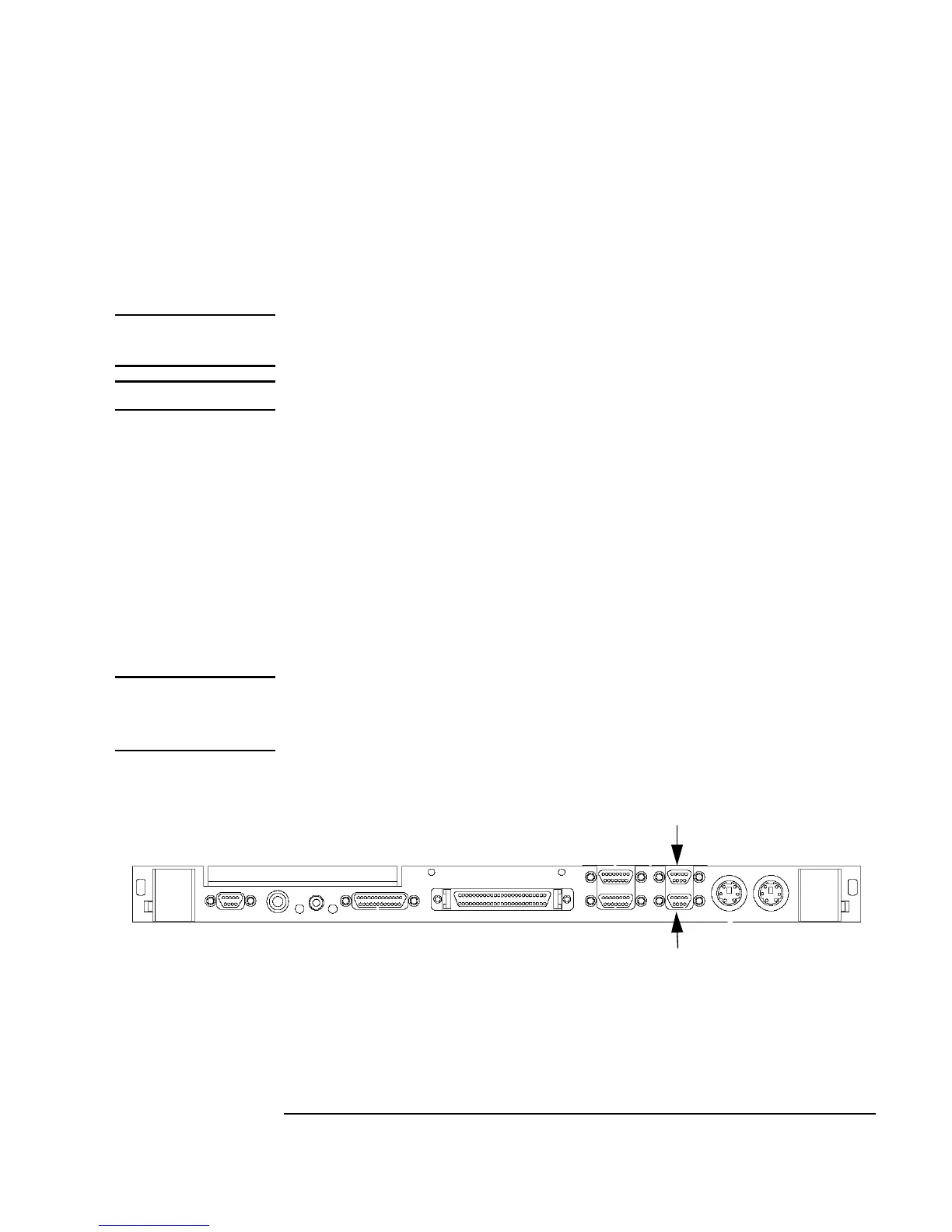
This section provides step-by-step instructions for connecting a terminal to
your Model 744 Board Computer. Refer to Figure 4-3.
1 Using the HP A4301A conversion RS-232C Cable, plug its micro-miniature con-
nector to one of the RS-232 connectors as follows:
• The recommended port for connecting a terminal is the (A) port.
• Using the (B) port for terminal connection is not recommended.
NOTE: Use of the (B) port requires that VME Services software be installed in the
kernel under HP-UX. The (B) port is not supported during “cold installs” of
HP-UX because VME Services is not installed in the “install kernel”.
Figure 4-3 Connecting a Terminal to the RS-232 Ports
2 Plug the standard end of the conversion cable into the appropriate connec-
tor of RS-232 serial cable HP 24525G.
RS-232 (B)
RS-232 (A)



 To Next Page