EasyManua.ls Logo

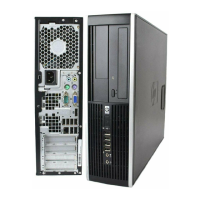
HP Elite 8300 Series Small Form Factor - User Manual

HP Elite 8300 Series Small Form Factor
356 pages
Print Icon
To Next Page IconTo Next Page
Loading...
HP Compaq Business PC Maintenance
and Service Guide
Elite 8300 Series Convertible Minitower
Elite 8300 Series Microtower
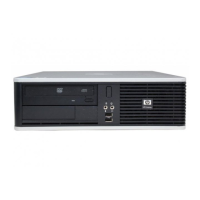
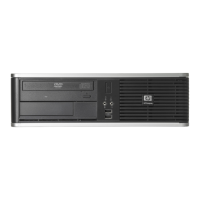
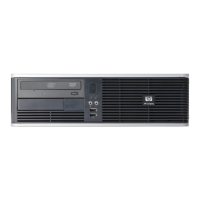
Elite 8300 Series Small Form Factor
Elite 8300 Series Ultra-Slim Desktop

Table of Contents

Other manuals for HP Elite 8300 Series Small Form Factor

Questions and Answers

  • S
    Sara DanielAug 18, 2025
    What to do if my HP Desktop is not responding to keyboard or mouse?
    • F
      Felicia WellsAug 18, 2025
      If your HP Desktop is not responding to the keyboard or mouse, it might be in Sleep state. To resume, press the power button. Alternatively, the system may have locked up, in which case you should restart the computer.
  • R
    Rachel SparksAug 23, 2025
    Why is my HP Elite 8300 Small Form Factor Desktop performance so bad?
    • J
      Jessica CostaAug 23, 2025
      If your HP Desktop is performing poorly, ensure that airflow to the computer is not blocked. Transfer data from the hard drive to create more space. Add more memory. Defragment the hard drive. Restart the computer. This can be caused by the processor being too hot, the hard drive being full or fragmented, or low memory.
  • B
    bailey43Aug 26, 2025
    What does it mean when my HP Desktop flashes red and beeps twice?
    • B
      Bryan ScottAug 26, 2025
      If your HP Desktop computer powered off automatically and the Power LED flashes Red two times, once every second, followed by a two second pause, and the computer beeps two times, it means that processor thermal protection has been activated. Ensure that the computer air vents are not blocked and the processor cooling fan is running. Open the access panel, press the power button, and see if the processor fan (or other system fan) spins. If the fan is plugged in and not spinning, replace it. This can happen if a fan is blocked or not turning, or if the heat sink is not properly attached to the processor.
  • S
    shawn72Aug 28, 2025
    How to fix sound issues on HP Elite 8300 Small Form Factor?
    • M
      Mr. Jason PerezAug 28, 2025
      If your HP Desktop has no sound or the sound volume is too low, check the Computer Setup settings to make sure the internal system speaker is not muted. Make sure the external speakers are properly connected and powered on and that the speakers' volume control is set correctly. Use the system volume control available in the operating system to make sure the speakers are not muted or to increase the volume. This may be happening because the system volume is set low or muted.
  • B
    bryantjackAug 30, 2025
    What to do if my HP Elite 8300 Small Form Factor Desktop freezes after the HP logo?
    • M
      Melanie DavisAug 30, 2025
      If your HP Desktop computer will not continue after the HP logo screen displays, in Windows 7, use recovery media to scan the hard drive for errors, or use Windows Startup Repair to fix problems that might prevent Windows from starting correctly. This issue can happen if system files are damaged.
  • M
    Mario MathisSep 2, 2025
    What if my HP Elite 8300 Small Form Factor Desktop won't boot from the hard drive?
    • T
      terrimartinezSep 2, 2025
      If your HP Desktop computer will not boot from the hard drive, check SATA cable connections. Run the Computer Setup utility and change boot sequence in Storage > Boot Order. Run the Computer Setup utility and change the “Emulation Type” to “Hard Disk” in the device's details under Storage > Device Configuration. The device may be attached to a SATA port that has been hidden in Computer Setup, the boot order is not correct, or the hard drive's “Emulation Type” is set to “None.”
  • J
    Jessica HermanSep 4, 2025
    How to correct the date and time on my HP Elite 8300 Small Form Factor Desktop?
    • M
      miguelellisSep 4, 2025
      If your HP Desktop date and time display is incorrect, reset the date and time under Control Panel. If the problem persists, replace the RTC battery. The RTC (real-time clock) battery may need to be replaced.
  • E
    Edward MaddenSep 7, 2025
    How to enable CD-ROM or DVD drive boot on HP Desktop?
    • M
      Mary ArnoldSep 7, 2025
      If your HP Desktop computer will not boot from CD-ROM or DVD drive, run the Computer Setup utility and disable Network Boot in Security > Network Boot. This issue can happen if Network Boot is enabled in Computer Setup.
  • S
    Samantha MartinSep 9, 2025
    Why won't the arrow keys move the cursor on my HP Desktop?
    • N
      Nina KlineSep 10, 2025
      If the cursor will not move using the arrow keys on the keypad of your HP Desktop, press the Num Lock key. The Num Lock light must be off if you want to use the arrow keys on the keypad. This issue occurs if the Num Lock key is turned on.
  • M
    Madeline AlvarezSep 12, 2025
    How to make my HP Elite 8300 Small Form Factor Desktop recognize a USB drive letter?
    • D
      Donna DunnSep 12, 2025
      If your USB flash drive is not seen as a drive letter in Windows on your HP Desktop, change the default drive letter for the flash drive in Windows. This is because the drive letter after the last physical drive is not available.

Summary

Product Features

Standard Configuration Features

Overview of standard configuration features and model variations.

Convertible Minitower (CMT) Front Panel Components

Detailed description of front panel components for the Convertible Minitower.

Microtower (MT) Front Panel Components

Detailed description of front panel components for the Microtower.

Small Form Factor (SFF) Front Panel Components

Detailed description of front panel components for the Small Form Factor.

Ultra-Slim Desktop (USDT) Front Panel Components

Detailed description of front panel components for the Ultra-Slim Desktop.

Serial Number Location

Information on where to find the serial and product ID numbers on the computer.

Activating and Customizing the Software

Activating and Customizing Software in Windows 7

Steps for activating and customizing software for Windows 7.

Downloading Windows 7 Updates

Guidance on downloading updates for the Windows 7 operating system.

Installing or Upgrading Device Drivers

Instructions for installing or upgrading device drivers after OS installation.

Activating and Customizing Software in Windows 8

Steps for activating and customizing software for Windows 8.

Downloading Windows 8 Updates

Guidance on downloading updates for the Windows 8 operating system.

Computer Setup (F10) Utility

Computer Setup (F10) Utilities Overview

Overview of available functions within the Computer Setup utility.

Using Computer Setup (F10) Utilities

Step-by-step instructions on how to access and navigate the Computer Setup utility.

Illustrated Parts Catalog

Convertible Minitower (CMT) Chassis Spare Parts

List of spare parts for the Convertible Minitower chassis, including components.

Microtower (MT) Chassis Spare Parts

List of spare parts for the Microtower chassis, including components.

Small Form Factor (SFF) Chassis Spare Parts

List of spare parts for the Small Form Factor chassis, including components.

Ultra-Slim Desktop (USDT) Chassis Spare Parts

List of spare parts for the Ultra-Slim Desktop chassis, including components.

Routine Care, SATA Drive Guidelines, and Disassembly Preparation

Electrostatic Discharge (ESD) Information

Precautions and procedures to prevent damage from static electricity.

Operating Guidelines

General guidelines for operating the computer to ensure proper function and longevity.

Routine Care and Cleaning

Procedures for cleaning the computer's exterior and interior components.

Removal and Replacement Procedures Convertible Minitower (CMT) Chassis

Preparation for Disassembly

Initial safety procedures and preparation steps before disassembling the computer.

Access Panel and Front Bezel

Instructions for removing and replacing the access panel and front bezel.

System Board Connections and Memory

Details on system board connectors and installing memory modules (DIMMs).

Expansion Card and Drives

Procedures for installing/removing expansion cards and drives, including drive bay locations.

Processor, Power Supply, and System Board

Instructions for replacing the processor, power supply, and system board.

Removal and Replacement Procedures Microtower (MT) Chassis

Preparation for Disassembly

Initial safety procedures and preparation steps before disassembling the computer.

Computer Access Panel and Front Bezel

Instructions for removing and replacing the access panel and front bezel.

Memory and Expansion Cards

Procedures for installing/removing memory modules and expansion cards.

Drives, Fans, and Heat Sink

Steps for handling drives, fans, and the processor heat sink.

Processor and System Board

Instructions for replacing the processor and the system board.

Removal and Replacement Procedures Small Form Factor (SFF) Chassis

Preparation for Disassembly

Initial safety procedures and preparation steps before disassembling the computer.

Access Panel and Front Bezel

Instructions for removing and replacing the access panel and front bezel.

Memory and Expansion Cards

Procedures for installing/removing memory modules and expansion cards.

Drives, Fans, and Heat Sink

Steps for handling drives, fans, heat sink, and related components.

Processor and System Board

Instructions for replacing the processor and the system board.

Removal and Replacement Procedures Ultra-Slim Desktop (USDT) Chassis

Preparation for Disassembly

Initial safety procedures and preparation steps before disassembling the computer.

Access Panel and Front Bezel

Instructions for removing and replacing the access panel and front bezel.

Memory and SODIMMs

Details about SODIMM memory modules, including installation and configuration.

Front Fan and Optical Drive

Procedures for removing and replacing the front fan and optical drive.

Hard Drive, Heat Sink, and Processor

Steps for handling hard drives, heat sink, and the processor.

System Board and Rear Fan

Instructions for replacing the system board and rear fan.

Troubleshooting Without Diagnostics

Safety and Comfort

Guidelines for establishing a safe and comfortable work environment.

Before You Call for Technical Support

Steps to isolate problems before contacting technical support.

Solving General Problems

Common causes and solutions for general computer issues.

Solving Power Problems

Common causes and solutions for power supply issues.

Solving Hard Drive Problems

Common causes and solutions for hard drive errors and performance issues.

Solving Display Problems

Common causes and solutions for display and monitor issues.

Solving Audio Problems

Common causes and solutions for audio output and playback issues.

Solving Hardware Installation Problems

Troubleshooting steps for unrecognized or conflicting hardware installations.

Solving Network Problems

Common causes and solutions for network connectivity and controller issues.

Solving Memory Problems

Troubleshooting steps for memory installation and performance issues.

Solving Processor Problems

Common causes and solutions for processor performance and installation issues.

Solving Software Problems

Troubleshooting steps for application installation, memory, and driver conflicts.

POST Error Messages

POST Numeric Codes and Text Messages

List of numeric codes and text messages encountered during POST and their recommended actions.

Interpreting POST Diagnostic Front Panel LEDs and Audible Codes

Guide to understanding front panel LED and audible error codes for diagnostics.

Password Security and Resetting CMOS

Resetting the Password Jumper

Procedure to reset setup or power-on passwords by using the password jumper.

Clearing and Resetting the CMOS

Steps to clear CMOS settings to factory defaults, including AMT settings.

HP PC Hardware Diagnostics

Why Run HP PC Hardware Diagnostics - UEFI

Benefits of using HP PC Hardware Diagnostics for identifying hardware failures.

How to Access and Run HP PC Hardware Diagnostics - UEFI

Instructions on accessing and running the UEFI diagnostics tool.

Downloading HP PC Hardware Diagnostics to a USB Device

Steps to download diagnostic tools onto a USB drive for system diagnostics.

Backup and Recovery

Restoring and Recovering in Windows 7

Procedures for backing up data and performing system recovery in Windows 7.

Backup and Recovery in Windows 8

Using Windows Backup and Restore for data protection and system recovery in Windows 8.

Performing a System Recovery

Detailed steps for performing system recovery using Windows tools or recovery media.

Power Cord Set Requirements

General Requirements

General requirements for power cord sets applicable to all countries.

Japanese Power Cord Requirements

Specific power cord requirements for use in Japan.

Country-Specific Requirements

Additional requirements specific to various countries for power cords.

Specifications

CMT Specifications

Technical specifications for the Convertible Minitower (CMT) chassis.

MT Specifications

Technical specifications for the Microtower (MT) chassis.

SFF Specifications

Technical specifications for the Small Form Factor (SFF) chassis.

USDT Specifications

Technical specifications for the Ultra-Slim Desktop (USDT) chassis.

HP Elite 8300 Series Small Form Factor Specifications

General IconGeneral
ChipsetIntel Q77 Express
ProcessorIntel Core i7-3770, Intel Core i5-3570, Intel Core i5-3470, Intel Core i3-3220
MemoryUp to 32 GB DDR3
GraphicsIntegrated Intel HD Graphics
Optical DriveDVD-ROM
PortsUSB, DisplayPort, VGA, serial, PS/2, audio in/out
Operating SystemWindows 10, Windows 8, Windows 7, FreeDOS
AudioIntegrated high-definition audio
NetworkGigabit Ethernet
Power Supply240W
Dimensions33.8 x 37.9 x 10.0 cm
WeightApprox. 7.6 kg

Related product manuals