108 Getting Connected
Changing the screen orientation
The phone automatically changes the screen orientation depending on how you
are holding your phone.
Note The Orientation check box in HOME> MENU > Settings > Sound & display needs to
be selected for the screen orientation to automatically change.
Browsing classic views (not mobile version) of web pages
On a browser screen, press MENU, then tap More > Settings, and then clear the
Mobile view check box.
Navigating on a web page
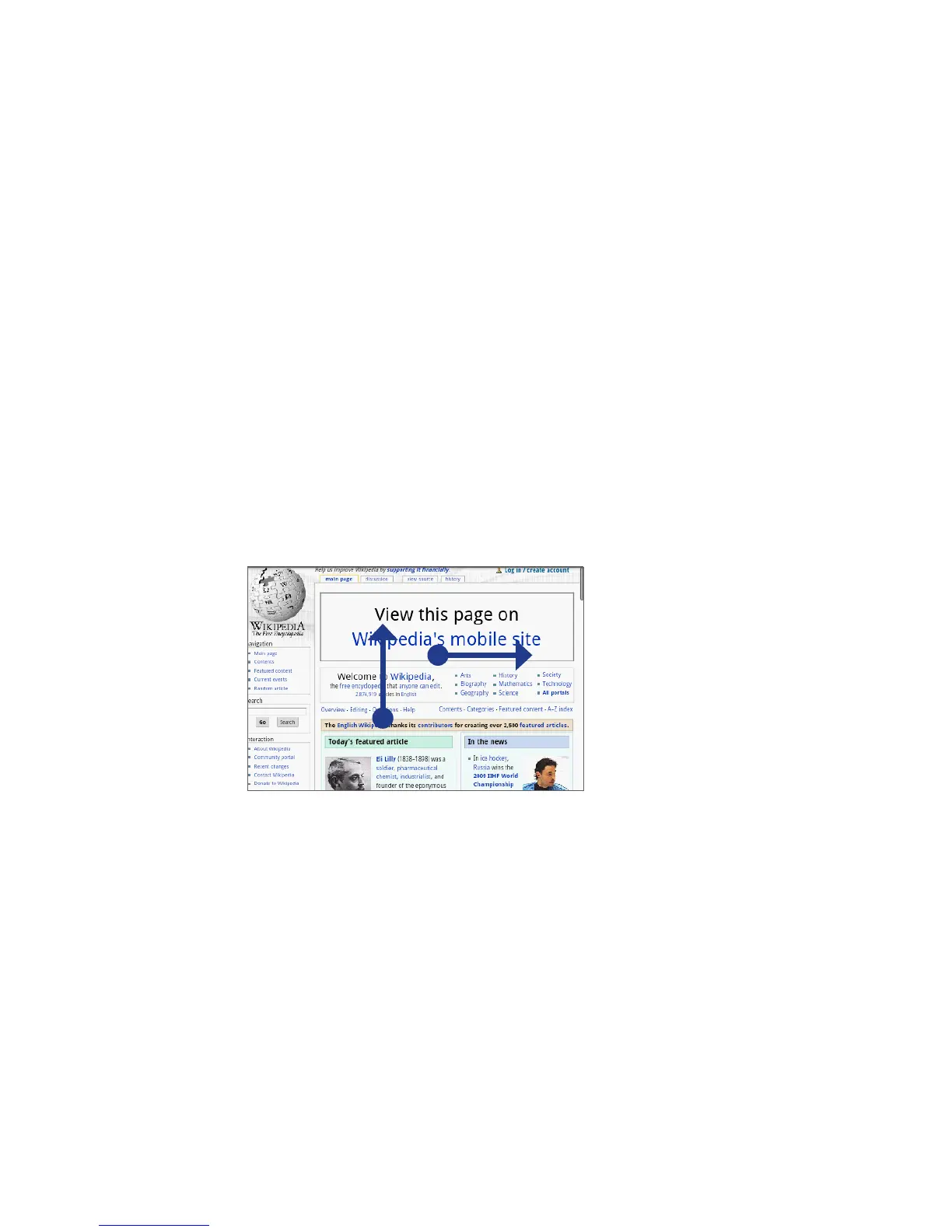
You can roll the TRACKBALL or slide your finger on the screen in any direction to
navigate and view other areas of the web page.
Slide your finger
left or right to
scroll horizontally.
Slide your finger
up or down to
scroll vertically.
Zooming in or out on a web page
Tap the screen twice quickly to zoom in, then tap the screen twice quickly again to
zoom out. You can also use your fingers to pinch or spread the screen to zoom in
and out.


 To Next Page