82 Entering Text
To enter text using Compact QWERTY
1. Start a program that accepts text input.
2.
Tap , and then tap Keyboard types > Compact QWERTY.
3.
Start tapping keys on the onscreen keyboard to enter your text.
Phone keypad
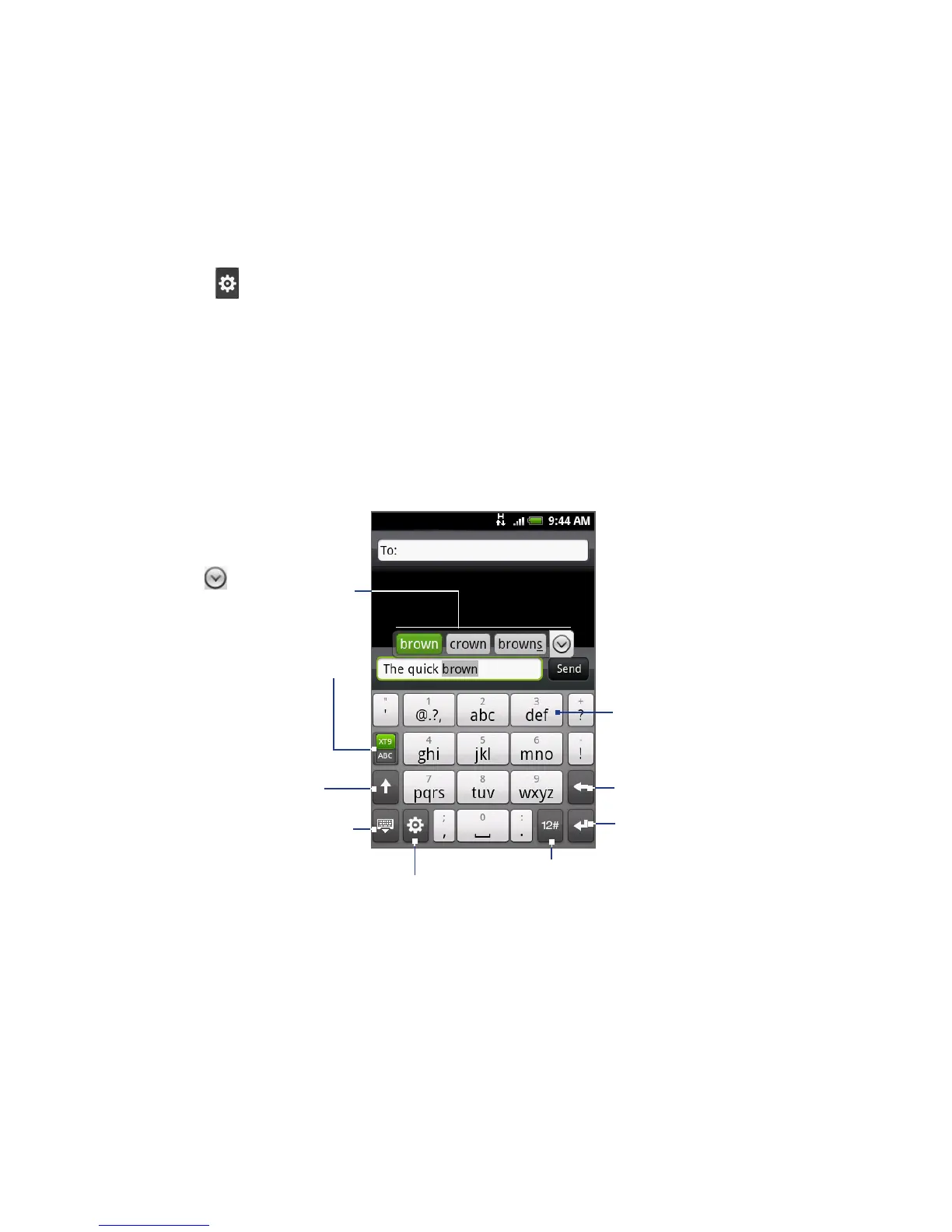
Phone keypad is a 12-key onscreen keypad that has a layout similar to mobile
phone keypads, plus some additional keys. The Phone keypad has large keys and
enhanced input features such as XT9 predictive input, which makes it faster for you
to enter text in your messages and documents.
Tap to toggle between
using Multitap or XT9
mode.
Displays the word candidate
list in XT9 mode. Tap a
word to insert it into your
text. Tap to see more
candidate words.
• Tap to enter letters or
symbols.
• Press and hold to
enter a punctuation
mark, symbol, or
number that appears
on top of a key.
• Tap to enter an
uppercase letter.
• Tap twice to turn
on Caps Lock.
Tap to switch to the numeric and
symbol keyboard. See “Entering
Numbers and Symbols” for details.
Tap to create a new
line.
Tap to delete the
previous character.
Tap to hide the
keyboard.
Tap to open a menu where you can
change the keyboard layout and
open the Touch Input Settings.
See “Adjusting Text Input and
Keyboard Settings” for details.


 To Next Page