Getting Connected 113
Managing bookmarks
You can store as many bookmarks as you want on your phone.
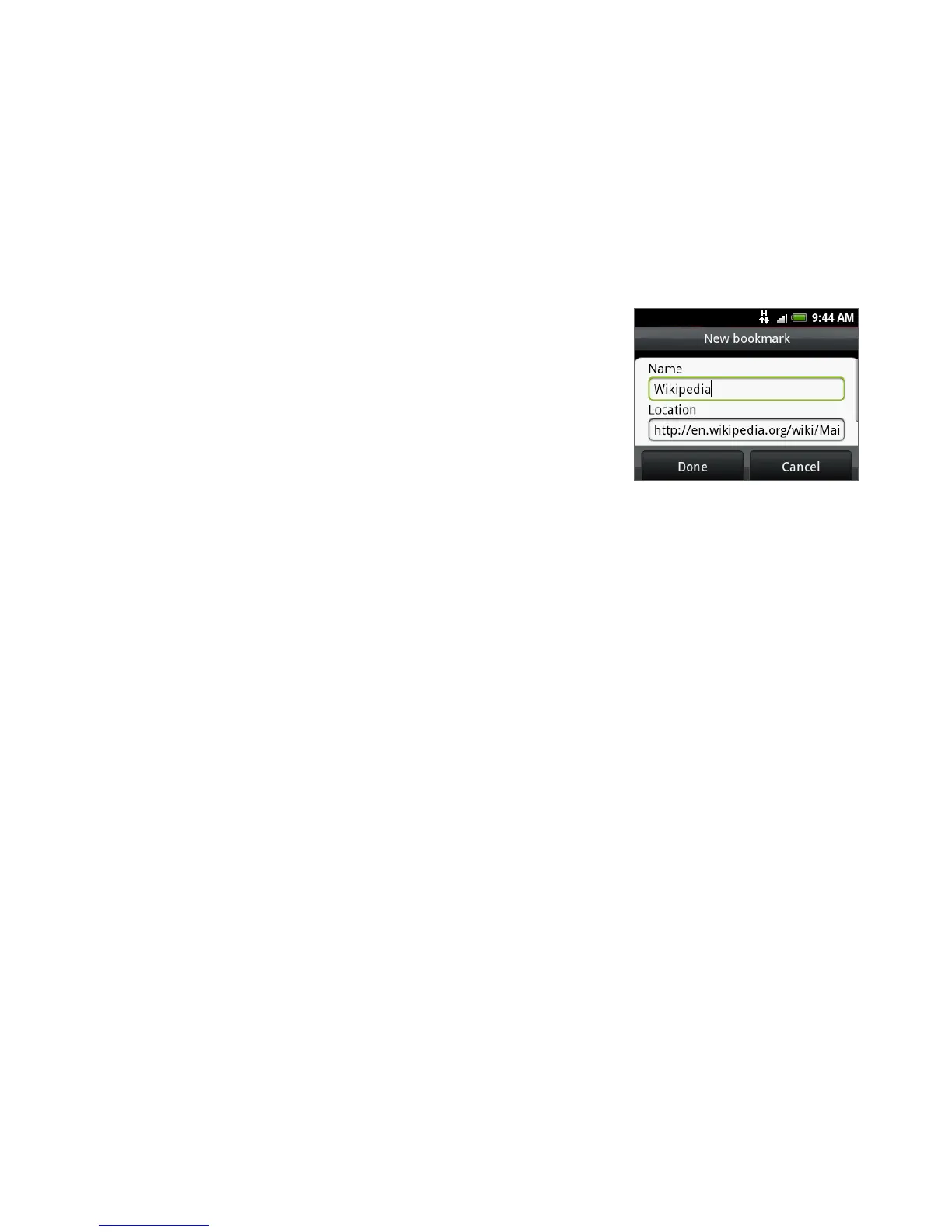
To bookmark a web page
On a browser screen, go to the web page you
want to book mark.
Press MENU and then tap New bookmark. The
New bookmark screen opens.
Edit the bookmark Name if needed and then
tap Done.
1.
2.
3.
To open a bookmark
On the Browser screen, press MENU and then tap Bookmarks.
Select the bookmark you want to open by sliding your finger from right to
left.
Once the bookmark you want to open is selected, tap it to open it.
By default, a snapshot of the bookmarked web page is shown, letting you visually
select the bookmark. You can toggle between using visual bookmarks or a list by
pressing MENU and then tapping List or Thumbnails.
To edit a bookmark
On the Browser screen, press MENU and then tap Bookmarks.
Press MENU and then tap Edit.
Select the bookmark you want to edit by sliding your finger from right to left.
Once the bookmark you want to edit is selected, tap it.
Enter your changes and tap Done.
If you are using the List view, press and hold the bookmark you want to edit, and
then tap Edit bookmark to edit the bookmark.
1.
2.
3.
1.
2.
3.
4.
5.


 To Next Page