Camera and Multimedia 127
To zoom in or out on a picture
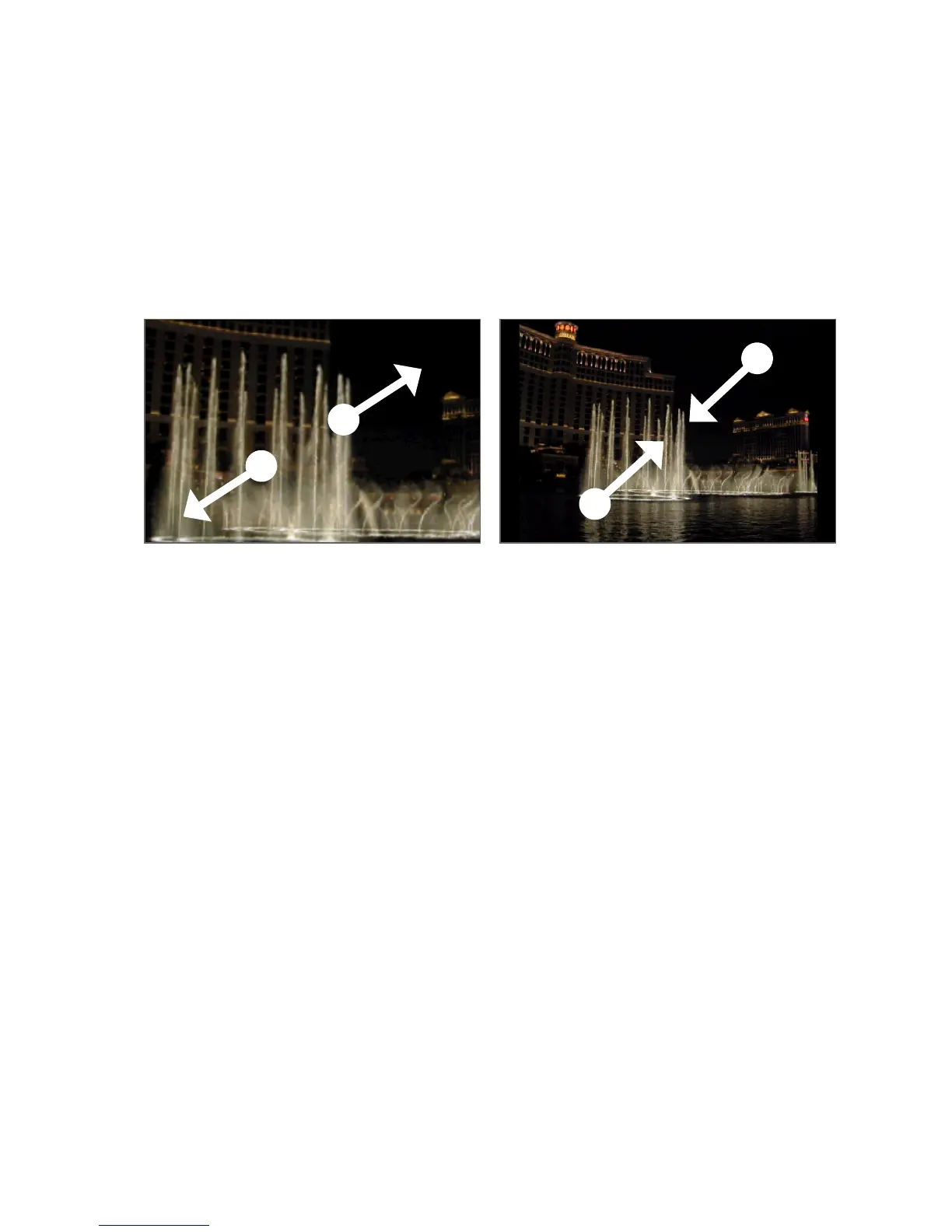
Tap the screen twice quickly to zoom in, then tap the screen twice quickly again to
zoom out. You can also use your fingers to pinch or spread the screen to zoom in
and out.
Use your thumb and index fingers to
‘spread’ the picture to zoom in.
Use your thumb and index fingers to ‘pinch’
the picture to zoom out.
To view a picture in landscape orientation
Turn your phone sideways to view the picture in landscape mode. The picture
orientation automatically adjusts to how you hold the phone.
Note The Orientation check box in HOME> MENU > Settings > Sound & display needs to
be selected for the screen orientation to automatically change.
If you want to rotate the picture and save the rotated state, see “To rotate and save
the rotated state” below.
To rotate and save the rotated state
1. View the picture you want to rotate in full screen
2.
Press MENU, then tap Rotate, and then select either Rotate left or Rotate
right.
Note The Picture rotates 90 degrees counter-clockwise (Rotate left) or 90 degrees clockwise
(Rotate right) each time you tap one of the Rotate options.


 To Next Page